Managing Connections to PeopleSoft
Multiple connections to PeopleSoft data sources are possible from within one server configuration. However, depending on your reporting requirements, it may be optimal to create separate configurations for each data source.
Creating multiple connections using the same server configuration is a good option under the following circumstances:
- The site has two or more PeopleSoft application suites and must perform significant combined reporting. A typical example is a site that has both PeopleSoft HRMS and PeopleSoft Financials applications where you must display data from both systems in a single report.
- Two or more PeopleSoft data sources that must be accessed reside on the same system. If the data sources must be accessed for display in a single report output and if the server is located on the same computer system, this architecture can provide optimal performance.
- Two or more PeopleSoft data sources reside in different locations with requirements for moderate to significant consolidated reporting. This architecture provides optimal effectiveness in report development, system maintenance, and performance.
Create separate configurations instead of using multiple connections in these situations:
- Only a single PeopleSoft production data source must be supported. Each development and test instance should have a separate configuration.
- Multiple PeopleSoft data sources exist with only a limited requirement for combining data in reports.
The remaining instructions in this topic assume a single configuration directory structure for one or more data source connections.
Updating a PeopleSoft Connection
If it becomes necessary to update the connection parameters to a PeopleSoft data source, you can use Administration options to perform the following functions:
- Turn PeopleSoft data access security enforcement on or off.
- Toggle between trusted and password authentication.
- Manage the user access specification type.
- Manage all data source identification information.
- Define default synonym behavior.
Edit a PeopleSoft Connection
- Procedure
- In the PeopleSoft menu, select the connection you want to manage from the Select Connection drop-down list. For details on accessing the PeopleSoft menu, see Accessing the Adapter for PeopleSoft Administrator.
- Click Connections under
the Administration group.
The Administration - Maintain Connections window opens.
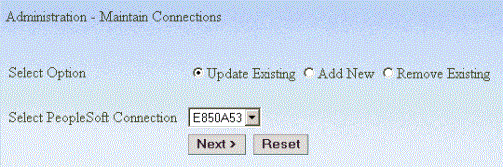
- Select Update Existing.
- Select a connection from the Select PeopleSoft Connection drop-down list.
- Click Next.
The Administration - Update a PeopleSoft Connection window opens. For details, see Administration - Create a New PeopleSoft Connection Window.
- Make the necessary modifications, test the connection,
and if successful, click Configure. If not
successful, edit the information until the test is successful, then
click Configure. For more information, see
step 5 in Add a PeopleSoft Data Source Instance.
Note: The Configure button becomes available once the connection test to the selected RDBMS is successful.
- On the next screen, click Next.
Updating Connections
When you change the Specify Security Access By setting, you must re-synchronize security before changes will take effect. We suggest that you remove all currently configured users before you make this change, and re-add them after security settings have been modified.
As when you modify authentication information, you must be careful to manage changes to data source connectivity correctly. Always modify your settings in the PeopleSoft Connection first, then change them at the data source. Where possible, keep both access options in place during a configuration conversion process until tests have verified a successful switch.
Adding a PeopleSoft Connection
After you add your first connection, you can specify additional PeopleSoft connections. Note that during this process, you are not prompted for the DBA information prior to managing metadata and connection information since all additional PeopleSoft data sources must use the same DBA in order for base metadata to function properly.
Add a PeopleSoft Data Source Instance
- Procedure
- In the PeopleSoft menu, select the connection you want to manage from the Select Connection drop-down list. For details on accessing the PeopleSoft menu, see Accessing the Adapter for PeopleSoft Administrator.
- Click Connections under
the Administration group.
The Administration - Maintain Connections window opens.
- Select Add
New.
Note: If there are currently no connections, Add will be the only option.
- Click Next.
The Administration - Create a New PeopleSoft Connection window opens. For details, see Administration - Create a New PeopleSoft Connection Window.
- Type the necessary information and click Test Connection.
If
- The connection is successful, the following message
will appear in green to the right of the button:
Connection successful
- The connection is unsuccessful, the following message will appear
in red to the right of the button with the relevant RDBMS return
code:
Connection failed - return code: nnnn
When the test is successful, the Configure button appears.
- The connection is successful, the following message
will appear in green to the right of the button:
- Click Configure.
- On the next screen, click Next.
When processing finishes, you can manage your synonyms and security for this connection.
Removing a PeopleSoft Connection
The integration with PeopleSoft depends on valid connection information. If a previously created connection is no longer required, you should remove that connection.
Remove a PeopleSoft Connection
- Procedure
- In the PeopleSoft menu, select the connection you want to manage from the Select Connection drop-down list. For details on accessing the PeopleSoft menu, see Accessing the Adapter for PeopleSoft Administrator.
- Click Connections under
the Administration group.
The Administration - Maintain Connections window opens.
- Select a connection from the Select Connection drop-down list.
- Select Remove Existing.
- Click Next.
The Administration - Remove a PeopleSoft Connection window opens.
You are prompted to confirm. After confirmation, the system removes the selected PeopleSoft Connection and all of its associated metadata.