Managing RESTful Web Services Metadata
When the server accesses a RESTful Web Services provider, it needs to know how to pass parameters and accept responses for each REST request. In most RESTful Web Services, the Web Services provider documentation is used in determining the parameters to pass and the expected response. Therefore, the Create Synonym process sends a REST request including parameters to determine the response from the Web Service.
Creating Synonyms
A synonym defines a unique logical name (also known as an alias) for each Web Services operation. Synonyms are useful because:
- They insulate client applications from changes to the location and identity of a request. You can move or rename a request without modifying the client applications that use it. You need make only one change, redefining the request synonym on the server.
- They provide support for the extended metadata features of the server, such as virtual fields and security mechanisms.
Creating a synonym generates a Master File and an Access File. These are metadata files that describe the Web Services request to the server.
Each synonym you create represents a single operation.
Create a Synonym
- Procedure
- From the WebFOCUS Reporting Server browser interface Application page, click Get Data.
- On the
Configured Adapters section of the page, in Simple Mode, right-click an adapter
and click
Show
Connections. Right-click a connection.
Depending on the type of adapter you choose, one of the following options appears on the context menu.
- Show DBMS objects. This option opens the page for selecting synonym objects and properties.
- Create metadata objects. This option opens the page for selecting synonym objects and properties.
- Show files. This option opens a file picker. After you choose a file of the correct type, the page for selecting synonym objects and properties opens.
- Show local files. This option opens a file picker. After you choose a file of the correct type, the page for selecting synonym objects and properties opens.
- Show topics. This option opens the page for selecting synonym objects and properties for topics within the environment.
- Enter values for the parameters required by the adapter as described in the chapter for your adapter.
- After
entering the parameter values, click
Add.
This button may be labeled Next, Create Synonym, Create Base Synonyms, Create Cluster Synonym, or Update Base Synonyms.
The synonym creation process for most adapters has been consolidated so that you can enter all necessary parameters on one page. However, for some adapters such as LDAP, continue clicking Next until you get to a page that has a Create Synonym button.
The synonym is created and added under the specified application directory.
Synonym Creation Parameters for RESTful Web Services
The following list describes the parameters for which you will need to supply values, and related tasks you will need to complete in order to create a synonym for the adapter. These options may appear on multiple panes. To advance from pane to pane, click the buttons provided, ending with the Create Synonym button, which generates the synonym based on your entries.
Select one of the following REST operations:
- Get. GET operation.
- Post. POST operation.
Is an extension to the Base URL used to perform specific functionality from the RESTful Web Service.
The Base URL is concatenated with the Service URL Extension at run time to make the REST request. This parameter must have a value. For example:
postalCodeSearch
When checked, parameterizes the Service URL Extension.
Additional fields will be added to the Master file for each part of the path of the Service URL extension. The field names created will start with the character ID and have a numeric suffix equal to the part of the path that is being parameterized.
For example, if the Service URL extension is a/b/c, the following fields will be added to the Master file:
FIELDNAME=ID1, ALIAS=id, USAGE=A1, ACTUAL=A1,
  ACCESS_PROPERTY=(NEED_VALUE), XDEFAULT='a', $
FIELDNAME=ID2, ALIAS=id, USAGE=A1, ACTUAL=A1,
  ACCESS_PROPERTY=(NEED_VALUE), XDEFAULT='b', $
FIELDNAME=ID3, ALIAS=id, USAGE=A1, ACTUAL=A1,
  ACCESS_PROPERTY=(NEED_VALUE), XDEFAULT='c', $
The OBJECT attribute in the Access file will be a path containing the fields added in the Master file enclosed with an ampersand (&) character. For example, if the Service URL extension is a/b/c, the following OBJECT attribute will be added in the Access file:
OBJECT=&ID1&/&ID2&/&ID3&
Are the parameter name and value pairs that will be used in making a REST request in order to create metadata from the response.
The input parameter names will also be included in the metadata.
It is important to note that with certain RESTful Web Services, different parameters and/or parameter values could return a different structured response. Therefore, different synonyms should be created for each differently structured response. For example:
postalcode=9011&maxRows=10&username=demo
This parameter becomes visible only if Post is selected as the operation.
It is used in conjunction with the Service URL Parameters field by passing the Body portion of the REST request to create the metadata. The body can be made up of any combination of name-value pairs, XML, and JSON. For example:
IBIRS_action=put&object=<object _jt="IBFSUserObject" description="Rest Userid" email="restid@informationbuilders.com" password="rest"
type="User"> <status _jt="IBSSUserStatus" name="ACTIVE"/> </object>&IBIRS_replace=true
Custom Header values should be enclosed in double quotation marks, and the individual custom headers should be delimited by semi-colons (;). For example:
Content-Type="CDF";PARAM1="ABC"
Defining custom headers in the connection string makes the custom headers apply to the entire REST service. Custom headers can also be defined at the metadata level. Defining the custom headers at the metadata level makes the custom headers apply to the specific REST call, and the custom header values can be changed at report time using WHERE or IF phrases.
Select the Validate checkbox if you wish to convert all special characters to underscores and perform a name check to prevent the use of reserved names. (This is accomplished by adding numbers to the names.) This parameter ensures that names adhere to specifications. See Validation for Special Characters and Reserved Words for more information.
When the Validate option is unchecked, only the following characters are converted to underscores: '-'; ' '; ' \'; '/'; ','; '$'. No checking is performed for names.
Select the Make unique checkbox if you wish to set the scope for field and group names to the entire synonym. This ensures that no duplicate names are used, even in different segments of the synonym. When this option is unchecked, the scope is the segment.
Enter a name to assign to the synonym.
Select an application directory. The default value is baseapp.
If you have tables with identical table names, assign a prefix or a suffix to distinguish them. For example, if you have identically named human resources and payroll tables, assign the prefix HR to distinguish the synonyms for the human resources tables. Note that the resulting synonym name cannot exceed 64 characters.
If all tables and views have unique names, leave the prefix and suffix fields blank.
To specify that this synonym should overwrite any earlier synonym with the same fully qualified name, select the Overwrite existing synonyms checkbox.
Managing Synonyms
Once you have created a synonym, you can right-click the synonym name in the navigation pane of either the WebFOCUS Reporting Server browser interface or ibi Data Migrator desktop interface to access the available options.
For a list of options, see Synonym Management Options.
Master File Attributes
|
Attribute |
Description |
|---|---|
PROPERTY |
Indicates whether the field corresponds to an XML/JSON attribute or an XML/JSON element. |
REFERENCE |
Identifies the parent element of the field in the XML/JSON hierarchy. The format is
where: segmentname
Is the name of the Master File segment in which the field resides. fieldname
Is the name of the field that corresponds to the parent element. |
Access File Attributes
|
Attribute |
Description |
|---|---|
SEGNAME |
Value must be identical to the SEGNAME value in the Master File. |
CONNECTION |
Indicates a previously declared connection. The syntax is: CONNECTION=connection
|
OBJECT |
Service URL Extension as defined during the Create Synonym process. |
HEADER |
The GROUP name in the Master File that defines the parameters for the REST GET request. |
SERVICETYPE |
The Service Type which will always be REST. |
HTTPMETHOD |
The HTTP method used in the REST request, for example, GET or POST. |
RESTRESPONSE |
The type of response returned from the REST request. Valid values are XML or JSON. |
HTTPBODY |
If HTTPMETHOD=POST, setting HTTPBODY=ENCODE will encode the body of the request. |
TIMEOUT |
Web Services timeout in seconds |
Setting a Default Field Length for Alphanumeric Fields
The Adapter for REST SET FIELDLENGTH command sets a default USAGE and ACTUAL length for alphanumeric fields to be used when creating a synonym.
The syntax is:
ENGINE REST SET FIELDLENGTH nnn
where:
Is the default length.
For example, the following command sets the default USAGE and ACTUAL lengths for alphanumeric fields to 100.
ENGINE REST SET FIELDLENGTH 100
Populating XDEFAULT Attributes in a JSON Synonym for a POST Request
XDEFAULT attributes are populated in the metadata when JSON is used in the Document Sample for a POST Create Synonym request.
Sample REST Synonym
The following synonym was generated using the following connection and synonym creation parameters:
http//api.geonames.org
The base URL is entered on the Add Connection page.
The remaining entries are on the Create Synonym page.
Select Get.
Enter the following parameters:
postalcode=10121&country=US&maxRows=10&username=demo
Enter postalCodeSearch.
In addition, check the Validate and Make Unique checkboxes, then click Create Synonym.
postalCodeSearch Master File
FILENAME=M6ILO, SUFFIX=REST    , $
  SEGMENT=M6ILO, SEGTYPE=S0, $
   GROUP=HEADER, ALIAS=Header, ELEMENTS=4, $
    FIELDNAME=POSTALCODE, ALIAS=postalcode, USAGE=A30, ACTUAL=A30, ACCESS_PROPERTY=(NEED_VALUE),
      XDEFAULT='10121', $
    FIELDNAME=COUNTRY, ALIAS=country, USAGE=A30, ACTUAL=A30, ACCESS_PROPERTY=(NEED_VALUE),
      XDEFAULT='US', $
    FIELDNAME=MAXROWS, ALIAS=maxRows, USAGE=A30, ACTUAL=A30, ACCESS_PROPERTY=(NEED_VALUE),
      XDEFAULT='10', $
    FIELDNAME=USERNAME, ALIAS=username, USAGE=A30, ACTUAL=A30, ACCESS_PROPERTY=(NEED_VALUE),
      XDEFAULT='demo', $
    FIELDNAME=__RESPONSE, USAGE=TX80L, ACTUAL=TX, ACCESS_PROPERTY=(INTERNAL), $
  SEGMENT=RESPONSE, SEGTYPE=S0, SEGSUF=XML     , PARENT=M6ILO, POSITION=__RESPONSE, $
    FIELDNAME=GEONAMES, ALIAS=geonames, USAGE=A1, ACTUAL=A1, ACCESS_PROPERTY=(INTERNAL),
      PROPERTY=ELEMENT,  $
    FIELDNAME=TOTALRESULTSCOUNT, ALIAS=totalResultsCount, USAGE=P33, ACTUAL=A33,
      REFERENCE=GEONAMES, PROPERTY=ELEMENT,  $
    FIELDNAME=CODE, ALIAS=code, USAGE=A1, ACTUAL=A1, ACCESS_PROPERTY=(INTERNAL),
      REFERENCE=GEONAMES, PROPERTY=ELEMENT,  $
    FIELDNAME=POSTALCODE1, ALIAS=postalcode, USAGE=P33, ACTUAL=A33,
      REFERENCE=CODE, PROPERTY=ELEMENT,  $
    FIELDNAME=NAME, ALIAS=name, USAGE=A55, ACTUAL=A55,
      REFERENCE=CODE, PROPERTY=ELEMENT,  $
    FIELDNAME=COUNTRYCODE, ALIAS=countryCode, USAGE=A55, ACTUAL=A55,
      REFERENCE=CODE, PROPERTY=ELEMENT,  $
    FIELDNAME=LAT, ALIAS=lat, USAGE=P20.3, ACTUAL=A20,
      REFERENCE=CODE, PROPERTY=ELEMENT,  $
    FIELDNAME=LNG, ALIAS=lng, USAGE=P20.3, ACTUAL=A20,
      REFERENCE=CODE, PROPERTY=ELEMENT,  $
FIELDNAME=ADMINCODE1, ALIAS=adminCode1, USAGE=A55, ACTUAL=A55,
REFERENCE=CODE, PROPERTY=ELEMENT, $
FIELDNAME=ADMINNAME1, ALIAS=adminName1, USAGE=A55, ACTUAL=A55,
REFERENCE=CODE, PROPERTY=ELEMENT, $
FIELDNAME=ADMINCODE2, ALIAS=adminCode2, USAGE=P33, ACTUAL=A33,
REFERENCE=CODE, PROPERTY=ELEMENT, $
FIELDNAME=ADMINNAME2, ALIAS=adminName2, USAGE=A55, ACTUAL=A55,
REFERENCE=CODE, PROPERTY=ELEMENT, $
FIELDNAME=ADMINCODE3, ALIAS=adminCode3, USAGE=A55, ACTUAL=A55,
REFERENCE=CODE, PROPERTY=ELEMENT, $
FIELDNAME=ADMINNAME3, ALIAS=adminName3, USAGE=A55, ACTUAL=A55,
REFERENCE=CODE, PROPERTY=ELEMENT, $
postalCodeSearch Access File
SEGNAME=M6ILO,
  CONNECTION=geonames,
  OBJECT=postalCodeSearch,
  HEADER=HEADER,
  SERVICETYPE=REST,
  HTTPMETHOD=GET,
  RESTRESPONSE=XML, $
Passing Text and Binary Data in a REST POST Request
The Adapter for REST can read text and binary data from a file and pass it in the body of a POST request.
The following Access File attribute is used for passing text data to another REST request.
HTTPBODY=TEXT
The following Access File attribute is used for passing binary data to another REST request.
HTTPBODY=BINARY
The following Access File attribute is used to define the field used to pass the location of the file to be read for input to the REST call.
FIELD=DATAFILE, INPUT=FILENAME
Support has also been added for reading the binary response from a REST Web Service request and saving the output to a file. The USAGE and ACTUAL formats for the field containing the Binary output must be defined as STRING.
The following command is used to HOLD the binary output:
ON TABLE HOLD FORMAT BINFILE DATASET filename
The following Access File attribute is used for reading binary data from a REST request.
RESTRESPONSE=BINARY
where:
Is the name of the file where the output is to be stored.
For example:
ON TABLE HOLD FORMAT BINFILE DATASET baseapp/wfretail.xlsx
You can also join the binary response from one REST Web Service request to the input of a subsequent REST Web Service request. The fieldname containing the binary response and the fieldname for the binary input both must be defined with USAGE=STRING and ACTUAL=STRING.
Reading Binary Data from a REST POST Request and Storing the Output to a File
The following Master File describes the GET_LIBRARYVERSION REST call. The __RESPONSE field is described with USAGE and ACTUAL formats STRING:
FILENAME=M6ILO, SUFFIX=WFCREST    , $
  SEGMENT=M6ILO, SEGTYPE=S0, $
    FIELDNAME=IBIRS_ACTION, ALIAS=IBIRS_action, USAGE=A30, ACTUAL=A30,
      ACCESS_PROPERTY=(NEED_VALUE),
      XDEFAULT='run', $
    FIELDNAME=IBIRS_SERVICE, ALIAS=IBIRS_service, USAGE=A30, ACTUAL=A30,
      ACCESS_PROPERTY=(NEED_VALUE),
      XDEFAULT='ibfs', $
    FIELDNAME=IBIRS_PATH, ALIAS=IBIRS_path, USAGE=A100, ACTUAL=A100,
      ACCESS_PROPERTY=(NEED_VALUE), $
	FIELDNAME=__RESPONSE, USAGE=STRING, ACTUAL=STRING,
      ACCESS_PROPERTY=(INTERNAL), $
Following is the associated Access File:
SEGNAME=M6ILO,
  CONNECTION=WIN10HYPER1,
  OBJECT=rs,
  SERVICETYPE=REST,
  TIMEOUT=60,
  HTTPMETHOD=POST,
  HTTPBODY=ENCODE, $
The following request issues the REST call and stores the result in a file named holdversion.xlsx in the baseapp application:
SET EQTEST=EXACT
TABLE FILE GET_LIBRARYVERSION
PRINT
    __RESPONSE
WHERE IBIRS_PATH EQ
   'IBFS:/WFC/Repository/Binary_Data_TSCQ/L1e7us4uhe01.lib$(1)'
ON TABLE HOLD FORMAT BINFILE DATASET baseapp/holdversion.xlsx
END
Sending Multipart/Form Data in a POST Request
You can send a single part of content type Multipart/Form data in a POST request using the Adapter for REST.
You need the following declarations in the synonym.
- Define the body of the POST request to be sent as multipart/form-data.
Access File Declaration:
HTTPBODY=MULTIPART, $
Result. Adds Content-Type: multipart/form-data to the HTTP Header of the REST request.
- Define the field name that contains the value for Content-Disposition within the Part Header.
Example:
Content-Disposition: form-data
Access File Declaration:
FIELD=part1_content_disposition, FORMAT=PARTHEADER, $Master File Declaration:
FIELDNAME=part1_content_disposition, ALIAS=Content-Disposition, USAGE=A30, ACTUAL=A30, XDEFAULT='form-data', $ - Define the field name that contains the value for name within the Part Header.
Example:
name="file"
Access File Declaration:
FIELD=part1_name, FORMAT=PARTHEADER, $Master File Declaration:
FIELDNAME=part1_name, ALIAS=name, USAGE=A30, ACTUAL=A30, XDEFAULT='file', $ - Define the field name that contains the value for filename within the Part Header.
Example:
filename="reportcaster_version.xlsx"
Access File Declaration:
FIELD=part1_filename, FORMAT=PARTHEADER, $Master File Declaration:
FIELDNAME=part1_filename, ALIAS=filename, USAGE=A100, ACTUAL=A100, $ - Define the field name that contains the value for Content-Type within the Part Header.
If the value is not supplied, Content-Type will be set based on the extension of the value for filename.
Example:
Content-Type: application/vnd.openxmlformats-officedocument.spreadsheetml.sheet
Access File Declaration:
FIELD=part1_content_type, FORMAT=PARTHEADER, $Master File Declaration:
FIELDNAME=part1_content_type, ALIAS=Content-Type,
        USAGE=A200, ACTUAL=A200, $
Support for CSV Format in a REST Response
The Adapter for REST can create metadata for an XML or JSON Web Service response.
If a Web Service response is in CSV format, use the following process to create the response metadata.
- To create the initial Adapter for REST metadata, enter the parameters described in Synonym Creation Parameters for RESTful Web Services.
- Comment out the SEGMENT=RESPONSE line in the Master file, by adding a dollar sign character ($) in the first column. For example:
$ SEGMENT=RESPONSE, SEGTYPE=S0, PARENT=M6ILO, POSITION=__RESPONSE, $
-
Create and run a procedure to save the entire response of the Web Service call in a file, passing any required parameter values using WHERE statements.
The following is a sample procedure that saves the CSV response for a Web Service request to file outfile.csv in the baseapp application.
SET END_OF_TEXT=' '
FILEDEF OUTFILE DISK baseapp/outfile.csv
TABLE FILE CSV_RESPONSE
PRINT
   __RESPONSE
ON TABLE HOLD AS OUTFILE
END
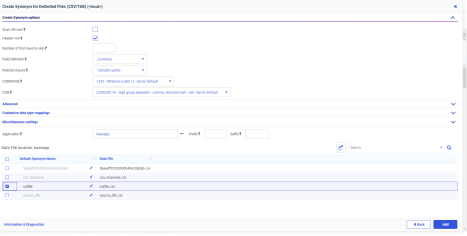
- Using the Adapter for Delimited Files (CSV/TAB), create metadata against the file outfile.csv that you created in step 3.
For information about creating metadata for a delimited file, see Managing Metadata for Fixed-Format and Delimited Files.
The following image shows the Create Synonym screen for Delimited Files.
- Make the following modifications to the REST Master File.
- Uncomment the SEGMENT=RESPONSE statement, and add SEGSUF=DFIX.
- Copy all of the FIELDNAME metadata from the Master file created for the delimited file in step 4, and paste it under the SEGMENT=RESPONSE line in the REST Master file.
The following is a sample the Master File with these edits. The highlighted SEGMENT=RESPONSE declaration has SEGSUF=DFIX, and is followed by the FIELD definitions from the metadata created for outfile.csv in step 4.
FILENAME=M6ILO, SUFFIX=REST    , $
  SEGMENT=M6ILO, SEGTYPE=S0, $
   GROUP=HEADER, ALIAS=Header, ELEMENTS=1, $
    FIELDNAME=FORMAT, ALIAS=format, USAGE=A30, ACTUAL=A30, ACCESS_PROPERTY=(NEED_VALUE),
      XDEFAULT='csv', $
    FIELDNAME=__RESPONSE, USAGE=TX80L, ACTUAL=TX, ACCESS_PROPERTY=(INTERNAL), $
  SEGMENT=RESPONSE, SEGTYPE=S0, PARENT=M6ILO, SEGSUF=DFIX, POSITION=__RESPONSE, $
    FIELDNAME=YEAR1, ALIAS=year, USAGE=A152V, ACTUAL=A152VB,
      MISSING=ON,
      TITLE='year', $
    FIELDNAME=WEIGHT, ALIAS=weight, USAGE=D33.5, ACTUAL=A64V,
      MISSING=ON,
      TITLE='weight', $
    FIELDNAME=GENDER, ALIAS=gender, USAGE=I11, ACTUAL=A11V,
      MISSING=ON,
      TITLE='gender', $
    FIELDNAME=RACE1R, ALIAS=race1R, USAGE=I11, ACTUAL=A11V,
      MISSING=ON,
      TITLE='race1R', $
    FIELDNAME=HISPANIC, ALIAS=hispanic, USAGE=I11, ACTUAL=A11V,
      MISSING=ON,
      TITLE='hispanic', $
    FIELDNAME=ETHNIC1R, ALIAS=ethnic1R, USAGE=I11, ACTUAL=A11V,
      MISSING=ON,
      TITLE='ethnic1R', $
FIELDNAME=AGER, ALIAS=ager, USAGE=I11, ACTUAL=A11V, MISSING=ON, TITLE='ager', $ FIELDNAME=MARITAL2, ALIAS=marital2, USAGE=I11, ACTUAL=A11V, MISSING=ON, TITLE='marital2', $ FIELDNAME=HINCOME, ALIAS=hincome, USAGE=I11, ACTUAL=A11V, MISSING=ON, TITLE='hincome', $ FIELDNAME=POPSIZE, ALIAS=popsize, USAGE=I11, ACTUAL=A11V, MISSING=ON, TITLE='popsize', $ FIELDNAME=REGION, ALIAS=region, USAGE=I11, ACTUAL=A11V, MISSING=ON, TITLE='region', $ FIELDNAME=MSA, ALIAS=msa, USAGE=I11, ACTUAL=A11V, MISSING=ON, TITLE='msa', $ FIELDNAME=DIREL, ALIAS=direl, USAGE=I11, ACTUAL=A11V, MISSING=ON, TITLE='direl', $FIELDNAME=NOTIFY, ALIAS=notify, USAGE=I11, ACTUAL=A11V, MISSING=ON, TITLE='notify', $ FIELDNAME=WEAPON, ALIAS=weapon, USAGE=I11, ACTUAL=A11V, MISSING=ON, TITLE='weapon', $ FIELDNAME=WEAPCAT, ALIAS=weapcat, USAGE=I11, ACTUAL=A11V, MISSING=ON, TITLE='weapcat', $ FIELDNAME=NEWCRIME, ALIAS=newcrime, USAGE=I11, ACTUAL=A11V, MISSING=ON, TITLE='newcrime', $ FIELDNAME=NEWOFF, ALIAS=newoff, USAGE=I11, ACTUAL=A11V, MISSING=ON, TITLE='newoff', $ FIELDNAME=SERIOUSVIOLENT, ALIAS=seriousviolent, USAGE=I11, ACTUAL=A11V, MISSING=ON, TITLE='seriousviolent', $ FIELDNAME=INJURY, ALIAS=injury, USAGE=I11, ACTUAL=A11V, MISSING=ON, TITLE='injury', $ FIELDNAME=TREATMENT, ALIAS=treatment, USAGE=I11, ACTUAL=A11V, MISSING=ON, TITLE='treatment', $ FIELDNAME=VICSERVICES, ALIAS=vicservices, USAGE=I11, ACTUAL=A11V, MISSING=ON, TITLE='vicservices', $ FIELDNAME=LOCATIONR, ALIAS=locationr, USAGE=I11, ACTUAL=A11V, MISSING=ON, TITLE='locationr', $
- Make the following modifications to the REST Access File.
- Insert RESTRESPONSE=DFIX, before the dollar sign ($).
- Add a line with SEGNAME=RESPONSE.
- Copy all of the lines under SEGMENT, except CONNECTION, from the Access file created for the delimited file outfile.csv in step 4, and paste it under the SEGMENT=RESPONSE line you added in the REST Access file.
- Add an RDELIMITER line.
The value of the attribute will be 0x0A for ASCII platforms such as Windows or Linux (RDELIMITER=0x0A).
The value of the attribute will be 0x25 for OS400 platforms (RDELIMITER=0x25).
The value of the attribute will be 0x15 for z/OS platforms (RDELIMITER=0x15).
- Add a comma and dollar sign (,$) after the RDELIMITER value.
The following is a sample Access File with these edits, on a Windows or Linux platform.
SEGNAME=M6ILO,
  CONNECTION=bjsncvs,
  OBJECT=personal/2019,
  HEADER=HEADER,
  SERVICETYPE=REST,
  HTTPMETHOD=GET,
  RESTRESPONSE=DFIX,$SEGNAME=RESPONSE,
  DELIMITER=',',
  ENCLOSURE=",
  HEADER=YES,
  CDN=COMMAS_DOT,
  RDELIMITER=0x0A,$
Support for No Value in a Label in the JSON Body
The Adapter for REST can pass a label with no value within the JSON Body for a POST request.
For example, WHERE COUNTRY EQ '' will be shown as "country": "" within the JSON Body.
Adding OMIT_MISSING=NO in the Access (.acx) File will produce the following properties in the JSON Body:
- Fields defined in the Master File with MISSING=ON will send a null value, if there is no WHERE clause defined for that field.
- Fields with MISSING=OFF defined in the Master File will send the property "value":"" for a non-numeric field, and the property "value":0 for a numeric field, if there is no WHERE clause defined for that field.
Passing a Label With No Value in the JSON Body
The following Access File specifies a JSON POST response, with OMIT_MISSING=NO.
SEGNAME=M6ILO,
CONNECTION=geonames,
OBJECT=postalCodeSearchJSON,
SERVICETYPE=REST,
HTTPMETHOD=POST,
RESTRESPONSE=JSON,
OMIT_MISSING=NO,
HTTPBODY=JSON, $
The Master File has the following field definition.
FIELDNAME=ADMINCODE1, ALIAS=adminCode1, USAGE=A55, ACTUAL=A55,
MISSING=OFF, ACCESS_PROPERTY=(NEED_VALUE), $
With these attributes defined, the JSON Body will automatically include "adminCode1":"", if there is no WHERE or IF clause for ADMINCODE1 defined in the WebFOCUS report request.
Passing Multiple Values to a Parameterized URL in a WHERE Phrase
If a WHERE phrase includes multiple values for a field that is defined as a parameter in the REST URL, multiple calls will be made to the REST service, one for each value.
For example, the following Master File, postalcodesearch1.mas, returns information for the default postal code 10024.
FILENAME=M6ILO, SUFFIX=REST    , $
  SEGMENT=M6ILO, SEGTYPE=S0, $
   GROUP=HEADER, ALIAS=Header, ELEMENTS=1, $
    FIELDNAME=ID1, ALIAS=ID1, USAGE=A30, ACTUAL=A30, ACCESS_PROPERTY=(NEED_VALUE), $
    FIELDNAME=POSTALCODE, ALIAS=postalcode, USAGE=A30, ACTUAL=A30,
          ACCESS_PROPERTY=(NEED_VALUE),  XDEFAULT='10024', $
    FIELDNAME=COUNTRY, ALIAS=country, USAGE=A30, ACTUAL=A30,
         ACCESS_PROPERTY=(NEED_VALUE), XDEFAULT='us', $
    FIELDNAME=MAXROWS, ALIAS=maxRows, USAGE=A30, ACTUAL=A30,
          ACCESS_PROPERTY=(NEED_VALUE), XDEFAULT='10', $
    FIELDNAME=USERNAME, ALIAS=username, USAGE=A30,
         ACTUAL=A30, ACCESS_PROPERTY=(NEED_VALUE), XDEFAULT='xxxxxx', $
    FIELDNAME=__RESPONSE, USAGE=TX80L, ACTUAL=TX, ACCESS_PROPERTY=(INTERNAL), $
The corresponding Access File, postalcodesearch1.acx, has a parameter.
SEGNAME=M6ILO,
  CONNECTION=geonames,
  OBJECT=&ID1&,
  HEADER=HEADER,
  SERVICETYPE=REST,
  HTTPMETHOD=POST,
  RESTRESPONSE=JSON,
  HTTPBODY=ENCODE, $
The following procedure connects to the REST URL http://api.geonames.org, and has a WHERE phrase with two values.
SET END_OF_TEXT=''
ENGINE REST SET CONNECTION_ATTRIBUTES
  geonames_ged/,:'http://api.geonames.org'
TABLE FILE baseapp/POSTALCODESEARCH1
PRINT
   __RESPONSE
WHERE ID1 EQ 'postalCodeSearch' OR 'postalCodeSearchJSON'
ON TABLE HOLD AS BASEAPP/OUTPUT
END
The following output is returned. It contains the response with the two values specified in the WHERE phrase, 'postalCodeSearch' and 'postalCodeSearchJSON'.
<?xml version="1.0" encoding="UTF-8" standalone="no"?>
<geonames>
    <totalResultsCount>1</totalResultsCount>
    <code>
        <postalcode>10024</postalcode>
        <name>New York</name>
        <countryCode>US</countryCode>
        <lat>40.78645</lat>
        <lng>-73.97638</lng>
        <adminCode1 ISO3166-2="NY">NY</adminCode1>
        <adminName1>New York</adminName1>
        <adminCode2>061</adminCode2>
        <adminName2>New York</adminName2>
        <adminCode3/>
        <adminName3/>
    </code>
</geonames>

{"postalCodes":[
                 {"adminCode2":"061","adminCode1":"NY",
                  "adminName2":"New York",
                  "lng":-73.976385,"countryCode":"US",
                  "postalCode":"10024",
                  "adminName1":"New York",
                  "ISO3166-2":"NY",
                  "placeName":"New York",
                  "lat":40.786446
                 }
               ]
}