Creating a Twitter Application
A Twitter application needs to exist before configuring the Twitter adapter.
Create a Twitter Application
- Procedure
- From a browser, enter the following
URL in a web browser:
https://apps.twitter.com
A Twitter Application Management screen will appear if you are not already logged into Twitter, as shown in the following image.
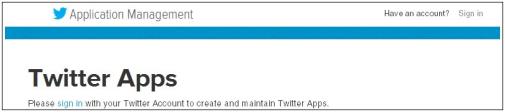
- If you are not already signed in to Twitter, click the Sign in link located in the upper-right corner of the screen.
- Click the Create New App button
in the upper-right corner of the screen.
The Application details screen opens, as shown in the following image.
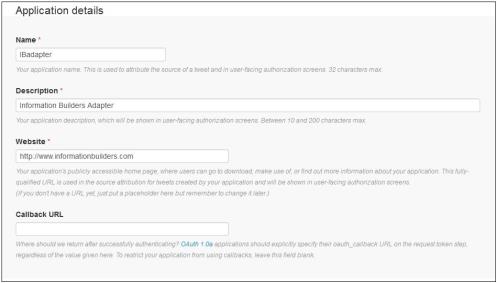
- Perform the following steps:
- Enter a name without spaces for the new Twitter application in the Name field.
- Enter a description for the new Twitter application in the Description field.
- Enter web site URL for the company hosting the new Twitter application in the Website field.
- Scroll down to the Developer Rules of the Road and read
the agreement, as shown in the following image.
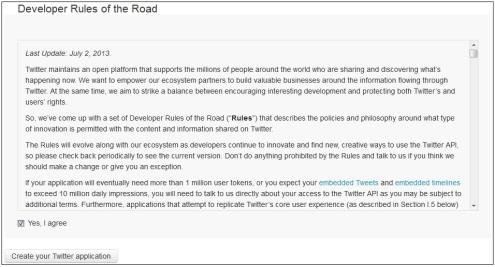
If the agreement is acceptable, select Yes, I agree and then click Create your Twitter application.
The configuration page for the new Twitter application (for example, IBadapter) opens, as shown in the following image.
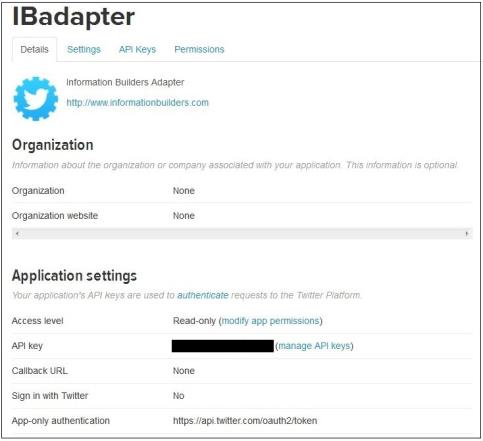
- Click the manage API keys link
in the API key row.
The Application settings page opens, as shown in the following image.
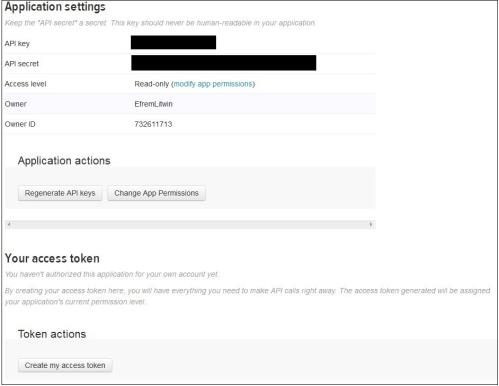 Note: The API key and the API secret values will be required during the configuration of the Twitter adapter.
 - Click Create my access token.
A Status message may appear at the top of the page, as shown in the following image.

- Click the Refresh link within the status message.
- Scroll down to the Your access token section of the page,
as shown in the following image.
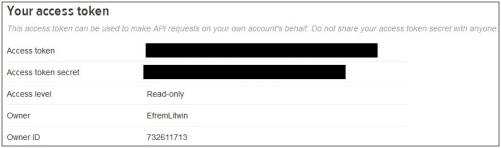 Note: The Access token and Access token secret values will be required during the configuration of the Twitter adapter.