Column Formats and Mapping
When you add transformations using either the Source or Target Transformations window, you can assign formats to the columns that you are adding. There are four types of column formats:
- Alphanumeric formats. Composed of letters, numbers, or special characters. There are three
alphanumeric formats:
- Fixed Alphanumeric. Used for fixed-length columns. The maximum length is 256.
- Variable Alphanumeric. Used for variable-length columns. The maximum length is 4,096.
- Text. Used for text columns, such as MS SQL Server VARCHAR(MAX) or an ORACLE CLOB.
- String. Used for columns in Relational databases that have a STRING format, which supports text data of unlimited length.
- Numeric formats. Composed of the digits 0 through 9 and, optionally, a minus sign.
There are four numeric formats:
- Integer. Used for whole numbers, using 4 bytes of storage and a maximum number of 9 positions. Numbers after the decimal are truncated.
- Float. Used for whole numbers or fractions, using 4 bytes of storage and a maximum number of 9 positions.
- Double. Used for whole numbers or fractions, using 8 bytes of storage and a maximum number of 15 positions.
- Decimal. Used for whole numbers, using one byte for every two digits, plus a sign and a maximum number of 15 positions. This type of column will automatically round any number with more than the specified number of decimal places to the number of decimal places in the format. This is recommended for monetary values.
For more information about numeric formats, see Numeric Format Options.
- Date and time formats. Composed of dates and times or date and time components. There are
three formats:
- Date. Used for dates and provides combinations of year, month, day, and quarter.
- Time. Used for times and provides combinations of hour, minute, second, and millisecond.
- DateTime (Timestamp). Used for both dates and times and provides combinations of year, month, and day for dates, and hour, minute, second, millisecond, and microsecond for time.
- Hexadecimal. Displays the hexadecimal representation of a field value.
- BLOB. Represents
a Binary Large Object. A BLOB is used to store an image, sound,
or some other large, unstructured block of data. The corresponding database
data types are:
- ORACLE - BLOB
- MS SQL Server - Varbinary (max)
- Informix - Byte
- Db2 - BLOB
A column described as BLOB can only be copied from source to target. No transformations can be performed.
Rules for Mapping and Column Formats
Columns that you map to each other must have the same format, or ibi Data Migrator must be able to translate the source query format into the target format automatically. Details are shown in the following table:
|
If the Target format is... |
...and the Source query format is... |
Can you map? |
|---|---|---|
|
A11 |
A10 |
Yes |
|
A10 |
A11 |
No. Use the EDIT or SUBSTR functions to make this work. |
|
D6.2 |
I5 |
Yes |
|
I10 |
D6.2 |
Yes, but you will lose the numbers after the decimal. |
|
A10 |
D6.2 |
No |
Format a Column as Alphanumeric or Numeric
If you are creating a new or virtual column, you need to assign a format to the column. You can assign a format in two ways:
- By typing the format into the Format field in the Transformation Calculator.
- By using the Define Properties dialog.
To use the Define Properties dialog:
- Procedure
- From
the Transformation Calculator, click the ellipsis (...) button to
the right of the Format field.
The Define Properties dialog opens.
- Select a format from the Type dropdown menu.
- Click OK.
Define Properties dialog
To access the Define Properties dialog from the Transformation Calculator, click the ellipsis (...) button to the right of the Format field. To see the Miscellaneous properties, select the Show Advanced Properties checkbox.
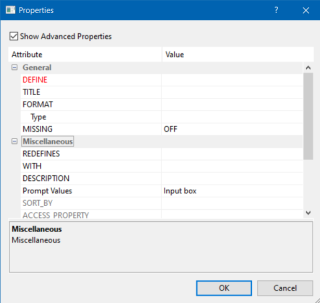
The Define Properties dialog has the following fields and options:
An optional attribute that is used to create a virtual field for reporting.
The format name of the column.
The format type of the column.
Indicates if the results can be missing. The following options are available:
- OFF. The result is never missing.
- ON. The result is missing only if all missable fields are missing.
- ON ALL. The result is missing if any missable fields are missing.
Lets you redefine or recompute a field whose name exists in more than one segment.
Lets you identify the logical home of the defined calculation, if no fields from the synonym are used in the expression or have been defined.
An optional attribute that enables you to provide comments and other documentation for a field within the Master File. Comments can be up to 2048 characters in length.
Optional accept values for the define. Choices are:
- Input box. The user enters a value.
- Static list of values. A field appears with an ellipsis. When you click it, a dialog opens for adding values.
- Synonym based dynamic list of values. Fields open for entering a Lookup Synonym, Lookup Field, and Lookup Display Field.
- Procedure based dynamic list of values. Fields open for entering a Lookup Procedure, Lookup Procedure Parameters, Lookup Field, and Lookup Display Field.
Is the name of the sort by field.
To make this a field that will not display in sample data or in the list of available fields, select the INTERNAL checkbox.
Assigns a geographic role to the field. Choices are:
- ADDRESS_FULL. Full address.
- ADDRESS_LINE. One line of address.
- CITY. City name.
- CONTINENT. Continent name.
- COUNTRY. Country name.
- COUNTY. County name.
- GEOMETRY_AREA. JSON geometry area.
- GEOMETRY_LINE. JSON geometry line.
- GEOMETRY_POINT. JSON geometry point.
- LATITUDE. Latitude.
- LONGITUDE. Longitude.
- POSTAL-CODE. Postal code.
- STATE. State name.
If the field has a temporal property, select Trend.
Defines font, font style, and color properties for the field.
Numeric Format Options
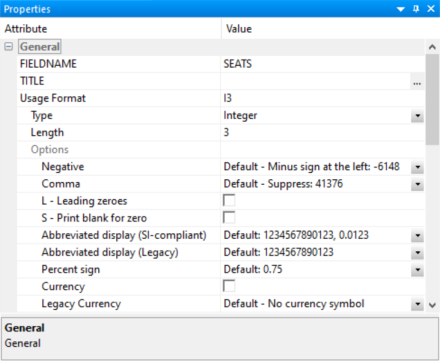
When using a numeric format (integer, float, double, or decimal packed), the following options are available:
These are the display options for negative numbers:
Positions the minus (-) sign at the left of the number.
Positions the minus (-) sign at the right of the number.
Encloses a negative number in parentheses.
Adds the characters CR after a negative number.
These are the display options for commas:
Suppresses the use of a comma in the number.
Suppresses the use of a comma in the number.
Inserts a comma after every third significant figure. This option takes effect automatically for Double format.
Adds leading zeros to the full field length.
Suppresses leading zeros; displays a space if the value is 0.
Choices are:
- k. Displays the number in thousands, for example. 12.25K.
- m. Displays the number in millions, for example. 12.25M.
- b. Displays the number in billions, for example. 12.25B.
- t. Displays the number in trillions, for example. 12.25T.
- a. Displays the number automatically using the most useful abbreviation.
Select either %, which displays a percent sign along with the numeric data, or p, which calculates the percent and adds a percent sign.
Displays the number in scientific notation.
These are the extended currency symbol display options, which allow you to select a currency symbol regardless of what is set as the default:
- N - Fixed $ sign
- M - Floating $ sign
- !e - Fixed euro symbol
- !E - Floating euro symbol
- !l - Fixed pound sterling sign
- !L - Floating pound sterling sign
- !y - Fixed Japanese yen symbol
- !Y - Floating Japanese yen symbol
- !d - Fixed dollar sign
- !D - Fixed dollar sign
Specifies a field as a currency denominated value.
The Define Properties dialog for the Numeric format is shown in the following image.
Format a Column as Date, Time, or DateTime (Timestamp)
- Procedure
- In the
Transformation Calculator, click the ellipsis (...) button to the
right of the Format field.
The Define Properties dialog opens.
- Select
Date, Time, or Date and Time from the FORMAT dropdown menu.
The Date format allows you to choose the display for dates (YYMD, MDY, and so on).
The Time format allows you to choose the display for time (seconds, milliseconds, and so on) and am/pm.
The Date and Time format allows you to choose the display for both date and time portions.
Date Type Format Options
The following choices are available from the Define Properties dialog for the date format (the examples illustrate August 21, 2004):
|
Format |
Description |
Example |
|---|---|---|
|
YYMD |
Four-digit year/month/day. |
2004/08/21 |
|
MDYY |
Month/day/four-digit year. |
08/21/2004 |
|
DMYY |
Day/month/four-digit year. |
21/08/2004 |
|
YYQ |
Four-digit year/quarter |
2004 Q4 |
|
QYY |
Quarter/four-digit year. |
Q4 2004 |
|
YYM |
Four-digit year/month. |
2004/08 |
|
MYY |
Month/four-digit year. |
08/2004 |
|
YYJUL |
Four-digit year with the month in Julian format. The last three digits are the number of days since January 1. |
2004/234 |
|
YY |
Four-digit year. |
2004 |
|
Y |
Two-digit year. |
04 |
|
Q |
Quarter. |
Q3 |
|
M |
Month. |
08 |
|
MT |
Short month in uppercase. |
AUG |
|
Mt |
Short month in mixed-case. |
Aug |
|
MTR |
Full month in uppercase. |
AUGUST |
|
Mtr |
Full month in mixed-case. |
August |
|
W |
Three-letter day of the week abbreviation in uppercase. |
SAT |
|
w |
Three-letter day of the week abbreviation in mixed-case. |
Sat |
|
WR |
Day of the week in uppercase. |
SATURDAY |
|
wr |
Day of the week in mixed-case. |
Saturday |
|
D |
Day. |
21 |
Time Type Formats
The following choices are available from the Define Properties dialog for the time format (the example illustrates 2:05 A.M.):
|
Format |
Description |
Example |
|---|---|---|
|
HH |
Hours. |
02 |
|
HHI |
Hours/Minutes. |
02:05 |
|
HHIS |
Hours/Minutes/Seconds. |
02:05:27 |
|
HHISs |
Hours/Minutes/Seconds/Milliseconds. |
02:05:27:123 |
|
HHISsm |
Hours/Minutes/Seconds/Milliseconds/Microseconds. |
02:05:27:123456 |
|
HI |
Minutes. |
05 |
|
HIS |
Minutes/Seconds. |
05:27 |
|
HISs |
Minutes/Seconds/Milliseconds. |
05:27:123 |
|
HISsm |
Minutes/Seconds/Milliseconds/Microseconds. |
05:27:123456 |
|
HS |
Seconds |
27 |
|
HSs |
Seconds/Milliseconds. |
27:123 |
|
HSsm |
Seconds/Milliseconds/Microseconds. |
27:123456 |
|
Hh |
Hours without leading zeros. |
2 |
|
HhI |
Hours without leading zeros/Minutes. |
2:05 |
|
HhIS |
Hours without leading zeros/Minutes/Seconds. |
2:05:27 |
|
HhISs |
Hours without leading zeros/Minutes/Seconds/Milliseconds. |
2:05:27:123 |
|
HhISsm |
Hours without leading zeros/Minutes/Seconds/Milliseconds/Microseconds. |
2:05:27:123456 |
|
Hi |
Minutes without leading zeros. |
5 |
|
HiS |
Minutes without leading zeros/Seconds. |
5:27 |
|
HiSs |
Minutes without leading zeros/Seconds/Milliseconds. |
5:27:123 |
|
HiSsm |
Minutes without leading zeros/Seconds/Milliseconds/Microseconds. |
5:27:123456 |
Date and Time Type Formats
The Date and Time type format combines date, time, and a separator, which are reflected in the format name. For example, HYYMD-H describes a four-digit year, month, and day separated by dashes plus hours.
The following choices are available from the Define Properties dialog for the date component:
|
Format |
Description |
Example |
|---|---|---|
|
HYYMD |
Four-digit Year/Month/Day. |
2004/08/21 |
|
HYMD |
Two-digit Year/Month. |
04/08 |
|
HMD |
Month/Day. |
08/21 |
|
HD |
Day |
21 |
The time component is added to the date format name as follows:
|
Format |
Description |
Format Name |
Example |
|---|---|---|---|
|
H |
Hours. |
HYYMDH |
2004/08/21 02 |
|
I |
Hours/Minutes. |
HYYMDI |
2004/08/21 02:05 |
|
S |
Hours/Minutes/Seconds. |
HYYMDS |
2004/08/21 02:05:27 |
|
s |
Hours/Minutes/Seconds/Milliseconds. |
HYYMDs |
2004/08/21 02:05:27:123 |
|
m |
Hours/Minutes/Seconds/ Milliseconds/Microseconds. |
HYYMDm |
2004/08/21 02:05:27:123456 |
The following choices are available from the Define Properties dialog for the separator, which is added to the format name.
|
Format |
Description |
Format Name |
Example |
|---|---|---|---|
|
/ |
Slash. |
HYYMDH |
2004/08/21 02 |
|
. |
Period. |
HYYMD.H |
2004.08.21 02 |
|
- |
Dash. |
HYYMD-H |
2004-08-21 02 |
|
Blank |
Space |
HYYMDBH |
2004 08 21 02 |
|
None |
No separator |
HYYMDNH |
20040821 02 |
|
U |
International default. |
HYYMDU |