Configuring the Adapter for Google Analytics
This section describes how to configure the Adapter for Google Analytics.
- Procedure
- Clear the cookies from the web browser that will be used to start the WebFOCUS Reporting Server browser interface.
- Access the WebFOCUS Reporting Server browser interface using
the host name and port that you specified in the AUTHORIZED JAVASCRIPT
ORIGINS field of the Google project.
For example:
http://host.ibi.com:8121
For more information, see How to Create a Google Project.
- From the
WebFOCUS Reporting Server browser interface Applications page,
click
Get
Data.
or
From the ibi Data Migrator desktop interface, expand the Adapters folder.
In the WebFOCUS Reporting Server browser interface, the Get Data page opens showing your configured adapters. In the ibi Data Migrator desktop interface, the Adapters folder opens.
- In the WebFOCUS Reporting Server browser interface, click the (+) button, and find the adapter on the page.
- Right-click the Google Analytics node
and select Configure.
The Add Google Analytics to Configuration pane opens.
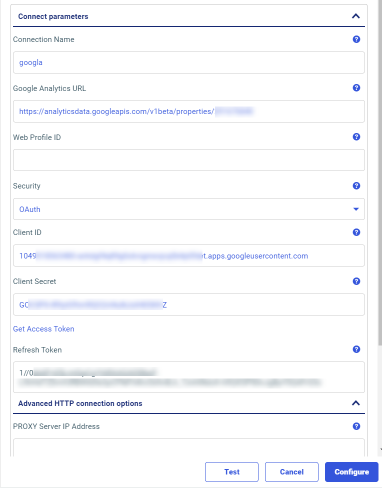
- Enter the value for the Google Analytics URL and then, enter the values for the Client ID and Client Secret
as defined by the Client ID and Client Secret, respectively, in the
Google project.
For more information, see How to Create a Google Project.
- Click the Get Access Token link.
A Google Sign-in screen opens, as shown in the following image.
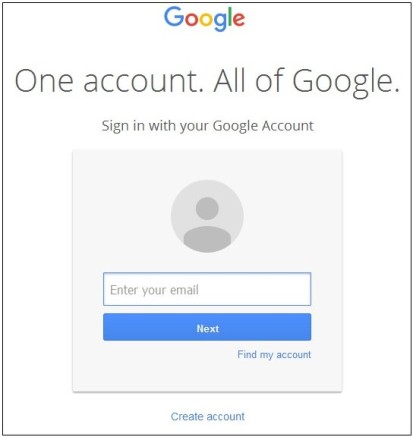
- Enter an email address for the Google account that has administrative rights to the Google Analytics environment, and then click Next.
- Enter a valid password for the Google account, and then
click Sign In.
The View your Google Analytics data consent screen opens, as shown in the following image.
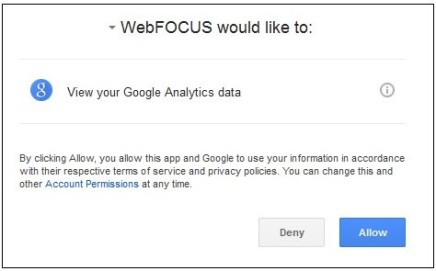
- Click Allow.
You are returned to the Add Google Analytics to Configuration pane, where the Access Token field and Refresh Token field are now populated, as shown in the following image.
- Click Configure.
The Adapter for Google Analytics is added to the configured Adapters list in the navigation pane.
Connection Attributes for Google Analytics
The following list describes the connection attributes for the Adapter for Google Analytics.
Logical name used to identify this particular set of connection attributes. The default is CON01.
The URL of the Google Analytics API request.
https://analyticsdata.googleapis.com/v1beta/properties/GA4_PROPERTY_ID
For more information about obtaining the Property ID, see https://developers.google.com/analytics/devguides/reporting/data/v1/property-id.
Select the authentication method, either OAuth or Service Account.
The value that identifies your application to Google Analytics, when using OAuth authentication.
Obtain this value using the following steps:
- Go to:
https://cloud.google.com/console/project
- From the main menu point to APIs & Services, and then click Credentials.
The Credentials page opens.
- Select your project from the Select Project dropdown list, and then click the name of your OAuth Client in the OAuth 2.0 Client IDs list.
The Client ID of your OAuth 2.0 Client is displayed in the Additional information section.
- Use the value of the Client ID in the Client ID field on the Add Google Analytics to Configuration page.
The value that identifies your application to Google Analytics, when using OAuth authentication. This value is used with Client ID.
Obtain this value using the following steps:
- Go to:
https://cloud.google.com/console/project
- From the main menu point to APIs & Services, and then click Credentials.
The Credentials page opens.
- Select your project from the Select Project dropdown list and then click the name of your OAuth Client in the OAuth 2.0 Client IDs list.
The Client Secret of your OAuth 2.0 Client is displayed in the Additional information section.
- Use the value of the Client Secret in the Client Secret field on the Add Google Analytics to Configuration page.
The value that identifies the user your application is acting on behalf, when using OAuth authentication. Click the Get Access Token link to obtain this token and the Refresh Token.
For the Get Access Token to complete successfully, the host name used to access the WebFOCUS Reporting Server browser interface must match the host name specified for the Redirect URI in the Google Analytics application.
A Google sign-in screen opens if you are not already logged into a Google account.
A Consent screen opens. Click Allow Access.
If an issue arises when obtaining the Access and Refresh Tokens, clear your browser cache, including cookies.
The Access Token has a very short lifespan. The Refresh Token is used to obtain a new Access Token during run time.
Is the location of the JSON Key file that was created in the Google Development environment when using Service Account authentication. For example:
C:\ibi\apps\googleanalytics\webfocus-555555-874feowfwojoe7.json
Is the client email address defined in the JSON Key File, when using Service Account authentication. For example:
xxxxxxxxxxxx-compute@developer.gserviceaccount.com
Is the IP address of the proxy server, for example, 170.115.249.42.
Is the port number on which the proxy server listens. The default port number is 80.
Select a profile from the dropdown list to indicate the level of profile in which to store the connection attributes. The global profile, edasprof.prf, is the default.
If you wish to create a new profile, either a user profile (user.prf) or a group profile if available on your platform (using the appropriate naming convention), select New Profile from the dropdown list and enter a name in the Profile Name field (the extension is added automatically).
Store the connection attributes in the server profile (edasprof).