Configuring the Twitter Adapter
This section describes how to configure the Twitter Adapter.
- Procedure
- From the
WebFOCUS Reporting Server browser interface Applications page,
click
Get
Data.
or
From the ibi Data Migrator desktop interface, expand the Adapters folder.
In the WebFOCUS Reporting Server browser interface, the Get Data page opens showing your configured adapters. In the ibi Data Migrator desktop interface, the Adapters folder opens.
- In the WebFOCUS Reporting Server browser interface, click the (+) button, and find the adapter on the page.
- In the ibi Data Migrator desktop interface, expand the appropriate group folder and the specific adapter folder. The group folder is described in the connection attributes reference.
- Right-click the Twitter node and
select Configure.
The Add Twitter to Configuration pane opens, as shown in the following image.
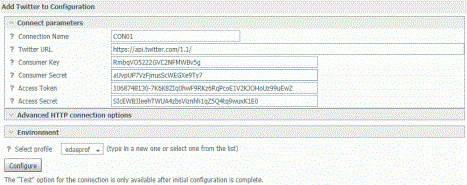
- Enter the values for the Consumer Key, Consumer Secret,
Access Token, and Access Secret as defined in the Twitter application.
For more information, see Creating a Twitter Application.
- Click Configure.
The Twitter adapter is added to the configured Adapters list in the navigation pane.
Connection Attributes for Twitter
The following list describes the connection attributes for the Twitter adapter.
Logical name used to identify this particular set of connection attributes. The default is CON01.
The URL of the Twitter API request. The default value is:
https://api.twitter.com/1.1/
For iSeries machines, the WebFOCUS Reporting Server must be configured for SSL as follows:
- From the WebFOCUS Reporting Server browser interface sidebar, click Workspace.
- From the menu bar, click Workspace Set, and select Miscellaneous Settings
- Enter values for outbound_ssl_certificate_file, outbound_ssl_certificate_passphrase,
and outbound_ssl_certificate_label, and then click Save. For
example:

Also known as the API key, this application key is generated when creating a Twitter application. For more information, see Creating a Twitter Application.
This key is used along with the Consumer Secret for authentication purposes.
Used for authentication purposes, along with the Consumer Key, this value is generated when creating a Twitter application. For more information, see Creating a Twitter Application.
Used for authentication purposes, along with the Access Secret, this key is generated when creating an Access Token from the Twitter application. For more information, see Creating a Twitter Application. It defines the user who is authenticating to Twitter.
Used for authentication purposes, along with the Access Token, this value is generated when creating an Access Token from the Twitter application. For more information, see Creating a Twitter Application.
Select a profile from the drop-down list to indicate the level of profile in which to store the connection attributes. The global profile, edasprof.prf, is the default.
If you wish to create a new profile, either a user profile (user.prf) or a group profile if available on your platform (using the appropriate naming convention), choose New Profile from the drop-down menu and enter a name in the Profile Name field (the extension is added automatically).
Store the connection attributes in the server profile (edasprof).