WebFOCUS Postinstallation Tasks
This chapter explains verification and common configuration procedures for the WebFOCUS Client.
WebFOCUS Client Verification and Configuration
Setting Tomcat HTTP POST Maximum Size
Enabling Server Side Graphics
By default, WebFOCUS graphics are generated through the Web or application server using a Java-based graph engine installed with WebFOCUS Client. This is known as Server Side Graphics or PCHOLD. Using this approach, a complete graph file is created on the Web or application server and then sent to a browser.
Note: Server Side Graphics require several IBM PTFs. See the WebFOCUS Release Notes for more information.
Setting DISPLAY
For the graph engine to create Server Side Graphics, you must set DISPLAY.
Enable Server Side Graphics by Settings DISPLAY
The DISPLAY variable and other settings in cgivars.wfs should be set through the WebFOCUS Administration Console to properly enable server side graphics.
- Procedure
- Log on to the WebFOCUS Administration Console.
- On the left, click Configuration.
- Under Configuration, click Graph.
- Change
the DISPLAY field to the required value.
For example:
XserverHost:0.0 - Select whether to use GRAPH32 or GRAPH53 for IBIF_graphengine.
- Ensure
SSG_EXTERNAL is set to Yes.
Note: If you are using Tomcat, set SSG_EXTERNAL to No.
- Set
IBIJAVADIR to the directory where Java is installed
(JAVA_HOME). For example:
/usr/lpp/zWebSphere/V6R1/java/J5.0/bin
- Set
IBIJAVACMD to the following:
/bin/java
- Click Save.
- Click Memory Cache.
- Ensure that your application server DISPLAY variable is set to an X server. See Configuring Web and Application Servers for information on setting DISPLAY.
- Be aware
that the X Server must accept requests from the Web and/or application
server.
On some UNIX platforms, the X Server is set by default to refuse connections. On these machines, one solution is to log on to the physical UNIX machine and start an X session. It is best to log on as someone other than root. Then open a command prompt and use the xhost command to specify hosts that will connect to the X server. For example:
xhost +
The xhost command is installed with the X Windows environment and may not be in you search PATH by default. After issuing the xhost command, leave this user logged on so that an X session remains running. To protect the machine, lock the display instead of logging off. If a different user needs to log on to the physical machine, or the machine is rebooted, the xhost command should be reissued on log on and an X session left running.
- Restart WebSphere components to ensure all changes are applied.
Verifying and Troubleshooting Server Side Graphics
A sample procedure is installed with the WebFOCUS Reporting Server to test Server Side Graphics.
Verify Server Side Graphics
Execute the sample:
http://hostname:port/ibi_apps/WFServlet?IBIF_ex=cargraph
where:
Is the hostname and port of the Web server. However, if you use an application server only configuration, then this is the hostname and HTTP port of the application server. If you require SSL, use https instead of http.
Note: Cookies generated by CGI and Servlet are not compatible, so to try both CGI and Servlet calls, clear the browser cache and close all browser windows between calls.
Your browser should display a graphic similar to the following.
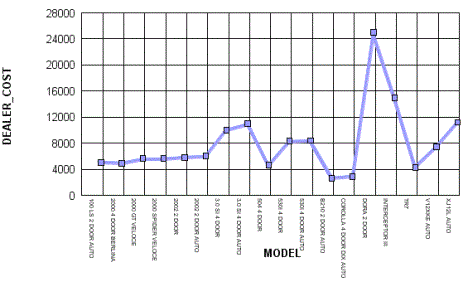
If you receive an error, check your application server logs for errors like the following:
This means DISPLAY is probably not set properly. Be sure to set and export this variable to a machine that is running an X server.
This means either there is no available X Server on the host, or the host is rejecting the connection. You must configure your X Server to allow the connection and then restart the application server. Try using the X Server xhost command.