Creating Multiple Graphs
You can create multiple graphs by including secondary sort dimensions (fields).
By default, the number of graphs created depends on the number of values in the fields you designate in the sort (BY, ACROSS) phrases. You can change this default using the GRMERGE parameter:
- With GRMERGE OFF (the default), if a request contains two BY fields, there will be as many graphs as there are values in the first BY field. The second BY field will determine the X-axis. For example, if you have selected a BY field with two values, two graphs will be generated. If you have selected a field with ten values, ten graphs will be generated. If there is one BY phrase and one ACROSS phrase, as many graphs will display as there are values in the BY field. The ACROSS field will determine the X-axis. You can select the second horizontal category by including multiple BY phrases or an ACROSS and BY phrase in the same request.
- With GRMERGE ON, WebFOCUS creates one merged graph.
- With GRMERGE ADVANCED,
WebFOCUS uses three parameters to determine:
- How many graphs to generate (GRMULTIGRAPH).
- How many sort fields should be placed on the graph legend (GRLEGEND).
- How many sort fields should be placed on the X-axis (GRXAXIS).
Multiple graphs can be displayed in either merged format or in columns. For details, see Merging Multiple Graphs and Displaying Multiple Graphs in Columns.
Merging Multiple Graphs
By default, when you create a graph that has multiple BY fields, or a BY and ACROSS field, multiple graphs are generated. You can merge these graphs into a single graph or into multiple merged graphs.
To do this, use the SET command GRMERGE.
Merge Multiple Graphs
SET GRMERGE={ON|OFF|ADVANCED}
where:
Turns on the merge graph option.
Turns off the merge graph option. This is the default.
Turns on the advanced merge option. This option uses three parameters to determine how to merge the graphs:
- GRMULTIGRAPH, which specifies how many sort fields to use to create multiple graphs.
- GRLEGEND, which specifies how many sort fields to place on the graph legend.
- GRXAXIS, which specifies how many sort fields to display on the X-axis. GRXAXIS must be at least 1 in order to plot the graph. A value greater than one creates nested X-axes.
Note: The sum of the sort fields used by GRMULTIGRAPH, GRLEGEND, and GRXAXIS must equal the number of sort fields in the graph request.
The syntax for the GRMULTIGRAPH, GRLEGEND, and GRXAXIS parameters is:
Specifies how many sort fields (0 through 2) to use to break the output into multiple graphs. The outermost sort fields are used to separate the graphs. When n is greater than zero, this is similar to GRMERGE=OFF, but allows an additional sort field.
Specifies how many of the remaining outermost sort fields (0 through 2), after the ones used for GRMULTIGRAPH, to add to the graph legend. When n is greater than zero, this is similar to GRMERGE=ON, but allows an additional sort field.
Specifies how many of the remaining sort fields (1 through 3) to display on the X-axis. When n is greater than 1, this creates nested X-axes.
Merging Multiple Graphs With GRMERGE ON
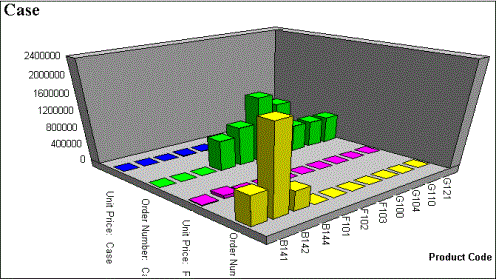
The following illustrates a graph with two horizontal, or X-axes, categories (PRODUCT_ID and PACKAGE_TYPE) that have been merged.
SET GRMERGE=ON
GRAPH FILE GGORDER
SUM UNIT_PRICE ORDER_NUMBER
ACROSS PRODUCT_ID
BY PACKAGE_TYPE
END
The output is:
Merging Multiple Graphs With GRMERGE ADVANCED
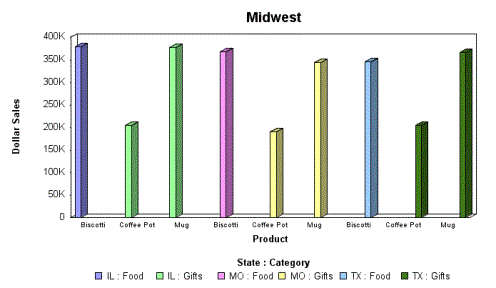
The following example generates a vertical bar graph that separates the outermost sort field (REGION) onto separate graphs, distinguishes the next two sort fields (ST and CATEGORY) by combining them on the graph legend, and places the CATEGORY sort field on the X-axis:
GRAPH FILE GGSALES
SUM DOLLARS
BY REGION BY ST BY CATEGORY BY PRODUCT
WHERE CATEGORY EQ 'Food' OR 'Gifts'
WHERE PRODUCT EQ 'Coffee Pot' OR 'Biscotti' OR 'Mug'
ON GRAPH SET GRMERGE ADVANCED
ON GRAPH SET GRMULTIGRAPH 1
ON GRAPH SET GRLEGEND 2
ON GRAPH SET GRXAXIS 1
ON GRAPH SET LOOKGRAPH VBAR
END
The first graph is for region Midwest. The legend distinguishes State-Category combinations by color, and the PRODUCT sort field is repeated on the X-axis for each State-Category combination:
Merging Multiple OLAP Graphs
When you create an OLAP graph that has multiple BY fields, or a BY and ACROSS field, multiple graphs are generated. You can merge these graphs into a single graph.
To do this, use the SET command OLAPGRMERGE.
Merge Multiple OLAP Graphs
SET OLAPGRMERGE={ON|OFF}
Turns on the merge graph option. With this setting AUTODRILL is disabled for the graph.
Turns off the merge graph option and creates a separate graph for every value of the outer sort field. OFF is the default value.
Merging OLAP-Enabled Graphs
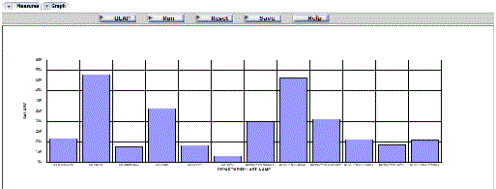
The following OLAP request against the EMPLOYEE data source has two BY fields. To merge the graphs, the SET OLAPGRMERGE=ON command is issued:
-OLAP ON
SET GRAPHEDIT=SERVER
SET OLAPGRMERGE=ON
TABLE FILE EMPLOYEE
SUM SALARY
BY DEP
BY LAST_NAME
ON TABLE SET PAGE-NUM OFF
ON TABLE NOTOTAL
ON TABLE PCHOLD FORMAT HTML
ON TABLE SET HTMLCSS ON
ON GRAPH SET HAXIS 300
ON GRAPH SET VAXIS 100
ON TABLE SET AUTODRILL ALL
ON TABLE SET OLAPPANE TABBED
ON TABLE SET STYLE *
     INCLUDE = endeflt,
$
     LEFTMARGIN=0.500000,
     RIGHTMARGIN=0.500000,
     TOPMARGIN=0.500000,
     BOTTOMMARGIN=0.500000,
$
TYPE=REPORT,
     TOPGAP=0.000000,
     BOTTOMGAP=0.013889,
$
ENDSTYLE
END
The output is:
Displaying Multiple Graphs in Columns
When you create a graph that has multiple BY fields, or a BY and ACROSS field, multiple graphs are generated. You can display these graphs in columns.
To do this, use the SET command GRWIDTH. GRWIDTH may be set to any value between 0-512. The default is 0.
Display Multiple Graphs in Columns
SET GRWIDTH=nn
where:
Is the number of columns in which to display multiple graphs. This may be any value from 0-512. The default is 0.
All values from 1-512 will display graphs in an HTML table with the corresponding number of columns. The default value of 0 will display the graphs one under the other in a Java applet.
Displaying Multiple Graphs in Columns
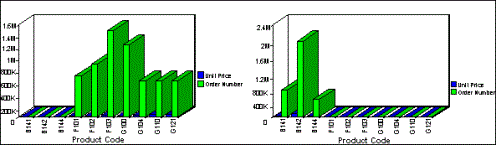
The following illustrates how to set the number of columns in which you wish to display multiple graphs. In this example, the graphs are set to display in two columns.
SET GRWIDTH=2
GRAPH FILE GGORDER
SUM UNIT_PRICE ORDER_NUMBER
ACROSS PRODUCT_ID
BY PACKAGE_TYPE
END
The output is: