Workspaces Area
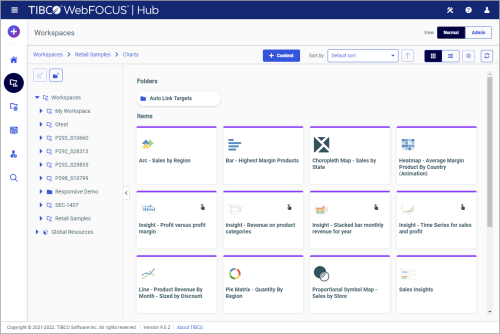
The Workspaces area is where most of your content management takes place. Here, you can organize your repository structure, create and interact with content items, create sample content, work with data, and perform other tasks. The Workspaces area is shown in the following image.
Page Toolbar
The page toolbar is shown in the following image.

You can use the page toolbar to move between folders in your repository, create and sort content, search the contents of a workspace or folder, change the view of items in the content section, and refresh content in a workspace or folder you select.
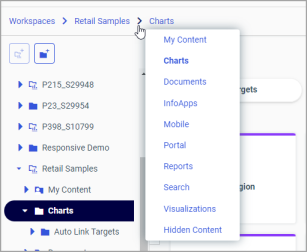
When you drill into the folders in your repository, the page toolbar generates a breadcrumb trail that you can use to move between folders. You can move back one folder or multiple folders in a single click. You can click a folder name to view the contents of that folder. You can also click arrows between the folders, to see the file structure that is currently displaying, as shown in the following image. In this example, the selected folder appears in bold.
You can use the +Content button to create analytical content with WebFOCUS® InfoAssist, upload files and spreadsheets, connect to data, build portals and pages, schedule procedures, and generate sample content using the options available to you for a workspace or folder. The following image shows an example of the +Content menu an advanced or basic user has access to for a workspace or folder.
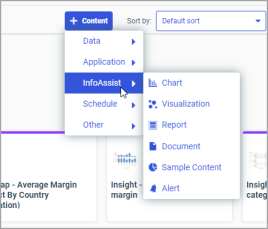
The +Content menu only displays the items that you can create for the workspace or folder that is currently selected. The items displayed in the +Content menu are also subject to permissions. You can only see the items that are available to you based on your role. To learn more about roles, see the ibi™ WebFOCUS® Security and Administration technical content.
You also can toggle the view of your content between tile view and list view in a workspace or folder. By default, content displays in the tile view. Click the Tile view icon  or List view icon
  to change your view.
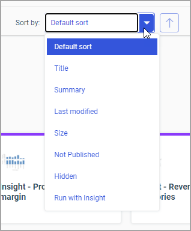
The tile view allows you to see the thumbnails of your items, which you can customize to add transparency to your display. You can sort the items in the tile view by using the Sort by drop-down list shown in the following image. Once you select a sort option other than the default one, you can reverse the sort order by clicking the Reverse sort order button.
Note: You can also create a customized sorting order, by configuring the Sort Order property for the item.
The list view is useful when you need to see a large number of items at a glance. You can easily identify the item types by their icons, which mirror the icons in the +Content menu. An example of a list view is shown in the following image.
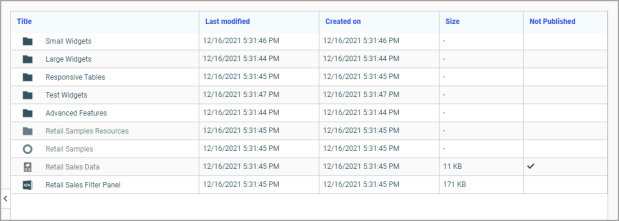
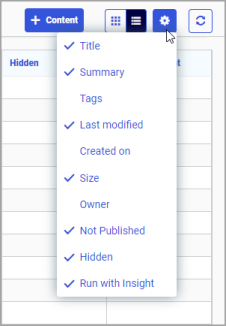
In this view, you can sort your items by clicking any column title. Each column features a three-step toggle sorting: ascending, descending, and return to the default. You can also specify which columns display in the content section by clicking the Select Display Columns button, and selecting the columns you want to view from the list. An example of an expanded columns menu is shown in the following image.
When you hover over an item that contains a summary, this summary displays as a tooltip in both tile and list views.
Finally, to refresh all content in a selected workspace or folder, click the Refresh button.
Resources Tree
The Resources tree provides a way to view your repository structure and navigate between workspaces and folders that are available to you. The following image shows an example of a Resources tree.
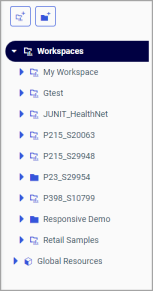
You can use the New workspace button  and New folder button
  on top of the Resources tree to add new workspaces and folders to your repository. These buttons mirror the icons for workspaces and folders that display inside the tree.
You can expand or collapse workspaces and folders by clicking the arrows next to them. When you click a folder, its contents display in the content section. You can also right-click a folder to access a shortcut menu of available options. From the shortcut menu, you can perform the following actions:
- Expand or Collapse a folder
- Duplicate a folder
- Cut or Copy a folder
- Paste content or another folder inside a folder
- Delete a folder
- Allow or suppress access to a folder
- Show or hide a folder
- Configure security rules for a folder
- View and edit properties for a folder
You can also customize the width of the Resources tree. To do so, place your cursor on top of the right edge of the Resources tree area, as shown in the following image, and drag the edge to achieve the desired width. Your new width is remembered, and displays the next time you sign in to WebFOCUS.
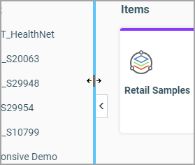
You can also collapse the Resources tree to allow more room for the content section. To collapse the Resources tree, click the arrow on the right side of the tree. Click the arrow again to expand the Resources tree.
My Workspace
My Workspace is the default workspace where all your newly created content will reside, unless you specify an alternative location.
Note: Multiple workspaces are available in the full version of WebFOCUS. Optionally, you can make a different workspace or top-level folder a default saving location by configuring the Default Workspace Repository Path setting in the Administration Console. See the ibi™ WebFOCUS®® Security and Administration technical content for more details.
Content that you create in My Workspace will automatically display in My Workspace view along with other private content you might have.
Use the Plus button or the +Content menu to create content.
Note: To access the +Content menu inside My Workspace, navigate to the My Content folder inside it.
Global Resources
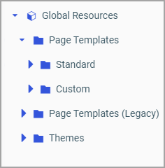
Administrators have access to a Global Resources folder on the Workspaces level in the Resources tree. The Global Resources folder, identified by the distinct icon  , contains three subfolders: Page Templates, Page Templates (Legacy), and Themes. These subfolders contain files that are used to style and format your portals and content in WebFOCUS Designer and Portal Page Designer. The Global Resources folder is shown in the following image.
Content Section
The content section displays the items contained within a workspace or folder that is currently selected. An example of the content section is shown in the following image.
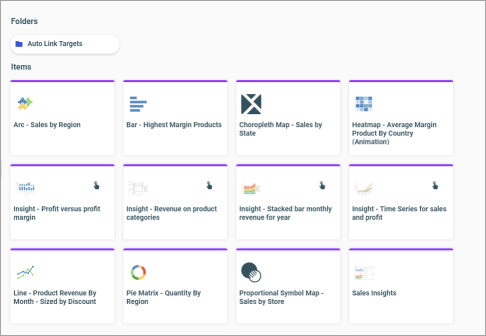
If a resource contains folders and items, the folders are always displayed first, followed by the items. Items shown in the content section include reports, charts, pages, portals, and more.
You can right-click any folder or item to access the shortcut menu of options. The following options are available when you right-click a folder or item in the content section.
Expands or collapses a folder. This option is only available for folders.
Runs the report procedure or schedule.
Runs the selected item in a new browser window or tab.
Submits a report procedure or a schedule for deferred execution.
Runs a report and includes an SQL trace of the report results.
Note: The Run with SQL Trace option is not available for visualizations.
Prompts for database credentials prior to running an item.
Note: This option is only available to users who have been granted the Run Procedures with Different Connection Credentials privilege. It is used when running items that draw data from databases that are configured to use individual credentials. For more information, see the ibi™ WebFOCUS® Security and Administration content.
Launches the scheduling tool, where you can schedule a report procedure to be run. Scheduling options include Email, FTP, Printer, Report Library, and Repository.
Launches the Schedule Log Options dialog box, where you can select whether to view the most recent log report for the schedule, or specify a time range for which to obtain log reports. This option is only available for schedules.
Enables you to launch the URL or download a copy of the file to your browser. This option is available for URLs, Excel Workbooks, PDF, HTML, and Image Files.
Edits an item with the tool that was used to create it.
Edits an item in the Text Editor.
Creates a shortcut to this item.
Makes a copy of the folder or item with an underscore and number appended to the title, for example, duplicating Sales_Report creates Sales_Report_1 in the same location. The number is incremented each time a duplicate is created.
Cuts, copies, or pastes the folder and its contents or item.
Copies one or more items from one location to another with the internal path references automatically updated to be consistent with the target location. This option is available for charts, reports, documents, visualizations, pages, workbooks, schedules, and HTML files created in ibi™ WebFOCUS® App Studio.
Note: This feature only works when copying items between the folders that reside on the same hierarchical level in the repository.
Note: When you run the item that has been moved using this option, a warning might appear alerting you that the item has been modified outside of WebFOCUS InfoAssist. This does not affect the behavior of the item at run time. Save the item in WebFOCUS InfoAssist to prevent this warning from reappearing.
Allows or suppresses public access to the content.
Shows or hides the folder or item.
Shares content with all users that are permitted to access this content. Unshare stops sharing content with all users.
Provides access to the following options:
Opens the rules defined for the folder or item. Here you can modify the rules for a given item.
Shows the security rules for the folder or item.
Shows the defined rules that specify the permitted functionality on the folder or item.
Allows you to set the resource owner, either Published (no specific owner), or a specific group or user.
Provides access to the following options:
Removes your own customizations from a portal and its pages.
Removes all user customizations and custom pages created at run time.
Note: These options are only available for portals and portal pages.
Opens the Manage Alias dialog box, where you can create an alias for the selected portal. This feature is only available to Administrators. This option is only available for portals.
Redirects to the folder where the item is located. This option is only available for portals in the Portals view.
Provides access to the following options:
Opens the blog item and expands all comments.
Clears all comments from the blog.
Note: These options are only available for blogs.
Removes the page from all portals. This option is only available for portal pages.
Adds the item to the Favorites folder.
Removes the Favorite from the list. This option is only available for Favorites.
Opens the Properties panel to display the properties of the folder or item.
Folder and Item Properties
Authorized users can select the Properties option to review information about a folder or item, including when it was created, the date it was last modified, title, name, and settings that control the WebFOCUS Reporting Server and applications it will access. There are also settings that control the functionality available to users when they access the folder, run, or schedule an item.
The following image shows the Properties panel for a bar chart.
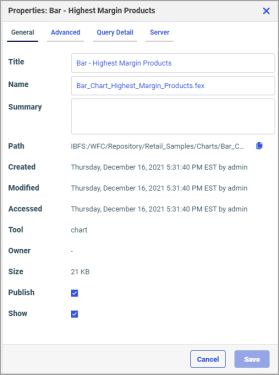
The General Properties tab includes the following settings:
- Title. Displays the value that you can use to identify the content in the Resources tree.
- Name. Refers to the unique name of the item or folder. You can change the name of the resource by editing this field.
- Summary. Displays a detailed explanation that provides additional information about the item.
- Path. Contains the full path of the folder or item in the WebFOCUS repository and the Copy path button.
- Created. Shows the date the folder or item was created.
- Modified. Shows the date the folder or item properties were last modified, and identifies the user that modified them.
- Accessed Shows the date the folder or item was last opened, and identifies the user that opened it.
- Tool. Specifies the type of an item.
- Owner. Identifies the user who created the folder or item.
- Size. Displays N/A bytes for folders. For items, displays the size in bytes.
- Publish. Provides an option to publish or unpublish the folder or item. An unpublished item displays the Not Published icon
 in the tile view and a check mark in the Not Published column in the list view.
 - Show. Provides an option to show or hide the folder or item. A hidden item displays the Not Shown icon
 in the tile view and a check mark in the Hidden column in the list view.
The Advanced tab, which is shown in the following images, allows you to customize the functionality and behavior of the folder or item.
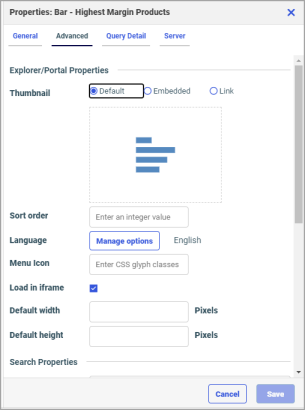
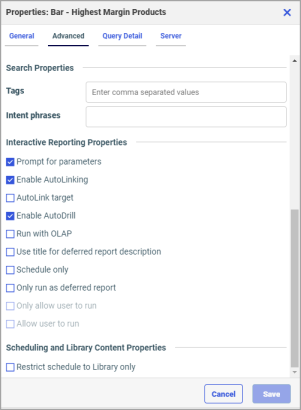
The Advanced Properties tab includes the following properties.
Explorer/Portal Properties:
- Thumbnail. Allows you to preview and change the thumbnail for an item.
- Sort
order. Specifies the order to list the folder in the tree or item within other items in a folder.
Note: The sort order setting does not take effect in the Portals view. It is only valid in the Content, and Favorites views.
- Language. Indicates the current language of your environment and contains the Manage options button, which opens the Language Properties dialog box, where you can select a language.
- Menu Icon. Allows you to enter a CSS class for a custom menu icon that will display in the list view.
- Load in iframe. Grants or suppresses permission to load an item in an iFrame container.
- Default width. Sets a default width value for the item, when it is displayed inside a portal at run time.
- Default height. Sets a default height value for the item, when it is displayed inside a portal at run time.
Search Properties:
- Tags. Adds tag values to the items that display in the search results and portal lists.
- Intent phrases. Allows you to specify how you can interact with the repository item when using Mobile Voice.
Note: You cannot add intent phrases to My Content items. For more information on intent phrases, see the Using ibi™ WebFOCUS®® Mobile Voice technical content.
Interactive Reporting Properties:
- Prompt for parameters. Indicates whether to display the Autoprompt HTML page to allow the user to view and select parameter values. When this check box is clear, users will still be prompted if there are any parameters that do not have a value supplied.
- Enable AutoLinking. Establishes drill-down links from column data to the target reports that you link together.
- AutoLink
target. Identifies a report as the target report that is run when the
drill-down link is triggered.
Note: The Auto Linking between reports only works if the target report contains a parameterized field that corresponds to one of the fields in the primary Auto Link report. For more information on Auto Linking, see the ibi™ WebFOCUS® InfoAssist User’s Manual.
- Enable AutoDrill. Creates drill-down links in reports and charts that contain hierarchical data.
- Run with OLAP. OLAP-enables the report.
- Use title for deferred report description. Indicates whether or not to prompt for a custom deferred report description. If selected, this option gives you an alternative to being prompted for a custom deferred report description. If you want to disable prompting for custom deferred report descriptions for all reports, see the Custom Deferred Report Description setting content in the ibi™ WebFOCUS® Security and Administration technical content.
- Schedule only. Indicates that the report can only be scheduled using ReportCaster when the user does not have write access. This option is not available for reporting objects.
- Only run as deferred report. Runs the report in deferred mode.
- Only allow user to run. Specifies to not allow users to use WebFOCUS InfoAssistwith a reporting object. Depending on the effective policy, users can only use the Run or Run Deferred options.
- Allow user to run. Allows a user not permitted to access the Reporting Object tool to run the reporting object interactively, using the Run or Run Deferred options.
Scheduling and Library Content Properties:
- Restrict schedule to Library only. Prevents emails distribution for security-sensitive scheduled reports, and restricts them to the library distribution only.
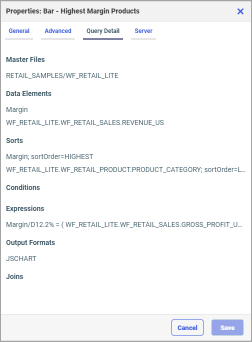
The Query Detail Properties tab, which is shown in the following image, is only available for reports, charts, and visualizations. It shows which data elements, parameters, and conditions were used in an item.
The Server Properties tab, which is shown in the following image, allows you to manage the server and application path settings.
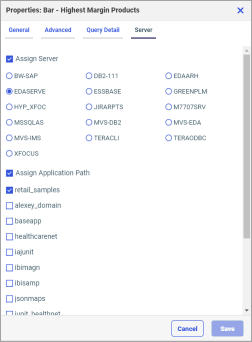
To change the server, select the Assign Server check box, and then select a server from the list. You can also change the application path in the same way.
By default, the Properties panel remains open while you browse between folders and items, allowing you to configure several resources quickly without closing the panel. To close the Properties panel, click the Close button in the upper-right corner of the panel.