ibi WebFOCUS Reporting Server Security Modes
WebFOCUS Reporting Server security runs in one of the following modes:
- PTH (internal). Access to the WebFOCUS Reporting Server is controlled by authenticating against the user list defined at the configuration level (user IDs and passwords have to be configured in the admin.cfg file). When security is set to PTH, there is no impersonation or authentication at the level of the operating system, and all server processes run as a single user ID from the operating system point of view. This is the default authentication mode.
-
LDAP. An external directory service authenticates users. User and group profiles control access to resources. The user credentials from the WebFOCUS Client connection are authenticated through the established directory services. Impersonation is not applicable for this security mode.
-
OPSYS. Each user is defined in the operating system on which the WebFOCUS Reporting Server is running. The WebFOCUS Reporting Server uses operating system services to authenticate connecting users, impersonate them, and control access to resources like files and DBMS objects. User authentication by the operating system protects access to the WebFOCUS Reporting Serverbrowser interface administrative functions.
The native security system of the operating system authenticates user credentials. The WebFOCUS Reporting Server then allocates a data access agent which fully impersonates that user, so that the operating system governs access to files or other objects.
-
-
DBMS. Users are authenticated using a list of user IDs stored in a relational data source. There is no impersonation or authentication by the operating system security for any user credentials supplied by WebFOCUS. Instead, the users may be defined on the DBMS server or the WebFOCUS subserver. This technique is called password pass-through, as user IDs and passwords supplied by the WebFOCUS Client are passed to the next level for authentication.
-
CUSTOM. The user is authenticated by a custom procedure.
- OFF. The user is not authenticated by the built-in WebFOCUS Reporting Server security, and all agents created by the WebFOCUS Reporting Server will run with the security profile of the user who started the WebFOCUS Reporting Server. A security plug-in can be used as an alternative means for authenticating the user.
Note:WebFOCUS Reporting Server roles and templates are independent of roles and templates in the WebFOCUS Client, but perform similar functions. A user can be a Server Administrator on the WebFOCUS Reporting Server while being a basic user, or not existing, in the WebFOCUS Client. While you are configuring a security provider, you do not need to configure any of the Server roles and templates except the Server Administrator role. For more information on WebFOCUS Reporting Server roles and templates, see the ibi™ WebFOCUS® Reporting Server Administration manual.
To create or edit a security provider, double-click on the appropriate security node. Configuration options will appear in the main page. Alternatively, right-click on the security mode and select New to create a new provider or Properties to modify an existing provider. If you select Properties for a security node which has no providers configured, the main page displays the options for configuring a new provider.
The Access Control tab displays the Manage Providers page when you first open it. You can always return to this page by double-clicking the Security Providers folder or by clicking the Manage Providers button in the ribbon. The Manage Providers page lists the providers currently configured, their status, their Server Administrators, and whether or not they accept trusted connections. It also lists the current Server Administrator.
The security behavior of the agent process of the user varies depending on your WebFOCUS Reporting Server security setting. For more information, see the ibi™ WebFOCUS® Reporting Server Administration manual.
ibi WebFOCUS Reporting Server Browser Interface
You configure security providers by using the Access Control tab of the WebFOCUS Reporting Serverbrowser interface, which is shown in the following image.
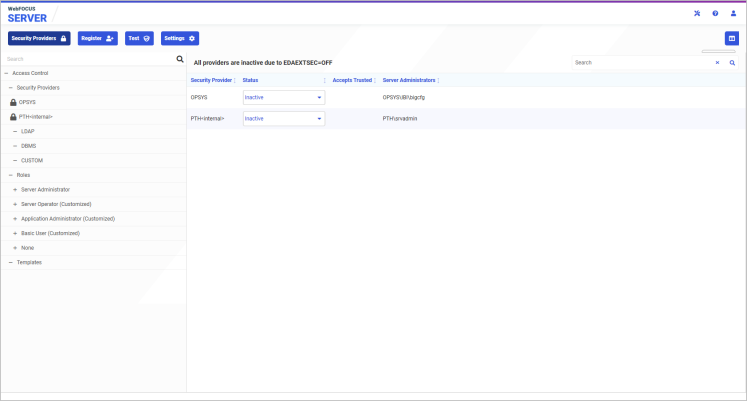
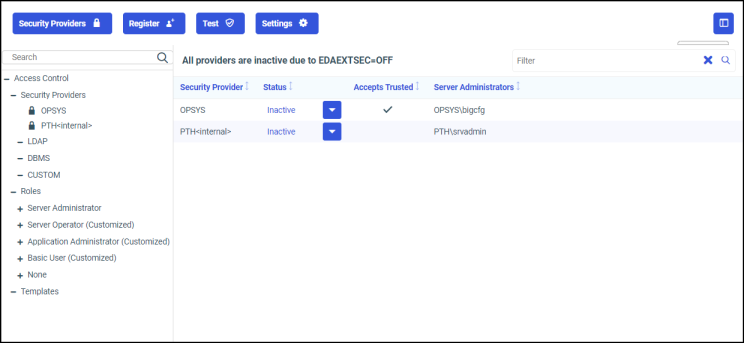
The Access Control tab consists of the following elements:
-
A navigation pane for selecting security providers, templates, and roles. For more information about the security providers listed on this page, see WebFOCUS Reporting Server Security Modes.
-
A main page for configuring or viewing the settings for the selected provider, template, or role.
Opening the ibi WebFOCUS Reporting Server Web Console
Opening the ibi WebFOCUS Reporting Server
You can make global configuration changes in the WebFOCUS Reporting Server environment by using the WebFOCUS Reporting Server Console.
Before you can open the WebFOCUS Reporting Server , you must sign in with a User ID that has the privilege to do so. You can then open the WebFOCUS Reporting Server in one of the following ways.
From the WebFOCUS Home Page:
-
From the User menu, click Legacy Home Page, and then follow the steps to open the WebFOCUS Reporting Server from the Legacy Home Page.
Or
From the User menu, point to Administration, and then click Administration Console. Follow the steps to open the WebFOCUS Reporting Server from the Administration Console.
From the Legacy Home Page:
-
In the Resources tree, expand the Reporting Servers node. Right-click the node for the WebFOCUS Reporting Server you want to work with, and then click WebFOCUS Reporting Server Console.
Or
On the BI Portal menu bar, click Administration, and then click Administration Console. Follow the steps to open the WebFOCUS Reporting Server from the Administration Console.
From the Administration Console:
-
On the Configuration tab, expand the Reporting Servers folder and then expand the Server Connections folder. Right-click the WebFOCUS Reporting Server you want to work with, and then click WebFOCUS Reporting Server Console.
In the browser address bar:
-
Type the following URL:
context/ibi_apps/webconsole/iwaynode_WebFOCUSWebFOCUS Reporting ServerName/wc/bcstart.html
where:
contextIs the host and port number of the server that hosts your installation of WebFOCUS.
For example:
http://server01.ibi.com:8120
WebFOCUS Reporting ServerNameIs the name of the WebFOCUS Reporting Server you want to work with.
For example:
EDASERVE
Navigating to the ibi WebFOCUS Reporting Server Browser Interface
To open the WebFOCUS Reporting Server browser interface directly from the browser address bar:
- Type the following URL:
http(s)://host:port
where:
hostIs the name or IP address of the host used to access the WebFOCUS Reporting Server.
For example:
server01.ibi.com
portIs the number of the port on which the WebFOCUS Reporting Server listens.
For example:
8121
If you are prompted to sign in, type the credentials of a Server Administrator who has the privilege to manage the WebFOCUS Reporting Server.
Note: If you have trouble contacting the WebFOCUS Reporting Server, or if you are running your WebFOCUS Reporting Server with security and need information on the requirements and options associated with the security mode you are using, see the ibi™ WebFOCUS® Reporting Server Administrationibi™ WebFOCUS® Reporting Server Administration technical content for more information.
If you are already signed in, you can open the WebFOCUS Reporting Server browser interface by selecting one of the following options from the left side navigation pane on the Hub.
- Application Directories to open the Application Directories page.
- Management Center and then selecting one of the following links under Server Administration.
- Server Preferences to open the Server Preferences page.
- Access Control to open the Access Control page.
- Server Workspaces to open the Workspaces page.
- Resource Management to open the Resource Management page.
- Scalability page to open the Scalability page.
Note: You can also select Administration Console under Client Administration, if you want to open the WebFOCUS Reporting Server browser interface from the Administration Console.
To open the WebFOCUS Reporting Server browser interface from the WebFOCUS Home Page:
-
On the banner, select Settings and then select WebFOCUS Server.
Or
-
On the banner, select the Plus button and then select Prepare and Manage Data.
To open the WebFOCUS Reporting Server browser interface from the Legacy Home Page:
-
In the Resources tree, expand the Reporting Servers node. Right-click the node for the WebFOCUS Reporting Server you want to work with, and then click WebFOCUS Reporting Server Console.
Or
-
On the BI Portal menu bar, click Administration, and then click Administration Console. Follow the steps to open the WebFOCUS Reporting Server browser interface from the Administration Console.
To open the WebFOCUS Reporting Server browser interface from the Administration Console:
-
On the Configuration tab, expand the Reporting Servers folder and then expand the Server Connections folder. Right-click the WebFOCUS Reporting Server you want to work with, and then click WebFOCUS Reporting Server Console.
If you are prompted to sign in, type the credentials of a Server Administrator who has the privilege to manage the WebFOCUS Reporting Server.