ibi WebFOCUS ReportCaster Verification
After the repository is created, you should test the WebFOCUS Client and the ReportCaster configuration.
If you have problems with the verification, see Troubleshooting ibi WebFOCUS and ReportCasterTroubleshooting ibi WebFOCUS and ibi WebFOCUS ReportCaster.
Make sure you have carried out the procedures in the preceding chapters before starting the Distribution Server.
Before starting or testing the Distribution Server, the components it communicates with must be started. These include the following:
- Web server
- Application server where the WebFOCUS web application is deployed
- WebFOCUS Reporting Server
- Database Server containing WebFOCUS Repository tables
- Mail Server
- FTP Server (if using FTP)
Testing the ibi WebFOCUS Client
This section describes how to test the WebFOCUS Client.
- Procedure
- Ensure the web and application servers are started and configured.
- Go to the
following page using a browser:
http://hostname:host/ibi_apps/
where:
hostname:hostAre the host name and HTTP port of the web server or application server. For Tomcat stand-alone configurations, the default is hostname:8080. If you require SSL, use https instead of http.
The WebFOCUS Sign in page opens.
Note: If you receive a page not found error, ensure that your application server is started and that you have deployed the WebFOCUS application. For more information on configuring your application server, see Installing the ibi WebFOCUS ClientInstalling the ibi WebFOCUS Client. - Enter the
following default credentials:
- User Name: admin
- Password: admin
Note: If you receive an invalid user name or password error, ensure that the WebFOCUS repository has been created and contains initial table data. - Click
Sign in.
The WebFOCUS Hub opens.
You can change the default credentials using the Security Center facility. On the WebFOCUS Hub, from the side navigation pane, select Management Center and then Security Center. For more information, see the ibi™ WebFOCUS® Security and Administration manual.
Starting and Stopping the ibi WebFOCUS ReportCaster Distribution Server
This section describes how to start and stop the ReportCaster Distribution Server.
Test the ibi WebFOCUS Repository Connectivity Settings
To verify, change, or test the Repository connectivity settings:
- Sign in to the WebFOCUS Administration Console.
- On the Configuration tab,
confirm that the Repository configuration settings are correct, as follows:
- Under the Configuration
tab, expand
Application Settings, and then click
Repository.
The right pane displays the Repository database parameters.
- Review the settings and make changes, if needed.
- Click Save.
- Under the Configuration
tab, expand
Application Settings, and then click
Repository.
- Restart ReportCaster and
the Distribution Server, as follows:
- On the ReportCaster tab,
click
Restart.
A confirmation window opens.
- Click Yes.
- On the ReportCaster tab,
click
Restart.
- On the Server Status pane, verify that ReportCaster is running in full function mode.
Start the Distribution Server From the OMVS Shell
To start the Distribution Server, use the following procedure:
There are two ways to start the Distribution Server. One way is to use the OMVS shell. The other is to start the server as a batch job. To start the Distribution Server using the OMVS shell, perform the following steps:
- Procedure
- From
QSH, navigate
Navigate to the following directory:
/install_directory/ibi/WebFOCUS93/ReportCaster/bin
- Type the following command and press Enter:
./schbkr &
sh./schbkr &
When the Distribution Server starts, you receive output similar to the following, depending on which components you installed:
Console is listening on port: 8200

Reader ready

Dispatcher ready

Console ready
When the Console ready line appears, the Distribution Server is started.
Note: The Distribution Server will start in Console mode if it cannot connect to the repository, or if your repository is for an earlier release. ReportCaster must use a valid Release 9.3.2 Repository. - Proceed to Confirm the Distribution Server is Started.
Stop the Distribution Server From the OMVS Shell
To stop the Distribution Server, do the following:
There are two ways to stop the Distribution Server. One way is to use the OMVS shell. The other is to stop the server as a batch job. To stop the Distribution Server using the OMVS shell, do the following:
- Procedure
- Navigate
to the following directory:
/install_directory/ibi/WebFOCUS93/ReportCaster/bin
- Type the
following command and press Enter:
./stopit
sh./stopit
- Wait a few minutes. It may take some time for the Distribution Server to stop.
- Wait a
few minutes. It may take some time for the Distribution Server to stop. Then,
issue the following to confirm the Distribution Server has stopped:
netstat -a | grep 8200where:
8200Is the port for the Distribution Server.
If you receive a response that says LISTEN:
tcp 0 0 *:8200 *:* LISTEN
Then the Distribution Server has not yet stopped. Wait a few minutes and try again. If it still has not stopped, you can manually stop the process. To do this, sign in as root and issue the following command:
netstat -nlp | grep 8200Then, stop the process that appears at the end of the line.
Start the Distribution Server for Production
When running the Distribution Server in production, you should start it using the nohup command. This ensures that the Distribution Server remains running if you close telnet or SSH sessions. To do this:
- Procedure
- Navigate
to the following directory:
/install_directory/ibi/WebFOCUS93/ReportCaster/bin
- Type the
following command and press Enter:
nohup ./schbkr &
Output is written to a nohup.out file.
Verifying ibi WebFOCUS ReportCaster
After the ReportCaster Distribution Server is started, test the ReportCaster configuration by accessing ReportCaster interfaces.
Verify ibi WebFOCUS ReportCaster Distribution Server Startup
- Procedure
- Start the ReportCaster Distribution Server and all related components, if they are not started.
- On the
WebFOCUS Hub, select
Main Menu on the banner, and then under Quick
Access, select
ReportCaster Status.
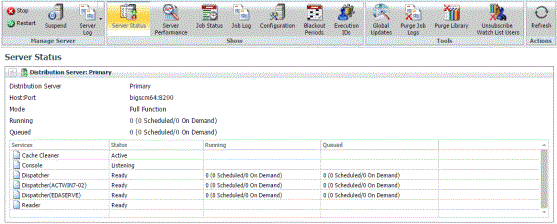
The ReportCaster Console opens, as shown in the following image.
- Verify that the Distribution Server is started on the host and port specified in your configuration.