Creating Maps to Illustrate Trends
You can create maps to identify patterns or trends in your data. By converting data into values that can be displayed on a map, you are able to visualize scenarios, illustrate hot spots, and identify potential problem areas. For example, a law enforcement agency may use mapping functionality to identify areas of higher crime within the locations they cover. You can also use maps to determine how places are related, understand where things are located, and identify the best actions to take. By illustrating trends on a map, a decision maker can identify patterns easily, and reach conclusions sooner.
You can access Map options from the Format tab, as a special tab is activated when a map is initiated. This tab is shown in the following image:
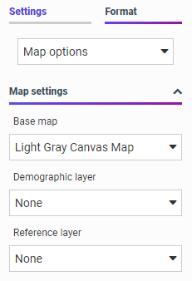
You can format maps to display areas of emphasis through the use of demographic and reference layers.
A Brief History of Mapping
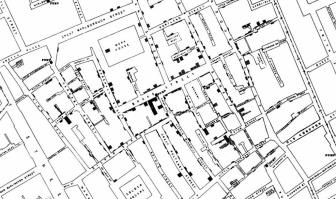
An early example of how maps can be used to illustrate trends is the case of Dr. John Snow, an epidemiologist who was one of the first to use data to map occurrences of cholera to find the cause of infection. By plotting the cholera data on a map of a town, Dr. Snow was able to visualize a trend that showed higher incidences of cholera closest to water pumps. This example is shown in the following image.
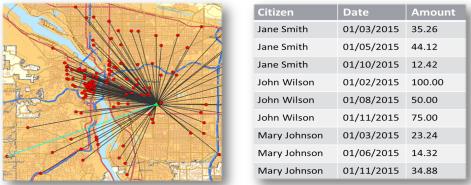
Maps also allow you to measure size, shape, and distribution to detect and quantify patterns, and even perform predictive analytics. An example of how maps can help detect and quantify patterns is the scenario in which a state agency used a mapping application to solve a problem with their food stamp system. Using this application, odd food stamp redemptions, such as rounded numbers transactions, were discovered. By plotting those transactions on a map, the agency discovered that the redemptions appeared in the same geographic location. On further investigation, the agency identified that individuals were selling their food stamps at reduced prices, $50 worth of food stamps for $40 in cash, to others instead using them as intended. This map example is shown in the following image.
When working with maps, the concepts of location intelligence and business intelligence are important to understand. A Geographic Information System (GIS) captures, stores, analyzes, manages, and presents data linked to a location, while Business Intelligence (BI) relies on the conversion of raw data into meaningful information. Location intelligence is the process of analyzing data to make better business decisions. It combines GIS and BI/Analytics to allow the recognition of patterns in your data, including the visualization and discovery of geospatial outliers, which would not be easily discovered if you use the technology independently and separately.
More specifically, maps use non-intrusive GIS workflows with existing data. You can view symbol layers for data-bound to a geo-location, such as state, country, and ZIP code, in an integrated map viewer. Using metrics from your data, you can also visualize geographic roles or dimensions. Geographic roles, or dimensions, can be built directly into your Metadata or assigned to a data field when you create a map.
ibi WebFOCUS Designer and Esri Integration
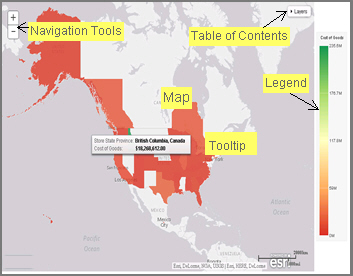
Using WebFOCUS Designer with the Esri integration, you can create maps that help you illustrate or identify trends so you can take action quickly. WebFOCUS architecture provides the framework in which this system operates. Using a JavaScript map viewer, you can navigate the interface easily, as shown in the following image.
In addition, this integration utilizes the capabilities of Esri by leveraging the ArcGIS JavaScript API and content. Specifically, you can integrate data into maps with published content in ArcGIS Online platform. For more information, see http://www.esri.com/software/arcgis/arcgisonline. Additionally, by using this integration, you can include information about demographics, spending habits, crime, and lifestyle to maps that contain your data. These maps include layers with extensive demographic or reference detail and topography and allow you to view information about people, businesses, climate, and much more.
You can create the following maps in WebFOCUS Designer:
- Choropleth. A common thematic map that uses geographical measures (for example, states and countries), representing the values aerially while employing a varying intensity of colors. It is useful for visualizing location-based data, trends, and distributions across a geographic area. The color hues for Choropleth maps are dictated by the legend, based on the selected measure, enabling you to determine data concentration across your map.
- Proportional Symbol (Bubble). A map that represents coordinates, such as an address or intersection, using symbols of different sizes to represent any measure. These maps focus on specific areas, for which data concentrations may vary. When the data concentration is larger, the bubble is bigger.
In addition, built-in zooming capabilities allow you to drill down to a specific geographic area of focus easily. This allows you to get a closer look at regional or local data, draw inferences, and make recommendations, without changing the initial view of your data.
Using the Esri integration in WebFOCUS Designer, you can also add the following layers to your map:
- Base map. Display a
layer that positions data as it is located, in context to other geographical
features, such as streets, terrain, and imagery. Some standard Background
options may combine road, aerial, and topographic data using a variety of
symbols. Hosted on ArcGIS, you can change your background at any time, to
review your data in a different context.
When you apply a Background to your map, its appearance changes. You can then adjust the view of your data, showing different terrain or geographical views. Base maps provide at least 17 levels of zoom. For more information, see https://developers.arcgis.com/javascript/jsapi/esri.basemaps-amd.html.
The basemap options include:
- Light Gray Canvas Map
- Dark Gray Canvas Map
- World Imagery with Labels
- National Geographic World Map
- Oceans Map
- Open Street Map
- World Imagery
- World Street Map
- Terrain with Labels
- World Topographical Map
- Reference Layers. Display a layer of boundaries and locations that range from a continental scale to country, state, and even local neighborhood. For example, if you are viewing World data on electricity usage, you may want to add a Reference Layer that displays the borders and concentration of your data within each country.
- Demographic Layers. Display a layer of information about people and businesses in a specific demographic area. This includes the United States and 120 other countries. Demographic Layers are thematic maps that provide additional information about the location, such as spending habits, population, and lifestyles. You can add Demographic Layers to a map about sales data, to identify new locations for stores, based on the spending habits for a specific area.
Both mapextent and the Layers menu functionality are applied to your map when you select a Base map, Reference Layer, or Demographic Layer. Mapextent is an automatic view of the map. Layers is a menu that appears on the map and provides access to options that allow you to adjust the information that is being displayed.
The map example in the following image shows the use of layers.
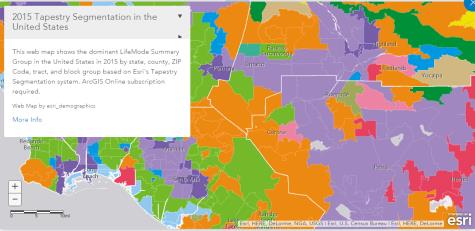
ibi WebFOCUS Server Adapter for Esri ArcGIS Configuration for Demographic Layers
In order for demographic layers to draw, you must configure the WebFOCUS Server to enable them. Some features, such as demographic and reference layers that require authentication and certain simplified geography functions, may additionally require a refresh token. You can acquire the refresh token using your Esri ArcGIS credentials.
Configure the Adapter for Esri ArcGIS to Enable Demographic Layers to Draw
- Procedure
- From the plus menu of the WebFOCUS Hub, or from the WebFOCUS Home Page, click Get Data.
- On the Get Data page, double-click New Data Source.
- From the
list of adapters, double-click
ESRI ArcGIS.
The Add Connection for Esri ArcGIS panel opens.
Note: To find the Esri ArcGIS adapter option more easily, select GIS from the Available dropdown list, or use the search box. - Basic
connection parameters for this adapter are supplied automatically. To access
secured Esri ArcGIS features that require named authentication, configure the
Adapter for Esri ArcGIS with a refresh token.
Click Get Refresh Token. The Esri ArcGIS Sign In page opens. Type your username and password, and then click Sign In.
You are returned to the Add Connection panel.
- In the
Add Connection for Esri ArcGIS panel, click
Configure, as shown in the following image.
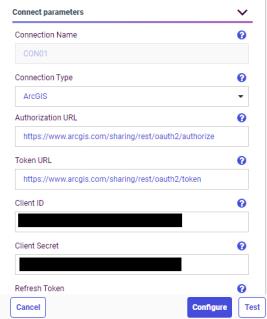
Once this is configured, ESRI ArcGIS is added to the Get Data page.
Configuring an Esri On Premise Environment
The Esri On Premise functionality enables you to download and access mapping files through the use of a local Application Programming Interface (API). Once you download and configure the API, you do not need an internet connection to utilize the robust mapping features that Esri provides. For information on downloading and configuring the API that controls this feature, see Creating Maps to Illustrate Trends.
The Esri On Premise functionality provides you with local access to Esri mapping files. This is particularly useful if you are away from your office or without an internet connection. You may also be using a mobile device, such as an iPad or smartphone with a large screen, without an internet connection. The following mapping components are supported when using the Esri On Premise functionality:
- Offline Basemaps. Basemaps are an offering from ArcGIS. Standard basemaps are provided for your use offline. For example, there is an Oceans basemap and a Terrain with Labels basemap. These basemaps are also known as backgrounds. In an online setting, there are 10 basemaps available. In order to use offline basemaps you need to use a tiled mapservice published in the ArcGIS Server.
- Offline Geographic Roles. Geographic Roles are used to visualize measures with commonly known dimensions (for example, Country, State, Cities, and so on). These provide the location information often in the form of (x/y) needed to plot on a map. Geographic roles are pre-defined for online users through ArcGIS Online. A geographic role defines the geographic component that you can select when creating a map (for example, State or Continent). For an offline user, the options that display can be customized in the geoservices.xml file. For more information, see Creating Maps to Illustrate Trends.
Download and Configure the ArcGIS JavaScript API
You can use this procedure to download and configure the API that controls the Esri On Premise environment.
- Procedure
- Sign in to Esri ArcGIS.
- In your browser, navigate to the following URL to download the API: https://developers.arcgis.com/downloads/#javascript
- Navigate
to Version 3.28 of the ArcGIS API for JavaScript, as shown in the following
image.
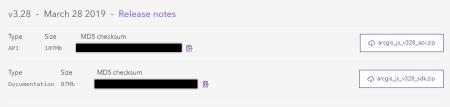
- Click arcgis_js_v328_api.zip to download the API.
- In drive:\ibi\WebFOCUSnn\config\web_resource, create a folder named arcgis_api.
- Open the arcgis_js_v328_api.zip file downloaded in step 4 and navigate to arcgis_js_v328_api\arcgis_js_api\library\3.28\3.28.
- Extract the files in that folder to the drive:\ibi\WebFOCUSnn\config\web_resource\arcgis_api folder.
- Next,
verify the path to the API in the Administration Console, as shown in the
following image.
Note:
This is the path to which you extracted the API files. For example, /web_resource/arcgis_api.
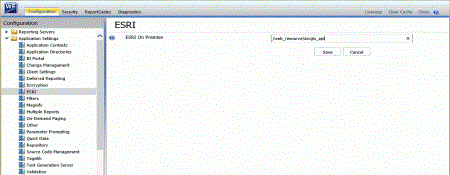
This field identifies the path to the internal ArcGIS Javascript API Source that develops ESRI-based maps. This setting is blank, by default, indicating that the use of the internal API source to develop ESRI maps is not activated. The API that is referenced is https://js.arcgis.com/3.28/, by default. To direct WebFOCUS Designer to use the internal ArcGIS Javascript API to develop ESRI maps, enter the path to the local API files that you extracted into this setting. For more information, see the WebFOCUS Security and Administration manual.
Note: This path should be a relative path that is accessible within the local install. - Click Save.
- Next,
open the following two local API files in a text editor:
- drive:\ibi\WebFOCUSnn\config\web_resource\arcgis_api\init.js
- drive:\ibi\WebFOCUSnn\config\web_resource\arcgis_api\dojo\dojo.js
In both files, search for HOSTNAME_AND_PATH_TO_JSAPI to locate the baseUrl property. Replace the string [HOSTNAME_AND_PATH_TO_JSAPI] in baseUrl:"https://[HOSTNAME_AND_PATH_TO_JSAPI]dojo" with the path to your on-premise ArcGIS server. For example:
baseUrl:"https://localhost/arcgis/jsapi/jsapi/dojo"
- In the Administration Console, click Clear Cache to clear the browser cache. Your configuration is complete.
Creating and Customizing Maps in ibi WebFOCUS Designer
The following procedures provide step-by-step instructions on how to create and customize maps.
As you create your maps, you can use the following built-in map viewer features:
- You can use the plus (+)
and minus (-) symbols,
 , within the map to
zoom in and out of different areas of the map. You can also click your left
mouse button to zoom in to a specific location.
, within the map to
zoom in and out of different areas of the map. You can also click your left
mouse button to zoom in to a specific location.
- Like all HTML5 visualizations, the highlighted markers and regions on a map support drill, multi-drill, auto-linking, and informational tooltip features.
- You can use the Pan / Selection button to alternate between the Pan and Selection controls. This option is in the upper-right corner of the map.
- Creating a map chart using the US Zipcode 5 Georole with more than 2000 polygons fail to draw.
Create an Esri Choropleth Map
- Procedure
- Open
WebFOCUS Designer. On the WebFOCUS Hub, click the plus menu and then
click
Create Visualizations, or, on the WebFOCUS Home
Page, click
Visualize Data.
WebFOCUS Designer opens in a new browser tab.
- Select a
workspace and a data source available from that workspace.
Once you select a data source, WebFOCUS Designer loads with options to create a single content item.
- On the
Content picker, select the Choropleth map chart type.
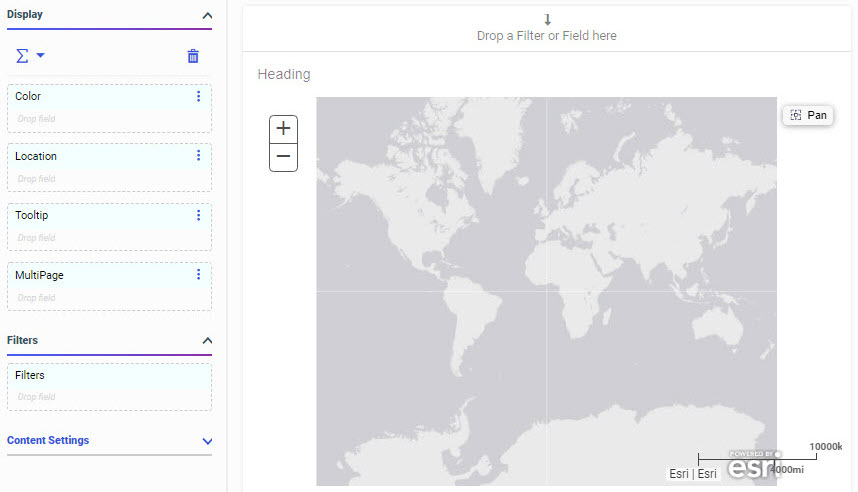
A blank map displays and the Location bucket is enabled, as shown in the following image.
 " MadCap:conditions="OtherProps.https://webfocusinfocenter.informationbuilders.com/wfdesigner/TL5s/TL_8205_topics/source/images/geo_blank.gif" style="width: 500px;" />
- Add a
Geolocation field to the Location bucket.
This field, which already has a geographic role assigned, is denoted with a Location icon,
 , in the
Resources panel.
, in the
Resources panel.
The canvas refreshes, and your map displays.
- Before
saving your map, to add insight, you can also do the following:
- Click Run in new window, to see a run-time view of your map.
- Add a measure or dimension to the Color bucket, to color your chart by that underlying data value. When you add a dimension field to the Color bucket, a legend displays for the values in that field. Note that each area in a choropleth map can only display one color at a time, so it may be preferable to use a dimension for which each geographic area returns a single value. If you specify a measure in the Color bucket, a color scale is generated.
- Add a field to the Tooltip bucket, which displays tooltip information when you place your mouse over an area of the map.
- Add a Base map, Demographic Layer, or Reference Layer from the Format tab, under Map options.
- Click Save to save your map.
Create an Esri Proportional Symbol (Bubble) Map
- Procedure
- Open
WebFOCUS Designer. On the WebFOCUS Hub, click the plus menu and then
click
Create Visualizations, or, on the WebFOCUS Home
Page, click
Visualize Data.
WebFOCUS Designer opens in a new browser tab.
- Select a
workspace and a data source available from that workspace.
Once you select a data source, WebFOCUS Designer loads with options to create a single content item.
- On the
Content picker, select Proportional Symbol for the map type.
A blank map displays and the Location bucket is enabled.
- Place a
data field with a defined geographic role in the Location bucket.
This field, which already has a geographic role assigned, is denoted with a Location icon,
, in the
Resource panel.
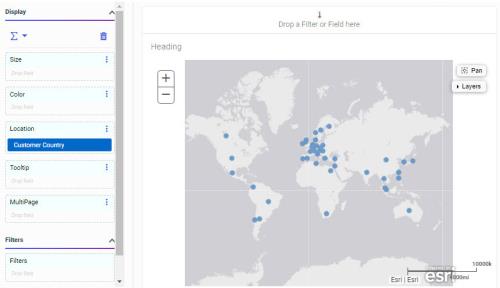
A basic bubble map displays, as shown in the following image.
- Before
saving your map, to add insight, you can also do the following:
- Click Run in new window, to see a run-time view of your map.
- Add a measure or dimension to the Color bucket to color your chart by that underlying data value. Adding a dimension creates a legend with a different color assigned to each value. Adding a measure generates a color scale.
- Add a measure to the Size bucket, to control the size of the bubbles on your map.
- Add a field to the Tooltip bucket, to display tooltip information when you place your mouse over an area of the map at run time.
- Add a Resources Panel, Demographic Layer, or Reference Layer from the Format tab, under Map options.
- Click Save to save your map.
Change the Default Background of a Map
- Procedure
- Create a new map or open an existing map.
- On the
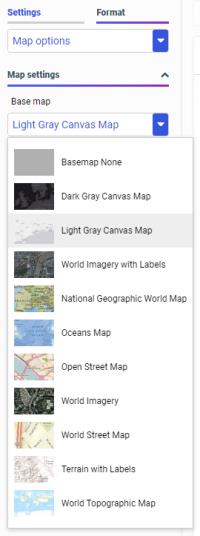
Format tab, on the Map options tab, select Base map and choose from the
available options, as shown in the following image.
- Select
one of the following options:
- World Street Map
- Terrain with Labels
- Oceans Basemap
- OpenStreetMap
- World Imagery
- World Imagery with Labels
- Light Gray Canvas
- National Geographic World Map
- Dark Gray Canvas
- None
Note: The Imagery with Labels Background provides the terrain for your map, ranging from land contours to city streets.Once you make a selection, the background of the map refreshes. You can continue to change your background until it displays the desired information.
Add Demographic Layers to a Map
- Procedure
- Create a new map or open an existing map.
- On the Format tab, in the Map options group, click the Demographic layer dropdown and click Demographic Layers.
- Select
from various population and lifestyle groups, as shown in the following image.
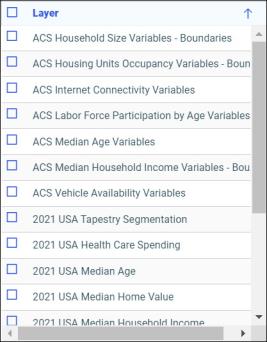 Note: These are pre-defined demographic profiles, provided by Esri ArcGIS. Esri periodically retires older demographic layers.
You can select multiple options in either category to gain additional insight into your data. Specifically, each Demographic Layer has its own profile and provides a layering option, when comparing values across different layers or profiles.
- Click
OK.
The Demographic Layers that you select are applied to your map. The map engine displays the different groups with unique hues and coloring. You can use the Table of Contents or Layers option, to toggle between the different layers that you have specified. The Layers option is shown in the following image.
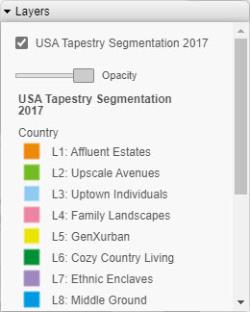 Note: You can select and clear the checkboxes to enable the display of one or more Demographic Layers to compare and contrast the different demographic scenarios.
Add Reference Layers to a Map
- Procedure
- Create a new map or open an existing map.
- On the
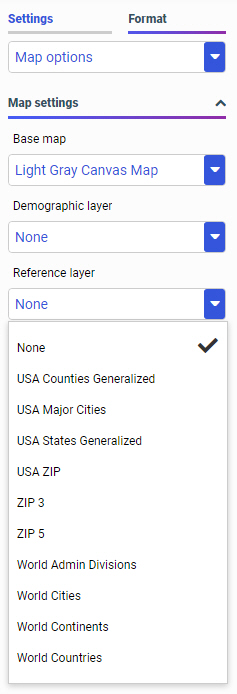
Format tab, in the Map options group, click the dropdown for Reference layer.
The list of Reference Layers displays, as shown in the following image.
- Select
one or more Reference Layers, such as World Countries, to add to your map, and
then click
OK.
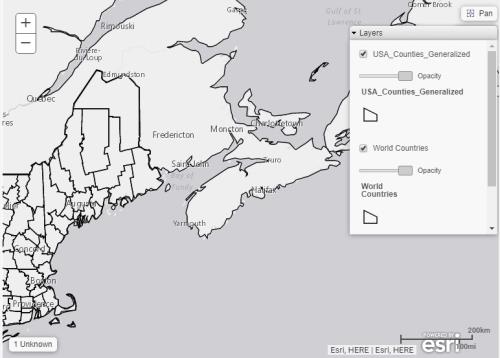
Your map refreshes, and the definitions and borders of the References Layers display on the canvas. You can use the Table of Contents or Layers option, to toggle different Reference Layers in your map. These options are shown in the following image.
Query Buckets by Map Type
This section presents the Query buckets that display, by map type.
|
Query bucket |
Choropleth Map |
Proportional Symbol Map |
|---|---|---|
|
Location. One data field, specifically a field containing location data (for example, State). |
|
|
|
Color. One data field. |
|
|
|
Tooltip. One or more data fields (not required). |
|
|
|
Multi-page. Up to one data field (not required). |
|
|
|
Size. One data field. |
|
|


Geographic Roles
Geographic roles have been unified to access 58 world administrative boundaries down to the postal code level, out of the box. You can access administrative boundaries for approximately 250 countries with a second level license, which is a paid service from Esri. Enter your second level license code by clicking the License button on the ribbon.
This section contains information on the geographic roles that are supported for Esri maps.
|
Geographic Role |
Description |
Maps Supported |
|---|---|---|
|
CONTINENT |
World Continents |
Choropleth, Proportional Symbol |
|
COUNTRY |
World Countries |
Choropleth, Proportional Symbol |
|
STATE |
World Admin Divisions |
Choropleth, Proportional Symbol |
|
CITY |
World Cities |
Proportional Symbol |
|
COUNTY |
World Counties |
Choropleth, Proportional Symbol |
|
POSTAL-CODE |
Postal Code |
Choropleth, Proportional Symbol |
The following table illustrates the geographic roles and their dependencies. Level 1 indicates the highest level of hierarchy and level 5 is the lowest level of hierarchy.
|
Region |
Hierarchy Level |
Geographic Role |
|---|---|---|
|
World |
1 |
CONTINENT |
|
2 |
COUNTRY |
|
|
3 |
STATE |
|
|
4 |
CITY |
|
|
5 |
POSTAL CODE |
Access Second Level Licensed Geographies for Esri Maps
- Procedure
- Click Workspace on the WebFOCUS Reporting Server Web Console sidebar.
- Click
License on the ribbon.
The License Management pane opens, as shown in the following image.
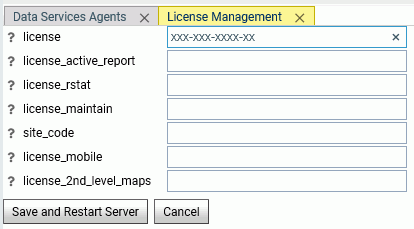
- Enter your Esri second level license code in the license_2nd_level_maps field.
- Click Save and Restart Server.
Once the second level license is enabled, you can use the standard administrative and postal geographic roles to access these additional geographic boundaries.
List of Geographic Locations
The WebFOCUS Server Console provides a list of first and second level map administrative regions. To open the list, select Server Workspaces from the Management Center on the Hub, click the Settings menu on the Workspace page ribbon, point to Geo Services, and select General maps info. This opens the list of administrative regions and postal levels, as shown in the following image.
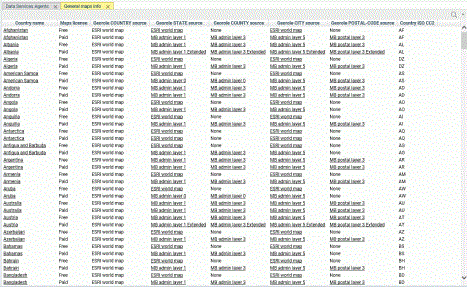
The regions that say Paid in the Maps license column are the additional regions you can access with a second level license.
- The source for the country administrative level is provided by the Esri World map. Country is administrative level 0.
- The source for the State georole can be provided by the Esri World map or by shape files. When there is a second level license, the state administrative level can be level 1 or level 2.
- The source for the County georole can be provided by the Esri World map or by shape files. When there is a second level license, the county administrative level can be level 3 or level 4.
- The source for the City georole can be provided by the Esri World map or by shape files. When there is a second level license, the city administrative level is level 5.
- The source for the Postal Code georole can be provided by the Esri World map or by shape files. When there is a second level license, the postal code administrative level can be 3, 4, or 5.
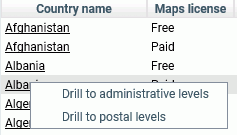
Some georoles may not be applicable to specific countries. You can see the details of each country and its administrative levels by right-clicking the country name and clicking Drill to administrative levels or Drill to postal levels, as shown in the following image.
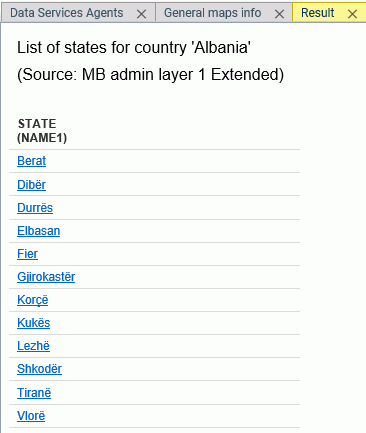
Clicking Drill to administrative levels opens the list of States for the country, as shown in the following image.
Clicking any link opens information about the next level georole.
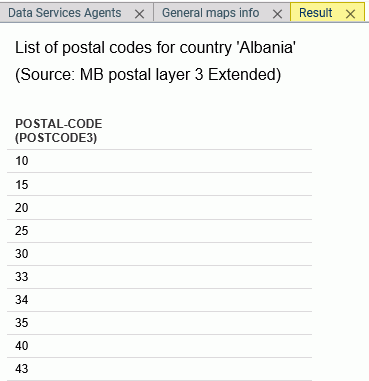
Clicking Drill to postal levels opens the list of postal levels for the country, as shown in the following image.
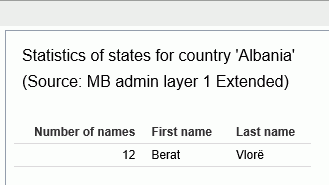
Right-clicking a link in any georole column other than the Country column opens a summary of the values for that georole, as shown in the following image.
Using a Second Level License to Map French Postal Codes
The request used in this example references data about French state names, city names, and postal codes. This data is readily available online. The data in this example was downloaded from https://www.aggdata.com/free/france-postal-codes which is available for free using a Creative Commons Attribution 4.0 license detailed at https://creativecommons.org/licenses/by/4.0/. Once you download the data, you can upload it to the server to create the data file and synonym for use in requests. This example assumes that the data and synonym are in the ibisamp application on the server.
The Master File for the uploaded data follows. The Master File generated by the upload procedure was edited to change the first field name to COUNTRY and to remove the folder declarations.
FILENAME=FR_POSTAL_CODES, SUFFIX=DFIX    ,

 DATASET=ibisamp/fr_postal_codes.ftm (LRECL 1140 RECFM V, BV_NAMESPACE=OFF, $

  SEGMENT=FR_POSTAL_CODES, SEGTYPE=S0, $

    FIELDNAME=COUNTRY, ALIAS=E01, USAGE=A50V, ACTUAL=A50V,

      TITLE='Country for State',

      GEOGRAPHIC_ROLE=COUNTRY,  $

    FIELDNAME=STATE, ALIAS=E02, USAGE=A21V, ACTUAL=A21V,

      MISSING=ON,

      TITLE='State',

      GEOGRAPHIC_ROLE=STATE,  $

    FIELDNAME=COUNTY, ALIAS=E03, USAGE=A25V, ACTUAL=A25V,

      MISSING=ON,

      TITLE='County',

      GEOGRAPHIC_ROLE=COUNTY,  $

    FIELDNAME=CITY, ALIAS=E04, USAGE=A48V, ACTUAL=A48V,

      MISSING=ON,

      TITLE='City',

      GEOGRAPHIC_ROLE=CITY,  $

    FIELDNAME=POSTAL_CODE, ALIAS=E05, USAGE=A16V, ACTUAL=A16V,

      MISSING=ON,

      TITLE='Postal Code',

      GEOGRAPHIC_ROLE=POSTAL-CODE,  $

    FIELDNAME=PLACE_NAME, ALIAS=E06, USAGE=A56V, ACTUAL=A56V,

      MISSING=ON,

      TITLE='Place Name', $

    FIELDNAME=GEO_POINT, ALIAS=E07, USAGE=A150, ACTUAL=A150,

      TITLE='GIS Point',

      GEOGRAPHIC_ROLE=GEOMETRY_POINT,  $
The Access File for the uploaded data follows.
SEGNAME=FR_POSTAL_CODES,

  DELIMITER=',',

  CDN=COMMAS_DOT,

  CONNECTION=<local>, $
The following WebFOCUS Procedure generates a choropleth map that shows the postal codes from the uploaded data source. The DEFINE field is used to assign different numeric values to each field. When used in the Color bucket, this DEFINE field makes it easier to differentiate the different postal code areas.
DEFINE FILE fr_postal_codes

 FOURTH_CHAR/I1 ( TITLE = 'Fourth,Character' ) =

		SUBSTRING(FR_POSTAL_CODES.FR_POSTAL_CODES.POSTAL_CODE, 4, 1);

END


SET COMPONENT=TableChart_1

SET ARVERSION=2

-DEFAULTH &WF_TITLE='WebFOCUS Report';


GRAPH FILE fr_postal_codes

SUM FOURTH_CHAR

BY FR_POSTAL_CODES.FR_POSTAL_CODES.POSTAL_CODE

ON GRAPH PCHOLD FORMAT JSCHART

ON GRAPH SET VZERO OFF

ON GRAPH SET GRWIDTH 1

ON GRAPH SET HAXIS 1008.0

ON GRAPH SET VAXIS 768.0

ON GRAPH SET LOOKGRAPH CHOROPLETH

ON GRAPH SET EMBEDHEADING ON

ON GRAPH SET AUTOFIT ON

ON GRAPH SET STYLE *

INCLUDE=IBFS:/WFC/Global/Themes/Standard/Default/theme.sty,$

TYPE=REPORT, TITLETEXT='Chart1', ORIENTATION=LANDSCAPE, ARREPORTSIZE=DIMENSION,

	ARFILTER_TARGET='*', CHART-LOOK=com.esri.map, ARGRAPHENGINE=JSCHART, $

TYPE=DATA, COLUMN=N2, BUCKET=color, $

*GRAPH_SCRIPT


*GRAPH_JS_FINAL

"extensions": {

    "com.esri.map": {

        "overlayLayers":             [

                {

                    "ibiDataLayer": {

                        "map-metadata": {

"map_by_field": "FR_POSTAL_CODES.FR_POSTAL_CODES.POSTAL_CODE"

                        }

                    }

                }

            ],

        "baseMapInfo": {

            "customBaseMaps":                 [

                    {

                        "ibiBaseLayer": "dark-gray"

                    }

                ]

        }

    }

}


*END

ENDSTYLE

END
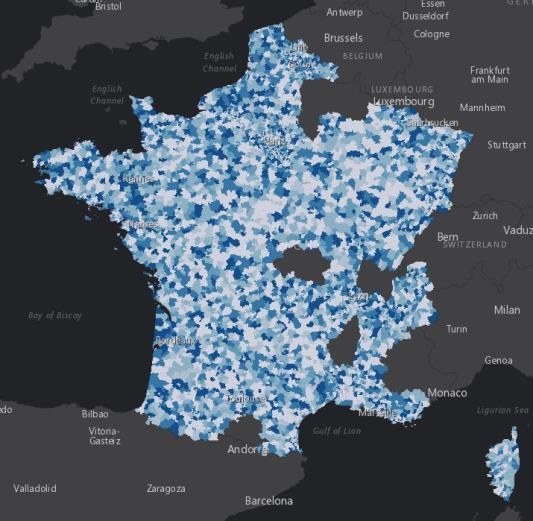
When you run this procedure, the map displays postal codes in France, as shown in the following image.
Adding a Custom Geographic Role
The GEO configuration editor in the WebFOCUS Reporting Server provides a tool for editing or adding properties for geographic roles.
On the WebFOCUS Hub, from the Management Center, click Server Workspaces to access the WebFOCUS Reporting Server Workspace area. Alternatively, from the WebFOCUS Home Page, click the Settings menu and click WebFOCUS Server. When the WebFOCUS Reporting Server browser interface opens, open the Tools menu and click Workspace. The Workspace area opens.
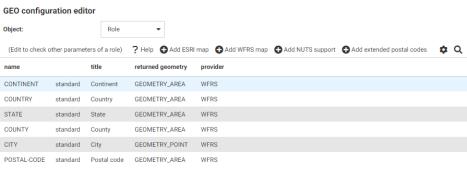
In the WebFOCUS Reporting Server Workspace area click Settings, point to Geo Services, then click Edit Configuration. The GEO configuration editor opens displaying the configured geographic roles, as shown in the following image.
Editing the List of Geographic Roles
The following standard unified geographic roles are configured by default and cannot be changed. These geographic roles create a hierarchy that can be used to drill down or up between levels of administration in maps, reports, or charts.
- CONTINENT.
- COUNTRY.
- STATE.
- COUNTY.
- CITY.
- POSTAL CODE.
To add a geographic role to the configuration, you can add a new Esri map or a shapefile hosted by the Server and associate a geographic role with the new map. You can also implement NUTS geographic roles support.
Configuring Properties of Geographic Roles
The following describes columns for geographic roles in the configuration editor.
Is the unique name of the geographic role. It cannot have spaces, but it can have underscores (_).
Next to the name is an indicator of whether the role is a standard role or a customized role.
Is the description of the geographic role that is displayed in reports and in dropdown lists in the WebFOCUS tools.
Is the type of geographic data returned from the map service for rendering on the map.
Valid values include:
- GEOMETRY_AREA
- GEOMETRY_POINT
- GEOMETRY_LINE
When you have configured the properties, click OK to return to the Geo Configuration Editor.
The new role displays on the list of roles, click Save to save it in the geographic configuration.
Adding a New Role for an Esri Map
To add an Esri geographic role, click Add ESRI map on the Geographic Configuration Editor.
The Create a new ESRI map role dialog opens, as shown in the following image.
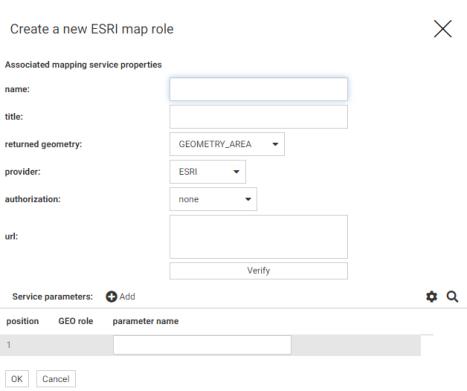
Configure the following map service properties.
Is a name for the geographic role.
Is a title to display in the WebFOCUS tools.
Select the type of geometry that is returned from the map service for this role. Valid values are:
- GEOMETRY_AREA. Returns JSON polygon definitions.
- GEOMETRY_LINE. Returns JSON line definitions.
- GEOMETRY_POINT. Returns a JSON point.
Is the URL to the map service that provides the geographic data.
Click Verify after entering the URL to verify that the map service is available by going to the specified URL.
Add as parameters any additional geographic roles needed to identify the exact location of the new role. For example, a city name needs state and country parameters.
Adding the WebFOCUS Regions Geographic Role
The following properties add the WebFOCUS Regions role to the configuration.
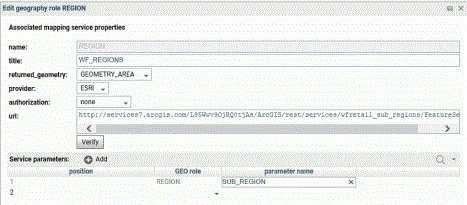
http://services7.arcgis.com/L95Wwv9OjRQ0tjAs/ArcGIS/rest/services/wfretail_sub_regions/FeatureServer/0
Click OK when you have finished configuring the properties.
The new role is added to the configuration as a customized role, as shown in the following image.
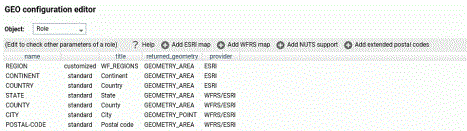
Click Save to save this role to the configuration.
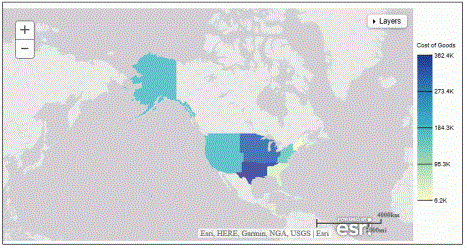
The following request uses the WebFOCUS Regions geographic role in a map request.
DEFINE FILE WF_RETAIL_LITE


REGION/A50 (GEOGRAPHIC_ROLE=REGION) = BUSINESS_SUB_REGION;

END


GRAPH FILE WF_RETAIL_LITE

SUM COGS_US

BY REGION

WHERE COUNTRY_NAME EQ 'United States'

ON GRAPH PCHOLD FORMAT JSCHART

ON GRAPH SET LOOKGRAPH CHOROPLETH

ON GRAPH SET STYLE *

TYPE=REPORT, CHART-LOOK=com.esri.map, $

TYPE=DATA, COLUMN=N2, BUCKET=color, $

*GRAPH_JS_FINAL

"extensions": {

"com.esri.map": {

"overlayLayers":

[

{

"ibiDataLayer": {

"map-metadata": {

"map_by_field": "

REGION"

}

}

}

],

"baseMapInfo":

{

"customBaseMaps":

[

{

"ibiBaseLayer": "gray"

}

]

}

}

}

*END

ENDSTYLE

END
The output is shown in the following image.
Adding a New Role for a Server-Hosted Map
A server-hosted map is based on a shapefile. You must upload the shapefile (.dbf) to an application folder accessible to the server. The server transforms it to ibijson format.
An ESRI shape file is actually a collection of at least four files:
- .dbf file. The .dbf file is a standard database file used to store attribute data and object IDs. A .dbf file is mandatory for shape files.
- .shp file. The .shp file is a mandatory Esri file that gives features their geometry. Every shapefile has its own .shp file that represents spatial vector data.
- .shx file. The .shx file is a mandatory Esri shape index position file. This type of file is used to search forward and backwards.
- .prj file. The .prj file is an optional file that contains the metadata associated with the shapefiles coordinate and projection system.
All files must have exactly the same name and to be located in the same directory. If they are not, the shapefile conversion fails.
When there are several possible keys associated with a geometry, a dropdown list of detected key names is displayed. Select any one of these fields. No selection required when there is a single geometry key.
The shapefile should only be in the GCS_WGS_1984 - World Geodetic System 1984 (decimal degrees) coordinate system.
To add a geographic role for a Server-hosted map, click Add WFRS map on the Geographic Configuration Editor.
The Add WFRS hosted map dialog opens, as shown in the following image.
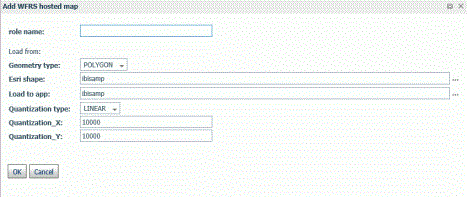
Configure the following properties.
Is a name for the geographic role.
Select either POLYGON or POINT from the dropdown list.
Enter the name of the application directory where the shapefile resides, or click the ellipsis (...) to navigate to the application directory. Then select the .dbf file for the role.
Enter the name of the application directory where you want to place the ibijson file, or click the ellipsis (...) to navigate to the application directory.
Quantization is the process of transforming a large set of input values to a smaller set of values. When transforming the shapefile, the server quantizes points that are too close together in order to optimize map rendering performance. Two methods are available for quantization, LINEAR or GRID. The default is LINEAR.
Is the threshold value for the x-axis.
Is the threshold value for the y-axis.
If the map has multiple keys, a dropdown list displays so that you can select one.
Click OK when you have finished configuring the properties.
The new role is added to the configuration as a customized role, as shown in the following image.
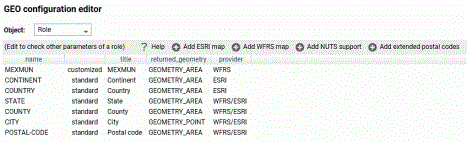
Click Save to save this role to the configuration.
You can test the role by right-clicking the role in the configuration editor and clicking Test. A sample map is generated, as shown in the following image.
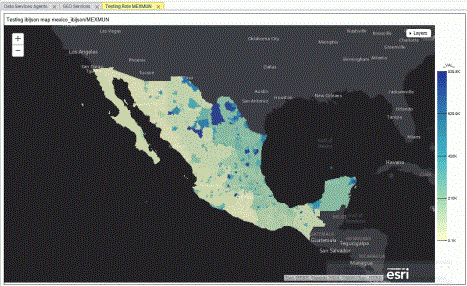
Adding NUTS Support
Nomenclature of territorial units for statistics (NUTS) are geographic roles specific to the European Union.
To add NUTS geographic roles to the configuration, click Add NUTS support on the Geographic Configuration Editor.
The NUTS geographic roles are added, as shown in the following image.
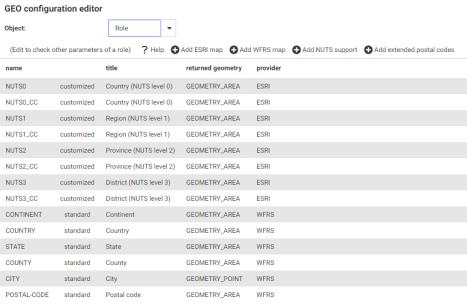
Click Save to save these roles to the configuration.
Adding Support for Extended Postal Codes
Click Add extended postal codes to add support for Level 1 and Level 2 postal codes used in certain countries.
Customizing Vocabulary Rules
For each geographic role, a set of vocabulary rules define how to recognize when a field name should automatically be assigned to that role. If you right-click a role, you can click Customize vocabulary from the shortcut menu.
Elements in a rule are connected by the Boolean logic operation OR (only one needs to be satisfied). Each vocabulary element contains words enclosed with special characters. Words in the rule element are connected by the Boolean logic operation AND (all need to be satisfied).
A word may be prefixed and/or suffixed with the percent character (%), which is a placeholder for any sequence of characters. If an element contains more than one word, each word has to be prefixed by the character plus (+) or minus (-). Plus indicates that the word must be found in the column name. Minus indicates that word must not be found in the column name.
For example, the following are the vocabulary rules for the role COUNTRY.
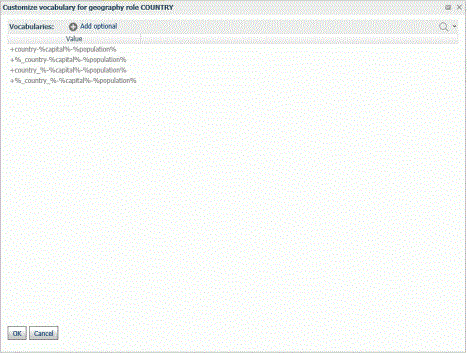
To add another rule, click Add optional.
When you are finished, click OK.
Click Save to save these rules to the configuration.
Customizing the List of Basemaps
You can edit an existing basemap definition or add a custom basemap.
Using Standard Basemaps
To add a new basemap or customize an existing basemap, select Basemap from the Object dropdown list.
Configuring Basemap Properties
The following is a description of the properties used for basemap configuration.
Is the name of the basemap.
Next to the name is an indicator of whether the basemap is a standard basemap or a customized basemap.
Is the name of the thumbnail for the basemap (for a standard basemap) or the URL to the thumbnail (for a customized basemap) that appears on the Basemap dropdown list in the WebFOCUS tools (for example, the Base map menu in WebFOCUS Designer) or the Change Basemap map widget.
Is a title to display on the Basemap dropdown list in the WebFOCUS tools or the Change Basemap map widget.
Is the URL to the map service that provides the basemap, for a customized basemap. The map service URL can be copied from the URL field on the page showing a custom basemap. For a standard basemap, the URL is already stored in the server geographic configuration file and is not displayed.
Valid values are tiled and vector.
Specifies additional JSON properties for rendering the map.
Editing the Properties of a Basemap
To customize the properties of an existing basemap, right-click the basemap line and click Customize BASEMAP.
The Customize Basemap dialog opens, as shown in the following image.
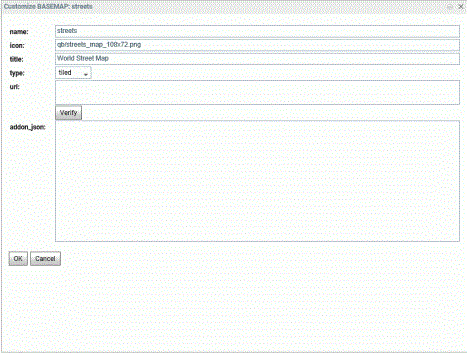
Edit the properties that you want to change. If you change the URL, you can click Verify to make sure the map service is valid and accessible.
When you are finished, click OK, then click Save on the GEO configuration editor Basemaps page.
Adding a Custom Basemap
To add a new basemap to the configuration, click Add.
The Create a BASEMAP dialog opens, as shown in the following image.
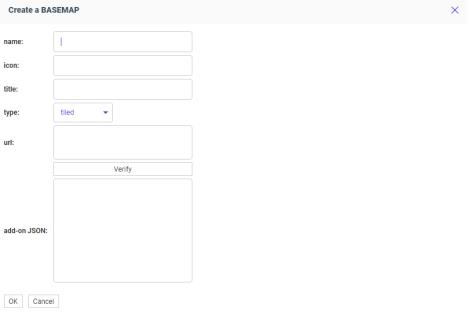
Enter a name for the basemap, a URL to the thumbnail, a title to display, and the URL to the map service that provides the basemap, and click Verify.
When you have configured the properties, click OK, then click Save on the GEO configuration editor Basemap page.
Customizing the List of Context Layers
To add a new context layer or customize an existing context layer, select ContextLayer from the Object dropdown list.
The following image shows the GEO configuration editor with the ContextLayer object selected.
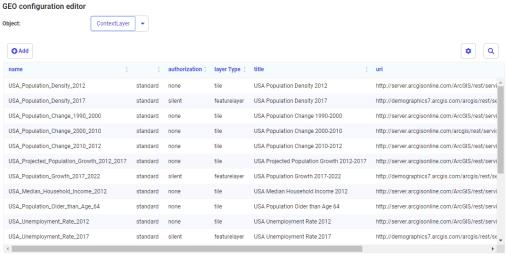
Configuring Context Layer Properties
Following is a description of the properties used for context layer configuration.
Is the name of the context layer.
Next to the name is an indicator of whether the context layer is a standard context layer or a customized context layer.
Is the type of authentication needed to access this context layer. Valid values are:
- silent. Credentials for your ArcGIS application are provided
in the connection string of the Adapter for Esri ArcGIS.
Note: For instructions for configuring the Adapter for Esri ArcGIS, see the Adapter Administration manual.
- none. No authorization is needed.
- named. User credentials are provided in the connection string of the Adapter for Esri.
- on premises. User credentials for a locally hosted ArcGIS server are provided in the connection string of the Adapter for Esri.
Is the type of context layer. For a cached layer, the layer type is tile. For a layer that is rendered dynamically, the layer type is featurelayer.
Is a title to display on the demographic layer dropdown list in the WebFOCUS tools.
Specifies additional JSON properties needed for rendering the context layer. For example, smartMapping properties define the border styles within the context layer.
Depending on the type of context layer, the addon_json properties may resemble the following:
"layerObjectType" : "esri/layers/ArcGISDynamicMapServiceLayer",

    "smartMapping": { "webMapInfo": {

        "queryString" : "id:id",

        "itemDataUrl" : "url",

        "layerTypeEx" : "layerType"

}}
where:
Defines the context layer as a dynamic map service.
Is the ID of the context layer on Esri ArcGIS. This can be found in the URL for the layer on the Esri ArcGIS site, or as the value of the "serviceItemId" property in the JSON properties accessible from the service URL of the layer.
If there is no layer ID, then this property can be omitted.
Is the map service URL for the layer. This should match the value that you provide for the uri field.
Is an optional value to specify the type of context layer. It can be one of the following values:
- group. Identifies the context layer as a group layer composed of multiple feature layers. For more information, see https://developers.arcgis.com/javascript/latest/api-reference/esri-layers-GroupLayer.html.
- map-image. Identifies the context layer as a map image layer, which can contain multiple sub-layers rendered as images rather than features. For more information, see https://developers.arcgis.com/javascript/latest/api-reference/esri-layers-MapImageLayer.html.
- feature. Identifies the context layer as a feature layer, which is a single layer created from a map service or feature service. For more information, see https://developers.arcgis.com/javascript/latest/api-reference/esri-layers-FeatureLayer.html.
- imagery-tile. Identifies the context layer as an imagery tile layer, created from a tiled image service. For more information, see https://developers.arcgis.com/javascript/latest/api-reference/esri-layers-ImageryTileLayer.html.
- imagery. Identifies the context layer as an imagery layer, created from an image service. For more information, see https://developers.arcgis.com/javascript/latest/api-reference/esri-layers-ImageryLayer.html.
- elevation. Identifies the context layer as an elevation layer used in a 3D SceneView. For more information, see https://developers.arcgis.com/javascript/latest/api-reference/esri-layers-ElevationLayer.html.
- tile. Identifies the context layer as a tile layer, created from a cached map service. For more information, see https://developers.arcgis.com/javascript/latest/api-reference/esri-layers-TileLayer.html.
- web-map. Identifies a complete, two-dimensional WebMap. For more information, see https://developers.arcgis.com/javascript/latest/api-reference/esri-WebMap.html.
- web-scene. Identifies a complete, 3D web scene. For more information, see https://developers.arcgis.com/javascript/latest/api-reference/esri-WebScene.html.
If your context layer is neither a group layer nor a map image layer, the layerTypeEx property is not needed.
For example, the add-on JSON for a map image layer may resemble the following:
"layerObjectType" : "esri/layers/ArcGISTiledMapServiceLayer",

"smartMapping": { "webMapInfo": {

    "queryString" : "id:1234567890abcdefghij1234567890ab",

    "itemDataUrl" :

"https://services5.arcgis.com/1234567890abcdef/arcgis/rest/services/Layer_Name/FeatureServer",

    "layerTypeEx" : "map-image"

    }

}
Is the URL to the map service that provides the context layer.
Customizing the Properties of an Existing Context Layer
To customize the properties of an existing context layer, click the down arrow next to a context layer name or right-click the context layer line and click Customize context layer.
The Customize CONTEXTLAYER dialog opens, as shown in the following image.
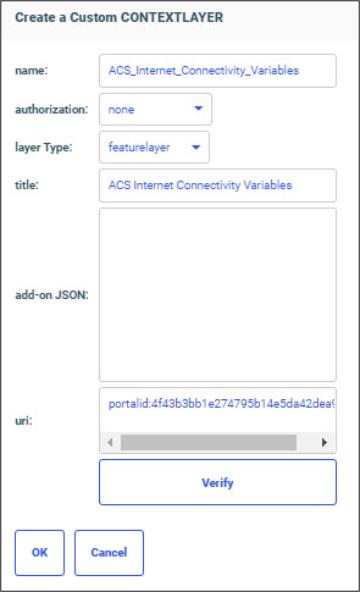
Edit the properties you want to change. If you change the URI, you can click Verify to make sure the map service is valid and accessible.
When you are finished, click OK, then click Save on the GEO configuration editor Context Layers page.
Adding a New Context Layer
To add a new context layer to the configuration, click Add.
The Create a Customized CONTEXTLAYER dialog opens, as shown in the following image.
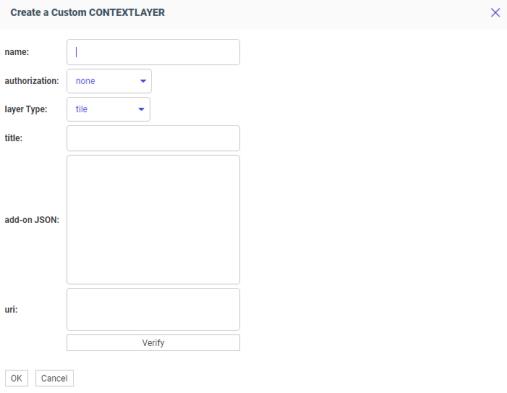
Enter a name for the context layer, the authorization type, a layer type, a title to display, any additional JSON needed for rendering the context layer, and the URI to the map service that provides the context layer, and click Verify.
When you have configured the properties, click OK, then click Save on the GEO configuration editor Context Layer page.