Accessing Document Mode
- Build a new document.
- Open an existing document.
- Generate a new document from an existing single report.
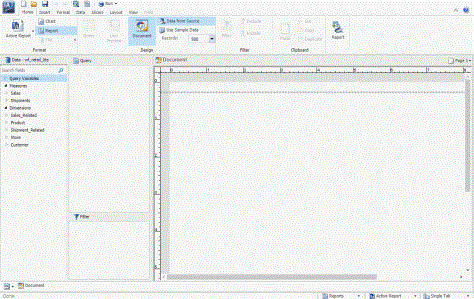
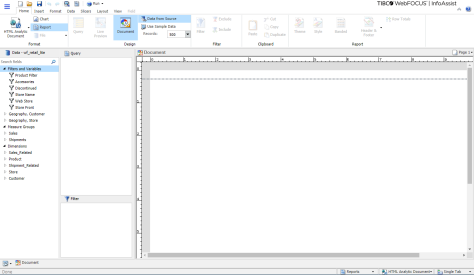
A blank WebFOCUS InfoAssist canvas in Document mode is shown in the following image.
Access Document Mode to Build a New Document
- Procedure
- Click Build a Document.
The Open dialog box opens.
- Select a
data source to begin building your document.
Note:
Documents can be built using more than one data source. The source you select here is the one you will begin with, but you can add more at any time. For more information on adding additional data sources, see Data Tab.
- Click Open.
WebFOCUS InfoAssist opens a new canvas in Document mode.
Access Document Mode by Opening an Item From the Splash Screen
- Procedure
- Click Build a Document.
The Open dialog box opens.
- On the Quick Access toolbar, click Create new report, chart, document or visualization.
The splash screen displays.
- Click Open
Existing Item.
The Open dialog box opens.
- Select one
of the documents. Documents are represented by the Document
 icon.
icon.
- Click Open.
WebFOCUS InfoAssist opens the document in Document mode.
Note: If you select a single report in step 3, WebFOCUS InfoAssist opens the report in either Query Design view or Live Preview. To view a copy of the report in Document mode, see Access Document Mode From the Document Button on the Home and View Tabs.
Access Document Mode by Opening a Report From the Quick Access Toolbar
You can access documents in Document mode from the WebFOCUS InfoAssist Quick Access Toolbar.
- Procedure
- With WebFOCUS InfoAssist
open, click Open existing item
 from
the Quick Access Toolbar.
from
the Quick Access Toolbar.
An Open dialog box appears.
- Select one
of the documents, which are represented by the Document icon.
- Click Open.
WebFOCUS InfoAssist opens the document in Document mode.
Note: If you select a single report in step 2, WebFOCUS InfoAssist opens the report, in either Query Design view, or Live Preview. To view a copy of the report in Document mode, see Access Document Mode From the Document Button on the Home and View Tabs.
Access Document Mode From the Document Button on the Home and View Tabs
With WebFOCUS InfoAssist open in Live Preview or Query Design view, you can access Document mode by clicking the Document button in the Design group. The Design group appears on both the Home and View tabs.
Accessing Document mode by clicking the Document button creates a copy of the current single report as a document. You can use this method to promote the content of a report to a document.
You can also access Document mode in Reporting Objects by following this procedure.
- Procedure
- With an WebFOCUS InfoAssist report open, click either the Home tab, or the View tab.
- In the Design group,
click Document.
WebFOCUS InfoAssist enters Document mode.
Note: The single report you started with still exists in the original mode. Selecting Document mode while a single report is open does not convert the report to a document. It makes a copy of the report, with the copy becoming a document and the original remaining unchanged.You can switch between the new document and the original report using the Switch Report button. The Switch button is found on the View tab, in the Report group. You can also switch between the document and the report using the Reports button on the status bar. For more information on switching between reports, see View Tab.