Performing a New Release 9.3.3 Installation Using an Existing ibi WebFOCUS Repository
The following procedure describes how to perform a new Release 9.3.3 installation while using a WebFOCUS repository from an earlier Release 8207.28, Release 9.0.x, Release 9.1.x, or Release 9.2.x installation.
This release includes several updates to search capabilities in WebFOCUS.
- For an upgrade installation from Release 9.0.1 or earlier, the repository must be reindexed to use these search capabilities.
- For a new installation, the repository must be reindexed if you are using a pre-existing repository from a previous release.
For more information on how to reindex, see the Indexing Content and Data topic in the ibi™ WebFOCUS® User Guide or in the WebFOCUS Online Help system.
- Procedure
- Make a copy of the database from an earlier release Release 8207.28, Release 9.0.x, Release 9.1.x, or Release 9.2.x that is to be used by the new Release 9.3.3 installation.
- Ensure the collation of the database, including all tables and columns, is case-sensitive.
- Ensure the database is running.
- Perform a
new full installation of Release
9.3.3.
Note: During the installation, point to the copy of the Release 8207.28, Release 9.0.x, Release 9.1.x, or Release 9.2.x database that you created in Step 1.
- During the installation of Release 9.3.3, specify the type of database repository, as well as the database repository information for the earlier database repository that you are using. Specifically, in the Select Components to install dialog, under Configure pre-existing Database, select the type of database repository that you are using, such as Microsoft SQL Server or Oracle. In addition, ensure the Create WebFOCUS Repository option is not selected.
- Next, type
the database repository name, connection, and configuration information.
Note: The credentials you provide need privileges to create and edit database tables.
After completion, the new installation of Release 9.3.3 is available in the drive:\ibi\WebFOCUS93 directory.
- Stop your application server, for example, Apache Tomcat.
- Ensure that your database repository, for example, Microsoft SQL Server, where your Release 8207.28, Release 9.0.x, Release 9.1.x, or Release 9.2.x database repository from the earlier release is stored, is running.
- Run the
drive:\ibi\WebFOCUS93\utilities\dbupdate\db_lb_updateutility.Note:- You are prompted for database credentials. Ensure the user name provided is allowed to create and edit database tables.
- After the script completes, you should receive an Update process SUCCEEDED message.
- After a successful database update, clear the application server cache and then start the application server.
- Confirm that the connection to WebFOCUS is functional and that the content is correct.
- Run the
following utility to load new roles and BI Portal page templates into the
WebFOCUS repository:
drive:\ibi\WebFOCUS93\utilities\WFReposUtil\update_repos.batYou are prompted to provide WebFOCUS administrator credentials.
This utility imports the following Change Management packages:
drive:\ibi\WebFOCUS93\features\bip\managers_group_and_rules.zipdrive:\ibi\WebFOCUS93\features\bip\bip_page_templates_Vnn.zip, where nn is the version of the package.drive:\ibi\WebFOCUS93\features\bip\pgx_page_templates_Vnn.zip, where nn is the version of the package.drive:\ibi\WebFOCUS93\features\bip\themes_Vnn.zip, where nn is the version of the package.drive:\ibi\WebFOCUS93\features\roles\roles.zip.
Logs are created in the
drive:\ibi\WebFOCUS93\application_logsfolder under the following names:cm_import_bip_page_templates_<date_time>.logcm_import_managers_group_and_rules_<date_time>.logcm_import_themes_Vnn<date_time>.logcm_import_pgx_page_templates_Vnn<date_time>.logcm_import_roles_<date_time>.logcm_import_managers_group_and_rules_<date_time>.log
- Use the
Role Update Utility available in the Administration Console to update
repository roles and privileges. The utility enables you to identify
differences between roles and privileges available in your existing repository
and the new roles and privileges provided with the new installation.
It is recommended that you replace your repository with new roles and privileges to use new functionality and features.
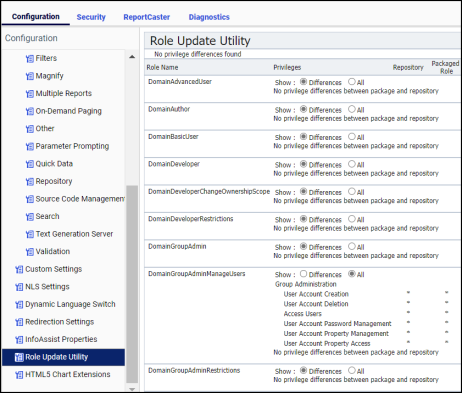
The following is an example of the Role Update Utility upgrading to Release 9.3.3. The Run Procedures with Insight and Designer privileges are required to use new functionality, run Insight content, and access WebFOCUS Designer.
- Sign in to WebFOCUS as an administrator.
- On the WebFOCUS Hub, from the side navigation pane, select Management Center and then Administration Console.
- In
the Configuration panel, click
Role Update Utility.
At the top of the table, you see a message that identifies new roles and high-level differences between your existing roles.
- E xamine the differences between the Repository and Packaged roles and privileges and apply the new roles and privileges to enable new functionality and features.