FTP Settings
The FTP Settings folder in the Configuration tab contains a list of FTP server configurations that WebFOCUS ReportCaster can use for FTP distribution schedules and for Repository distribution schedules that target distribution directory nodes linked to an FTP Server. FTP Settings include details that identify the name and network location of an FTP Server. They also identify the name of the user who can gain access to the FTP Server, and additional details about the way in which the connection to that server is secured.
Predefined FTP setting configurations can be made available to basic or advanced distribution schedules. They can also be assigned to a distribution directory node designed to transfer scheduled report content to an FTP server for distribution.
The ability to transfer scheduled WebFOCUS ReportCaster output to FTP servers enables organizations to take advantage of fast and efficient file transfer operations made possible by the less cumbersome FTP protocol, while maintaining user ID and password protected security over file transfer operations.
Understanding the FTP Settings User Interface
When no FTP Server configurations are defined, the FTP Settings folder contains a single folder that is identified as the (Default Setting), as shown in the following image.
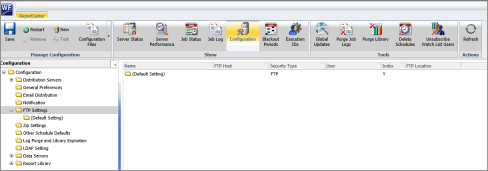
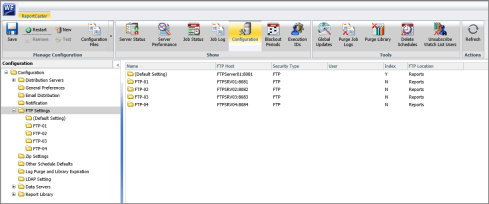
WebFOCUS ReportCaster can direct report output to more than one FTP server, but if user-defined FTP setting configurations are created, an administrator must designate one of them as the default server for use with the basic and advanced scheduling tools. If your organization uses a single FTP server and chooses to limit the selection of FTP Servers to predefined FTP Settings, this is the only required FTP setting configuration. When additional FTP Server configurations are defined, individual folders for each one appear under the FTP Settings folder, as shown in the following image. You can add configurations for other FTP servers, but the default configuration is always defined in the (Default Setting) folder.
Use the options on the Configuration tab, in the Manage Configuration group, to create, update, or remove FTP Setting configuration folders, as shown in the following image.
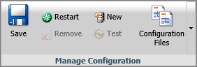
- New. Opens the FTP Settings dialog box that contains the options that define a new FTP Setting configuration.
- Save. Saves new and updated FTP Setting configurations.
- Remove. Deletes FTP Setting configurations.
- Restart. Completes the registration of each change to the FTP Setting configurations by automatically stopping and restarting the Distribution Server.
- Test. Tests the connection to a selected server or repository. This option is not relevant to FTP Configurations.
- Configuration Files. Provides options to view and download WebFOCUS ReportCaster configuration files. This option is not relevant to FTP Configurations.
As a reminder, after making any changes to an FTP Setting configuration, you must also exit WebFOCUS ReportCaster and WebFOCUS and stop and restart the WebFOCUS Application Server in order to see the changes on the WebFOCUS ReportCaster Configuration tab.
The options in the Manage Configuration group are context-sensitive, meaning that they become available for selection only when the action they represent is relevant. For example, when you click an FTP Server folder in the left pane, the Remove, Restart, and Save options, which are all appropriate actions for existing FTP Setting configurations, are displayed in full color and become available for use.
Understanding FTP Configuration Details
When you click an individual FTP setting folder in the left pane, the right pane displays the details for that FTP Setting configuration.
An FTP setting configuration defines the name and location of a server that is equipped with an FTP client that can send and receive files using the FTP protocol. The configuration also includes the user ID and password required to access the FTP client on that server and the security protocol it requires.
The following table lists and describes the configuration settings that are available in an individual FTP Settings folder.
|
Setting |
Optional or Required/Default Value |
Descriptions and Possible Values |
|---|---|---|
|
Name |
Required |
The name of the folder that identifies this FTP setting configuration in the Configuration tree. This value appears only within WebFOCUS ReportCaster. You can use the actual name of the FTP Server or a different value that uniquely identifies a server configuration. The name of each FTP Setting configuration must be unique. |
|
FTP Host |
Required |
The name of the FTP server used when creating an FTP schedule. If you want to designate a port number other than the default port number, use the following format: hostname:port. |
|
FTP Location |
Optional |
The name of the FTP location (directory) used when creating an FTP schedule. |
|
User |
Required |
The ID and password of the user authorized to perform FTP file transfers. To access the User settings, click the icon to the right of the User field. The User dialog box opens, where you can type the user Name and Password. Note: The Name and Password you assign to this field must also be defined in the FTP Server identified by this configuration.
|
|
SFTP Security Plug-in |
Optional |
The name of a custom-written Java class that implements the WebFOCUS ReportCaster SFTP security interface that dynamically retrieves the value of a public key needed to connect to a secure FTP server. For configuration information, see Configuring FTP Settings. |
|
Create Index File with Burst Distribution |
Required This option is selected, by default. |
For an FTP distribution of burst reports, this option determines whether or not to create an index file when the schedule runs. |
|
FTP Server Information |
||
|
This server requires a File Transfer Protocol (FTP). |
This option is selected, by default. Note: One of the options in the FTP Server Information section must be selected. |
This option specifies that the default setting in the schedule tool is to use FTP. When this option is selected, no additional security configuration is required. |
|
This server requires a secure File Transfer Protocol over TLS/SSL (FTPS). |
Optional Note: One of the options in the FTP Server Information section must be selected. |
When this option is selected, FTPS is the default value in the FTP distribution schedule tool, eliminating the need to select this option each time you use the schedule tool. If you need to override this default value, you can clear the FTPS check box in the FTP Distribution Options dialog box when you create a schedule for an FTP Server distribution. When this option is cleared, FTPS is not the default value, but you can still select it in the FTP Distribution Options dialog box when you create a schedule for an FTP Server distribution. |
|
This server requires a secure SSH File Transfer Protocol (SFTP). |
Optional Note: One of the options in the FTP Server Information section must be selected. |
When this option is selected, SFTP is the default value for FTP distributions, eliminating the need to select this option each time you use the schedule tool. If you need to override this default value, you can clear the SFTP check box in the FTP Distribution Options dialog box when you create a schedule for an FTP Server distribution. When this option is cleared, SFTP is not the default value, but you can still select it in the FTP Distribution Options dialog box when you create a schedule for an FTP Server distribution. |
|
Additional Check Boxes |
||
|
Don't allow user defined FTP in Schedule |
Optional |
If this check box is selected, the range of available selections in the FTP Server Name field in the FTP Distribution Options dialog box for basic and advanced FTP schedules is limited to a list of predefined FTP Settings. Users are unable to type values directly into this dialog box in order to assign an FTP Server Setting configuration to an individual schedule. If this check box is cleared, the FTP Server Name field in the FTP Distribution Options dialog box for basic and advanced FTP schedules displays the value (Customized FTP) and users can type values directly into this dialog box in order to assign an FTP Server Setting configuration to an individual schedule. If more than one FTP setting configuration is created, a list of predefined FTP settings is also available in the FTP Server Name field, and users can select from those settings as well as type their own FTP setting configuration in the schedule itself. Note: This check box appears only on the (Default Settings) page.
|
|
Don't show in Schedule FTP list |
Optional |
The value in this check box is only relevant when the Don't allow user defined FTP in Schedule check box is selected in the (Default Settings) page. If this check box is selected, this FTP setting configuration does not appear in the FTP Server Name list of the FTP Distribution Options dialog box for FTP Schedules or in the list of available FTP Servers for distribution directory nodes defined in the WebFOCUS Administration Console. If this check box is cleared, this FTP setting configuration does appear in the FTP Server Name list of the FTP Distribution Options dialog box for FTP Schedules and in the list of available FTP Servers for distribution directory nodes defined in the WebFOCUS Administration Console. Note: This check box only appears on additional individual FTP Settings configuration pages. It does not appear on the Default Settings page.
|
Deploying FTP Setting Configurations
FTP Setting configurations can be used in Basic and Advanced schedules that use the FTP or Repository distribution method. Organizations can choose to limit the selection of available FTP servers to a list of predefined configurations or to accommodate a broader range of FTP servers created for individual FTP distribution schedules by selecting or clearing the Don't allow user defined FTP in Schedule check box that appears on the (Default Settings) page.
When this check box is selected, the range of FTP Setting configurations available for FTP distributions is strictly limited to a set of predefined FTP Settings as defined under the FTP Settings folder. Users cannot define a new FTP Setting configuration for an individual FTP schedule.
When this check box is cleared, individual users can select a predefined FTP Setting configuration or accept the (Customized FTP) option displayed, by default, and then define a new FTP Setting configuration in the FTP Distribution Options dialog box attached to individual FTP schedules. These two options are not mutually exclusive.
The range of FTP settings available for Repository distributions using a distribution directory node is always limited to the list of predefined FTP Settings. Users cannot create an FTP setting configuration for an individual distribution directory.
When one or more additional FTP setting configurations are available, the Type option appears on the Network Location page of the Administration Console, and administrators can create distribution directory nodes that can be mapped to one of the predefined FTP Setting configurations.
However, if no additional FTP setting configurations are available, the Type option does not appear on the Network Location page of the Administration Console, and users cannot create distribution directory nodes that can be mapped to a predefined FTP Setting configuration.
The FTP configuration that appears on the (Default Setting) page is not a true IBFS node. Therefore, the presence of a configuration on this page does not make the Type option appear on the Network Location page. In order to use the FTP Configuration assigned to the (Default Setting) page with distribution directories, you must create a copy of it as an additional FTP setting configuration so that it will appear in the list of predefined FTP configurations in the FTP Distribution Options dialog box for basic and advanced schedules.
Even though the ability to create FTP setting configurations for individual FTP distributions empowers users to set up FTP distribution schedules as new FTP servers become available, this capability also permits the creation and maintenance of connections to FTP servers without the benefit of a centralized management or oversight, Therefore, to maintain full control over the list of available FTP setting configurations, we recommend that administrators select the Don't allow user defined FTP in Schedule check box and limit the configuration of FTP Setting Configurations to the Configuration page list.
Creating and Deploying Predefined FTP Setting Configurations
The creation and deployment of predefined FTP Setting configurations is a multi-stage process:
- Procedure
- Identify the FTP Server clients that can be made available in predefined FTP Setting configurations and identify full details of their location, user ID, password. and security protocol, FTP, FTPS, or SFTP.
- Create an FTP Setting configuration that can be used, by default, in FTP distributions on the (Default Setting) page.
- To prevent users from creating their own FTP setting Configurations on FTP schedules, select the Don't allow user defined FTP in Schedule check box on the (Default Setting) page.
- To allow users to create their own FTP setting configurations on FTP schedules, clear the Don't allow user defined FTP in Schedule check box on the (Default Setting) page.
- Create FTP Setting configurations for each additional FTP Server client.
- Create FTP Distribution Schedules and assign the predefined FTP Setting configurations to them.
- Create distribution directory nodes on the WebFOCUS Administration Console Configuration tab and assign the predefined FTP Setting configurations to them.
- Create Repository Distribution Schedules and assign the distribution directories that target the predefined FTP Setting configurations to them.
- Test the FTP and Repository distribution schedules that use the predefined FTP configurations and adjust them as necessary.
Establish a Default FTP Setting Configuration
The (Default Setting) configuration identifies the FTP server that will be used, by default, whenever you create a new FTP distribution schedule and must select from a list of predefined FTP setting configurations. If your organization chooses to use predefined FTP setting configurations, this is the first FTP setting configuration you should create, and it should remain available as long as you choose to use predefined FTP setting configurations.
You can override this default with other FTP setting configurations by selecting them from the FTP Server Name field in the FTP Distribution dialog box when you create or run an FTP distribution schedule. However, because this configuration does not define a true IBFS system node, it does not appear in the list of FTP setting configurations that can be assigned to a distribution directory node in the WebFOCUS Administration Console, making it unavailable for Repository distribution schedules.
To create or update the default FTP setting configuration, type and select new values directly into the (Default Setting) configuration page. The presence of an FTP configuration in the (Default Setting) folder automatically identifies it as the default configuration. There is no additional check box or feature on the FTP Settings configuration page that identifies this configuration as the default configuration. If you need to update the details of the default FTP setting configuration or replace it with the details of a different server, you must type the new values directly over the existing values from the old configuration on this page.
Creating or Updating the Default Settings Configuration
The FTP Settings configuration defined in the (Default Setting) folder is automatically identified as the default FTP setting configuration. Use this procedure and the page that opens when you click the (Default Setting) folder to create or update this default configuration.
- Procedure
- On the start page, select the Main Menu, and then select WebFOCUS ReportCaster Statusunder the Quick Access section.
or
On the WebFOCUS Home Page, select Utilities, and then select WebFOCUS ReportCaster Status.
or
On the Legacy home page, click Tools, and then click WebFOCUS ReportCaster Status.
- On the ribbon, in the Show group, click Configuration.
- In the left pane, expand the FTP Settings folder, and then click the (Default Setting) folder.
- Configure the FTP Settings in the right pane as described in Configuring FTP Settings.
- Perform the following steps to configure the range of FTP Setting configurations available for basic and advanced FTP schedules:
- To limit the range of available FTP setting configurations to a list of predefined configurations, select the Don't allow user defined FTP in Schedule check box.
- To allow users to create their own FTP setting configurations in addition to the list of predefined configurations, clear the Don't allow user defined FTP in Schedule check box.
- When your configuration is complete, click OK to save your settings.
- When you receive a message asking if you want to save the changes that you made to the WebFOCUS ReportCaster configuration, click OK.
- When you receive a message reminding you to restart the Distribution Server and reload the WebFOCUS ReportCaster Web Application for these changes to take effect, click OK.
- On the ribbon, in the Manage Configuration group, click Restart to apply your changes.
- Close WebFOCUS ReportCaster and sign out of WebFOCUS.
- Stop and restart the WebFOCUS Application Server.
- Sign in to WebFOCUS again and reopen WebFOCUS ReportCaster as described in steps 1 through 4 in order to review and confirm your changes.
Creating an Additional FTP Setting Configuration
You must use the FTP Settings dialog box to create additional FTP Setting configurations, as described in this procedure. The FTP setting configurations you create using this feature are available to FTP Distribution schedules and to distribution directory nodes.
- Procedure
- On the start page, select the Main Menu, and then select WebFOCUS ReportCaster Statusunder the Quick Access section.
or
On the WebFOCUS Home Page, select Utilities, and then select WebFOCUS ReportCaster Status.
or
On the Legacy home page, click Tools, and then click WebFOCUS ReportCaster Status.
- On the ribbon, in the Show group, click Configuration.
- In the left pane, click the FTP Settings folder.
- On the ribbon, in the Manage Configuration group, click New to open the FTP Settings dialog box.
- Configure the FTP Settings as described in Configuring FTP Settings.
- When your configuration is complete, click OK to save your settings.
- When you receive a message asking if you want to save the changes that you made to the WebFOCUS ReportCaster configuration, click OK.
- When you receive a message reminding you to restart the Distribution Server and reload the WebFOCUS ReportCaster Web Application for these changes to take effect, click OK.
- On the ribbon, in the Manage Configuration group, click Restart to apply your changes.
- Close WebFOCUS ReportCaster and sign out of WebFOCUS.
- Stop and restart the WebFOCUS Application Server.
- Sign in to WebFOCUS again and reopen WebFOCUS ReportCaster as described in steps 1 through 4 in order to review and confirm your changes.
Editing an FTP Setting Configuration
- Procedure
- On the start page, select the Main Menu, and then select WebFOCUS ReportCaster Statusunder the Quick Access section.
or
On the WebFOCUS Home Page, select Utilities, and then select WebFOCUS ReportCaster Status.
or
On the Legacy home page, click Tools, and then click WebFOCUS ReportCaster Status.
- On the ribbon, in the Show group, click Configuration.
- In the left pane, expand the FTP Settings folder, and click the folder you want to update.
- Configure the FTP Settings in the right pane as described in Configuring FTP Settings.
- When your edits are complete, on the ribbon in the Manage Configuration group, click Save to save your settings.
- When you receive a message asking if you want to save the changes that you made to the WebFOCUS ReportCaster configuration, click OK.
- When you receive a message reminding you to restart the Distribution Server and reload the WebFOCUS ReportCaster Web Application for these changes to take effect, click OK.
- On the ribbon, in the Manage Configuration group, click Restart to apply your changes.
- Close WebFOCUS ReportCaster and sign out of WebFOCUS.
- Stop and restart the WebFOCUS Application Server.
- Sign in to WebFOCUS again and reopen WebFOCUS ReportCaster as described in steps 1 through 4 in order to review and confirm your changes.
Configuring FTP Settings
- Procedure
- In the FTP Settings dialog box, or on the FTP Settings page, populate the FTP Settings fields, using the
following information as a guideline:
- Name. Type a unique name to identify the folder for this FTP Server configuration. This name will not be used when creating an FTP schedule. Each name must be unique.
- FTP Host. Type the name of the FTP Server that is targeted by this connection. This name will be used when creating an FTP Schedule.
- FTP Location. Type the name of the directory on the FTP server that is targeted by this connection. This name will be used when creating an FTP schedule.
- User. Type the ID and password of the user that will be used to perform file transfers to this FTP server.
- SFTP Security Plug-in. If your SFTP Server uses encryption keys, you can use the SFTP Security Plug-in to provide these values. To use this plug-in, type the name of the custom-written Java class that implements the SFTP Security interface to dynamically retrieve the value of a public key needed to connect to a secure FTP server. To use the default implementation, see Using the Default Implementation for the SFTP Security Plug-in.
- If this FTP Server should generate an index file when used in an FTP schedule, select the Create Index File with Burst Distribution check box.
- In the FTP Server Information section, click one of the following options:
- This server requires a File Transfer Protocol (FTP). This is the default selection. Accept this selection if the FTP server does not require SFTP or FTPS.
- This server requires a secure File Transfer Protocol over TLS/SSL (FTPS). Click this option if the FTP Server requires a secure file transfer protocol, and select the Security Mode, Protocol, and Data Connection Security settings that identify the relevant characteristics of the FTPS server connection.
- This server requires a secure SSH File Transfer Protocol (SFTP). Click this option if the FTP server requires FTPS, and select the type of authentication you want for the server.
Using the Default Implementation for the SFTP Security Plug-in
- Procedure
- On the ReportCaster Console ribbon, in the Show group, selectConfiguration.
- In the
left pane, expand the
FTP Settings folder and select the FTP Setting configuration folder that requires an SFTP Security Plug-in.
The right pane displays the FTP Settings and values for your selected configuration.
- Enter
the name of the SFTP Security Plug-in program in the SFTP Security Plug-in field. The default program name is:
ibi.broker.scheduler.plugin.DefaultSFTPSecurityExit
For more information about the default SFTP Plug-in, refer to the ibi.broker.scheduler.plugin package description found in the WebFOCUS ReportCaster API Specifications document, located at https://webfocusinfocenter.informationbuilders.com/javadoc/rcaster/index.html.
- On the ribbon, in the Manage Configuration group, select Save.
- When you receive a message asking you to confirm your decision to save changes, click OK.
- When you receive a message reminding you to restart the distribution server and reload the web application, click OK.
Note: You will reload the web application and restart the distribution server later in this procedure.
- Stop the WebFOCUS Application Server.
- Open a text editor and create a file called sftp_private_key.txt.
- Generate an encrypted private key using the ssh-keygen tool.
For more information about the ssh-keygen tool, see the online OpenBSD manual at:
http://man.openbsd.org/OpenBSD-current/man1/ssh-keygen.1#NAME - Copy and paste the text of the private key generated by the ssh-keygen tool to the sftp_private_key.txt file.
- In your file system, navigate to the ...ibi\WebFOCUSnn\ReportCaster\cfg directory, where nn is the release number of your WebFOCUS software.
If you are using a UNIX environment, the correct file path is ../ReportCaster/cfg.
- Save the sftp_private_key.txt file to the cfg directory.
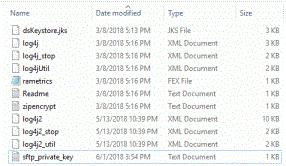
The following image shows the sftp_private_key.txt file saved to the cfg directory.
- Restart the WebFOCUS Application Server.
- Sign in to WebFOCUS again and open the ReportCaster Console.
- On the ReportCaster Console ribbon, in the Manage Configuration group, select Restart In order to restart
the Distribution Server.
If the default SFTP Plug-in is in use, the Distribution Server will attempt to authenticate to the SFTP Server using the private key found in the sftp_private_key.txt file for any scheduled distribution directed to an FTP server that uses SFTP authentication.
Removing an FTP Setting Configuration
- Procedure
- On the start page, select the Main Menu, and then select WebFOCUS ReportCaster Statusunder the Quick Access section.
or
On the WebFOCUS Home Page, select Utilities, and then select WebFOCUS ReportCaster Status.
or
On the Legacy home page, click Tools, and then click WebFOCUS ReportCaster Status.
- On the ribbon, in the Show group, click Configuration.
- In the left pane, expand the FTP Settings folder, and click the folder you want to remove.
- On the ribbon, in the Manage Configuration group, click Remove.
- When you receive a message asking if you want to save the changes that you made to the WebFOCUS ReportCaster configuration, click OK.
- When you receive a message reminding you to restart the Distribution Server and reload the WebFOCUS ReportCaster Web Application for these changes to take effect, click OK.
- On the ribbon, in the Manage Configuration group, click Restart to apply your changes.
- Close WebFOCUS ReportCaster and sign out of WebFOCUS.
- Stop and restart the WebFOCUS Application Server.
- Sign in to WebFOCUS again and reopen WebFOCUS ReportCaster as described in steps 1 through 4 in order to review and confirm your changes.
The folder for the FTP Settings configuration no longer appears in the left pane.