Many organizations do not grant developers write access to the user acceptance test and production environments. Access to these environments is strictly controlled and granted only to administrators, production control personnel, or automated change management processes.
Only developers know which changes are ready to be moved into the test environment. The Change Management Export facility presents developers with a graphical view of the resources they manage and allows them to build a change management package. This package is then loaded into another environment by production control personnel or automated processes.
A user must be authorized to create a change management package. The privilege to do so is Resource Export (opExport), a hybrid privilege. If a user has the Resource Export privilege on a particular folder, then the Change Management node and the Export subnode are displayed. The only resources that are displayed within the Change Management user interface are the ones for which the user has the Resource Export privilege.
The steps required to create a change management package are:
Create a Scenario. Using the Change Management Export facility, create a Change Management scenario by selecting the resources to export. A scenario is a description of all the resources included in a change management export package.
Export a Scenario. After creating a scenario, export it into a change management export package. This change management export package is placed in the drive:\ibi\WebFOCUS82\cm\export directory in two formats: a zip file and a folder, which contains the expanded contents of the zip file.
The zip file is then used to update the target environment and placed in the drive:\ibi\WebFOCUS82\cm\import directory. For convenience, the CM zip file can be downloaded using a web browser and similarly uploaded to the target where its content can then be imported and accessed.
The zip file format compresses the resources that make up a change management package into a single file, delivering the advantages of speed and security to change management packages. They are especially useful when you must transfer change management packages from one physical location to another. Their compressed and consolidated format captures all files included in a change management package into a single file that can be emailed, copied, or cut and pasted from a source folder on one network component to a target folder on another.
WebFOCUS creates change management zip files, called CM zip files, by default. To disable this feature, clear the Zip Change Management Package (IBI_CM_ZIP) check box, which is found on the Change Management page of the Configuration tab in the Administration Console. When this feature is disabled, change management packages use the uncompressed CM file format.
The default CM zip file name format is NAME_DATE_TIME_USERID, which combines the name of the change management package, with the date and time on which it was created, and the ID of the user who created it.
For example, retail_samples_20160504_161133_administrator.zip. To specify an alternative format for CM zip file names, select a template from the Name format of Zip export files (IBI_CM_ZIP_FILE_FORMAT) setting, which is found on the Change Management page of the Configuration tab in the Administration Console.
The change management process, from scenario creation to final import, readily accommodates collaborative portals. All of the topics that describe how to create, export, download, upload, and import change management packages support those that include collaborative portals as well as basic portals. However, there are a few issues to keep in mind when including collaborative portals.
When selecting a collaborative portal:
When importing a collaborative portal:
If your browser blocks pop-up windows, disable this feature before you begin using the change management facility, to ensure that you are able to see the dialog boxes that open during this procedure.

The Scenario dialog box opens, as shown in the following image.
The With Rules check box is selected, by default. Clear it only if this change management package should not include all rules associated with the resources you select.
Note: If you receive an alert in your browser stating that the pop-up window is blocked, reset your browser to allow all pop-up windows from this website, and try again.
When selecting a collaborative portal that references external pages, you must also select the folder that contains the pages referenced by that portal, and then transfer them into the scenario by clicking the Select with Sub-Tree command.
When your selection is complete, an entry for it appears in the right pane, and a strikethrough line appears on the entry under the Resources tree.
An entry for the new scenario appears beneath the Export node.
If the new scenario does not appear, right-click the Export node, and then click Refresh.
To export the change management scenario using command line scripts, navigate to the following location and double-click one of the following commands:
WebFOCUS82/utilities/cm/cm_export.bat
WebFOCUS82/utilities/cm/cm_export.sh
You can use the Change Management Interface to transfer a page created for a collaborative portal in one environment to another environment where the same collaborative portal already exists. This procedure applies only to pages created for collaborative portals. It does not apply to pages created for basic portals.

The Scenario dialog box opens, as shown in the following image.
The With Rules check box is selected, by default. Clear it only if this change management package should not include all rules associated with the resources you select.
Note: If you receive an alert in your browser stating that the pop-up window is blocked, reset your browser to allow all pop-up windows from this website, and try again.
An entry for the new scenario appears beneath the Export node.
If the new scenario does not appear, right-click the Export node, and then click Refresh.
Before you can export a change management scenario, you must make sure that you have saved it. You cannot export an unsaved change management scenario.
The new scenario appears in the Resources tree under the Change Management, Export node.
If the new scenario does not appear, right-click the Export node, and then click Refresh.
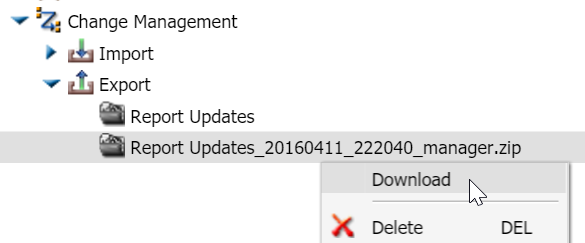
The export process saves a CM zip file to drive:\ibi\WebFOCUS82\cm\export. The download process takes that CM zip file, and downloads it to your local machine. You can then transfer the copy of that CM zip file to another WebFOCUS environment for use as a change management package.

The following export options are available from the Scenario Creation dialog box:
With Rules. Unselected, by default. When selected, this applies to the entire scenario and exports all rules associated with all of the selected resources. This will include all of the security components of those rules (groups, roles, and potentially users, if the subject of a rule). For example, if a single published folder of Sales is selected and there are rules on that folder for the subject of Sales/Dev Group, that particular folder of Sales will be exported, as well as all the constituent components of the rules on that folder and its subfolders.
Retain Handles. This option is necessary when you want to move content, such as content that has been migrated from WebFOCUS 7.7 to WebFOCUS 8, and ReportCaster schedules, using change management. When selected, this option specifies that the change management package uses the hrefs from WebFOCUS 7.7 as handles in WebFOCUS 8. It also ensures that ReportCaster schedules that were created in WebFOCUS 7.7, which reference procedures through the internal handle, continue to work. This allows the earlier code for -INCLUDEs and drill downs to continue to work with the WebFOCUS 7.7 syntax. ReportCaster schedules created in WebFOCUS 8 use the IBFS location of the Schedule object instead of the Handle and do not need the Retain Handles feature.
The default value for Retain Handles is specified by the Retain Handles (IBI_CM_Retain_Handles) setting.
The following types of resources can be moved:
The zip file upload process saves a copy of a CM zip file stored on your local machine to the change management import directory on the server, drive:\ibi\WebFOCUS\cm\import. You can then import the copy of that CM zip file to WebFOCUS.
A confirmation dialog box opens. Click OK to complete the upload.
If an entry for the new CM zip file does not appear below the Import node, right-click it, and then click Refresh.
If the CM zip file you want to import is not visible, right-click the node, and then click Refresh.
The Import Package dialog box opens, as shown in the following image.

or
Click Add New and Update Existing Resources, to enable the change management import to include updates to existing content resources as well as new content resources.
For each security resource, accept the default selection, Add New, to limit the Change Management Import to new security resources.
or
Click Add/Replace, to enable the Change Management Import to include updates to existing security resources as well as new security resources.
The import process loads content from the change management package into the folders that match the name and spelling of the corresponding folders in the old environment. If the resources in the change management package are assigned to the same folders and locations as in the existing environment, there are no visible changes.
The following import options are available from the Import Package dialog box:
Content Resources
Options in this group define the scope of content resources included in the Change Management Import. Content resources include , portals, reports, charts, and other features located under the node and the Portals node of the Resources tree.
Add New Resource Only (do not replace). This option limits the import to content resources in the Change Management package that do not already exist in the target environment. The import process assigns the date and time of the import to the Created On and Last Modified On fields of all new content resources created as a result of the import. To view the Created On and Last Modified On fields, right-click an item and click Properties.
Resources in the change management package that already exist in the target environment are not included in the import. As a result, the resources in the target environment are not affected by the import, and the import does not update the value assigned to the Last Modified On field.
Add New and Update Existing Resources. This option permits the import to add new resources to the target environment and update existing resources. The import process assigns the date and time of the import to the Created On and Last Modified On fields of all new content resources created as a result of the import. The import also assigns the date and time of the import to the Last Modified on field of all existing items updated by the import, but retains the original values in the Created On field.
Security Resources
Options in this group specify the actions to take if the change management package includes the security resources Roles, Groups, or Users. A change management package includes a security resource if it is selected explicitly, or if the Selecting With Rules check box is selected for another type of resource.
Roles. Groups of user privileges. When included in a Change Management Import package, they add to or update the list of roles maintained in the repository and visible in the Security Center on the Roles tab.
Groups. Collections of users or subgroups that require similar capabilities or access to the same resources. When included in a change management Import package, they add to or update the list of existing groups maintained in the repository and visible in the Security Center on the Users & Groups tab.
Users. Those individuals who have access to WebFOCUS. When included in a change management package, they add to or update the list of existing users maintained in the repository and visible in the Security Center on the Users & Groups tab.
For each of the Security resource categories, there are two options governing the scope of the import:
Import Rules On Resources. This option specifies whether rules are imported from the current change management package, and is only relevant if the package contains exported rules.
As long as none of the security resource options are selected, the rules are imported using the components of the rules that exist in the target environment.
For example, if you select Add New Resources Only (do not replace) and Import Rules On Resources, the only rules that will be imported are the rules where all the components (groups, roles, and, if necessary, users) exist in the target environment.
If you select Add New Resources Only (do not replace) and Import Rules On Resources, and then select Roles (Add New), the resources selected and the rules on those resources will be imported. In this case, the roles will be added only if they do not exist in the target environment and other components of the rules do exist in the target environment.
|
|
WebFOCUS |