|
In this section: |
Sharing is a feature that is generally used to enable users to share private content residing in their My Content folders with authorized colleagues.
WebFOCUS makes shared resources available to other appropriate users through a special Shared Content folder. The Shared Content folder is a virtual folder that appears automatically in a folder whenever there is shared content inside that folder.
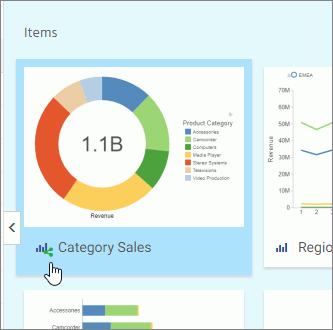
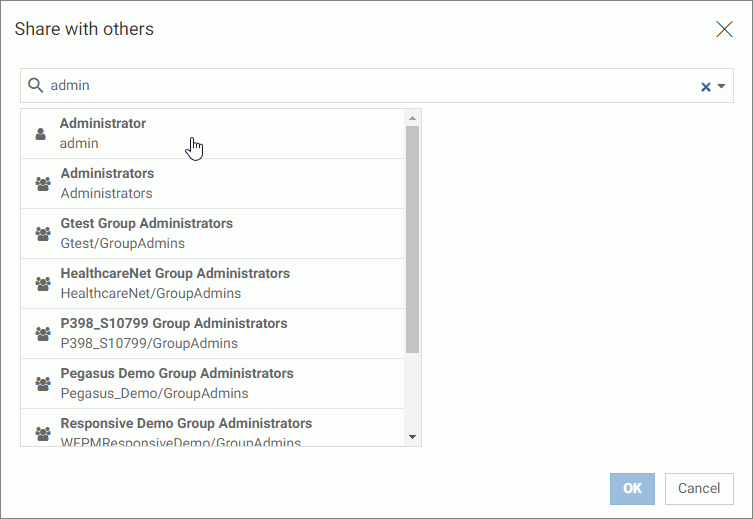
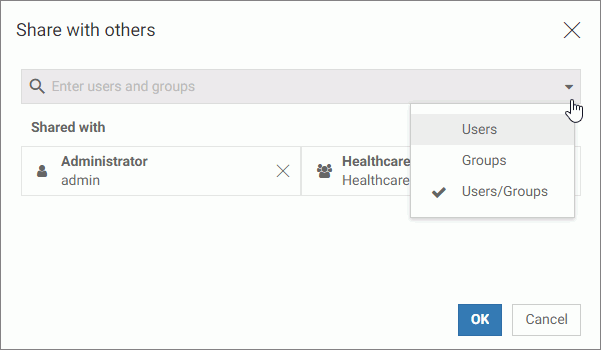
There are two ways to share private resources from your My Content folder or folders within it. You can use the Share command to share a resource with everyone automatically, or you can use the Share With command and share the resource with a limited set of users or groups selected from the Share With dialog box. When you use the Share command, you share the resource with the EVERYONE group and grant basic user privileges to all users. When you use the Share With command, you share the resource with a limited number of selected users and groups, and grant privileges to them based on their role in the domain in which the resource appears. You can use the Share command to make a resource generally available while it is still in development, and use the Share With command to share resource development tasks with other users without making the resource generally available.
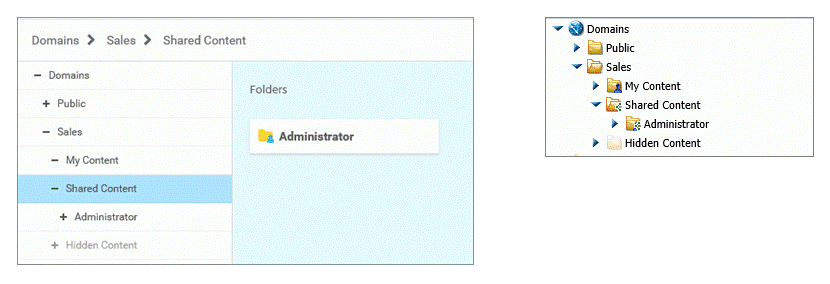
When you share a resource from your My Content folder or one of the folders within it, all users other than yourself will see it under a folder entitled Shared Content. When you open a Shared Content folder, you see a subfolder for each user who has shared content with you. This feature helps you distinguish between content you created, which appears in the My Content folder, and content created by others but shared with you. In the following image, the Administrator folder, which contains content the Administrator made available to an individual user, appears under the Shared Content folder as shown in the content view of the WebFOCUS Home Page, and in the Resources tree of the Legacy Home Page.