Creating Folders
You can create folders to organize your data. Folders function as segments to provide a view of the synonym, and define the accessible fields and their relationships. Folder relationships are the same as segment relationships, with parent folders, child folders, and sibling folders. Once you create a new folder, you can add data fields and assign roles. Synonym folder structures can be predefined or flexible.
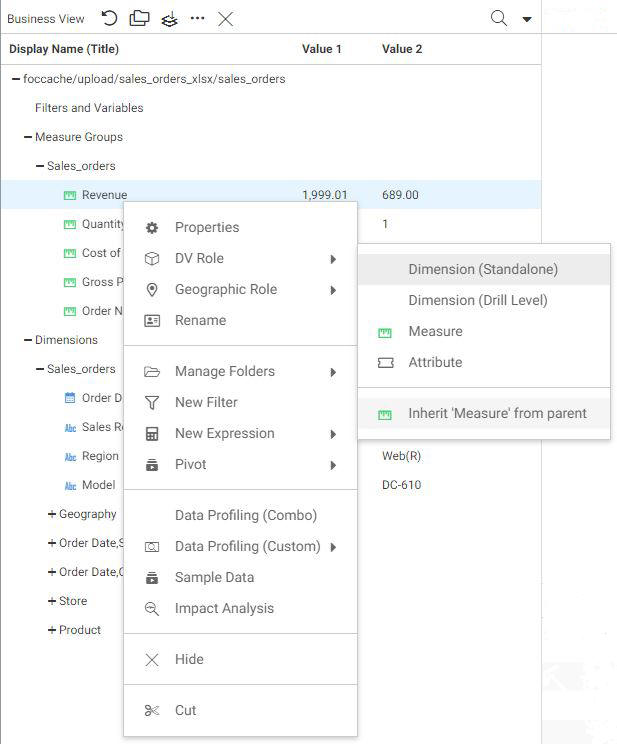
Predefined folder structures are categorized as Measure Groups, Dimensions, Hierarchies, and Attributes, and are created by default when using the WebFOCUS Upload or Connect to Data workflows. In a predefined folder structure, a Measure Group contains measures or facts that are numeric values, such as Gross Profit or Cost of Goods Sold, that you may want to aggregate. All numeric values that can logically be summed can be categorized as Measures. All other fields are categorized as Dimensions, Hierarchies, or Levels.
Flexible folder structures allow you to insert any number of folders at any level to represent the Business need. A folder can contain any type of field categorized as a Measure or Dimension. However, it is good practice to keep different field types in separate folders.
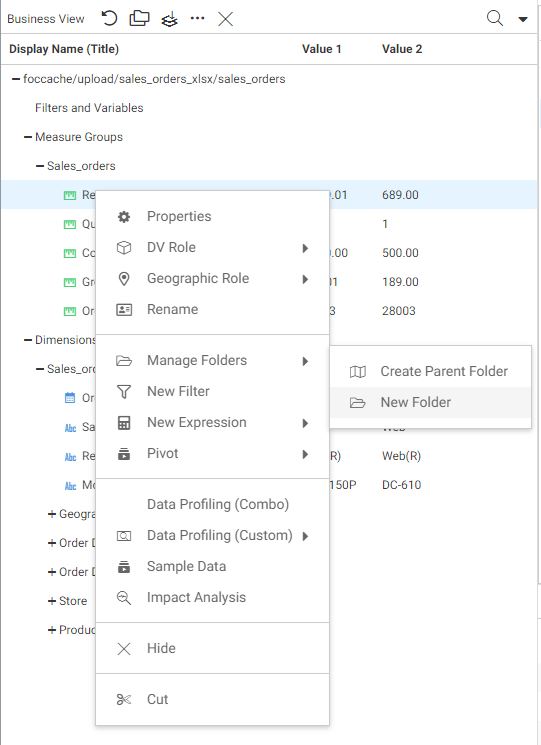
Within a WebFOCUS Business View panel, you can create a new folder by right-clicking a folder or field, pointing to Manage Folders, and then clicking New Folder, as shown in the following image of a predefined folder structure.
When editing or creating a synonym, you can click the icons at the top of the Business View panel to create a predefined folder structure, as shown in the following image.
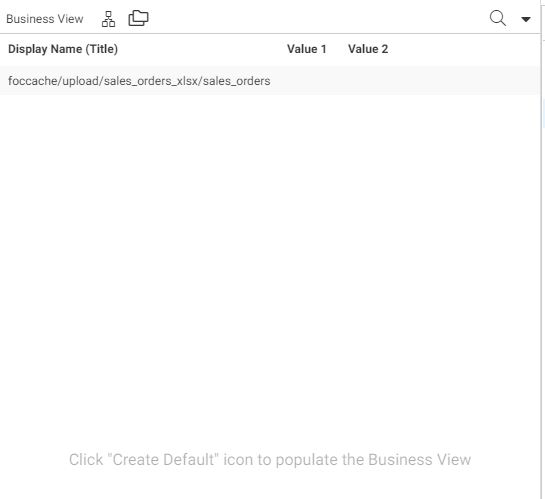
Click the Default icon  to create a populated predefined folder structure. Click the Template icon
  to create an unpopulated predefined folder structure.
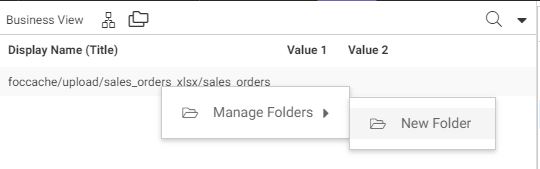
Note: You can start to create a new flexible folder structure by right-clicking the synonym name path, pointing to Manage Folders, and then clicking New Folder, as shown in the following image.