|
How to: |
Some data files may contain repeating columns, such as sales figures for a series of years. There may even be repeating column groups, such as both budget and actual figures for a series of years. When uploading data, you can use the pivot option to transform these columns or groups of columns into rows, as shown in the following image.
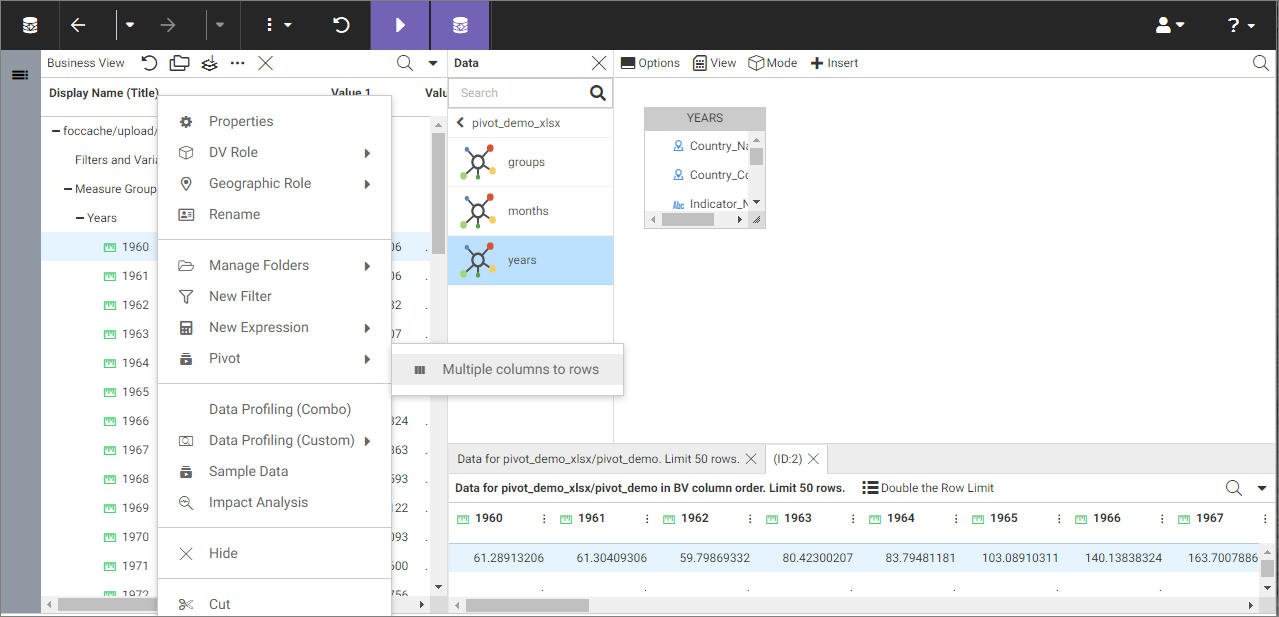
Note: The pivot option is also available when creating or editing metadata.
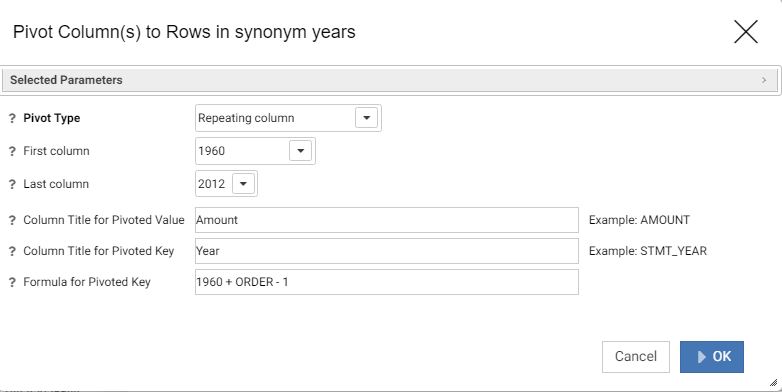
The Pivot Columns to Rows dialog box opens.
An example of the completed configuration for pivoting columns is shown in the following image.
The repeating columns now display as rows.
Note: To revert your pivoting changes, right-click the synonym on the Join Editor canvas, and click Remove Pivot.
The Pivot Columns to Rows dialog box opens.
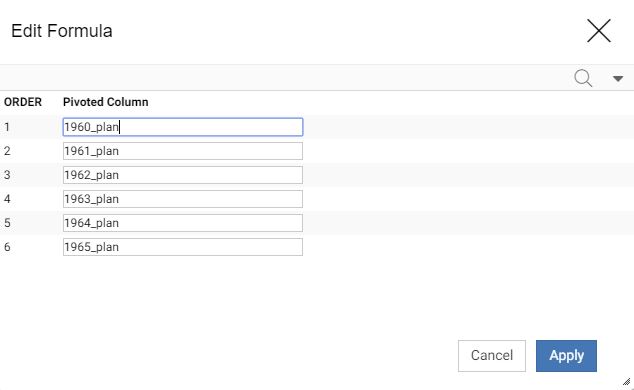
The Edit Formula dialog box opens, as shown in the following image.
Make sure there are no repetitive alphanumeric values in the Pivoted Column field. In the example above, delete _plan in each field to show only the year.
An example of the completed configuration for pivoting groups of columns is shown in the following image.
The repeating groups of columns now display as rows.
Note: To revert your pivoting changes, right-click the synonym on the Join Editor canvas, and click Remove Pivot.
|
|
WebFOCUS |