Procedure: How to Create Drill-Down Links in a Chart or Report
In this step, you will create a simple report with hyperlinks, which you will later configure to refresh and set parameter values in a portal.
- Sign in to WebFOCUS as a developer or administrator.
- Launch InfoAssist in report mode. On the WebFOCUS Home Page, click InfoAssist on the Action bar, then click Report.
InfoAssist opens in a new browser tab, and the Open dialog box appears.
- Select a data source and click OK.
The Report canvas loads.
- Drag fields from the Data pane onto the canvas or into field containers in the Query pane to create a report.
- Right-click the field whose values you will turn into drill-down links, and click Drill Down. Alternatively, select the field by clicking it on the canvas or in the Query pane, and, on the Field tab, in the Links group, click Drill Down.
At runtime, clicking a link from the selected field will pass the associated value to other filtered content in the portal.
- The Drill Down dialog box opens.
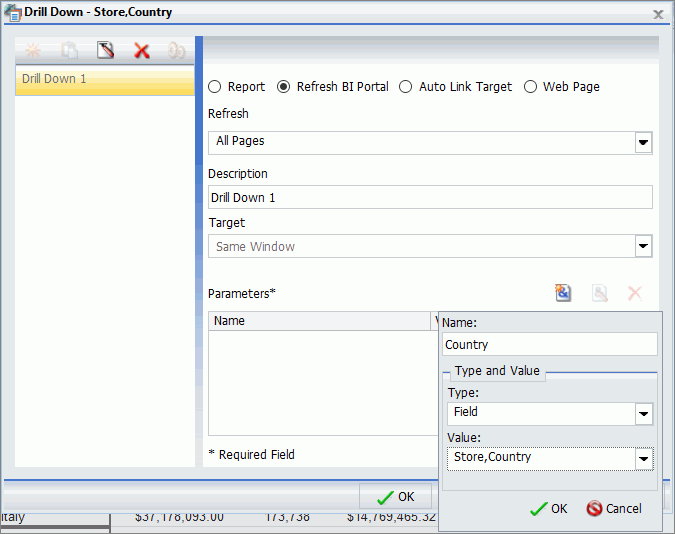
- Select the Refresh BI Portal radio button.
- From the Refresh menu, select All Pages to pass the selected values to all pages in a portal, or select Current Page to apply the selected value only to content on the same page as the drill-down report.
- Optionally, type a description for the drilldown. The description appears in the tooltip when there are multiple drill-down options on a single column of a report or section of a chart.
- Click the Add Parameter button.
- Type a name for the parameter.
Note: Remember this name. You will use it in subsequent steps. Specifically, it is used to pass the value of the selected drill-down link to the parameter filters in the target content.
- From the Type menu, select Field.
- From the Value menu, select the field whose values you want to use to filter the target content in the portal. Typically,
this is the field to which you are adding the drill-down links, but it does not have to be.
The following image shows an example of the Drill Down dialog box, where Country is the name of the parameter.
- Click OK.
Note: The links remain inactive and evoke no error messages until the target value is configured.
- Save the report.
