Procedure: How to Create a Workbook in WebFOCUS Designer
- On the Home Page, in the Resources tree, click a domain of folder, and then in the Actions bar click Workbook.
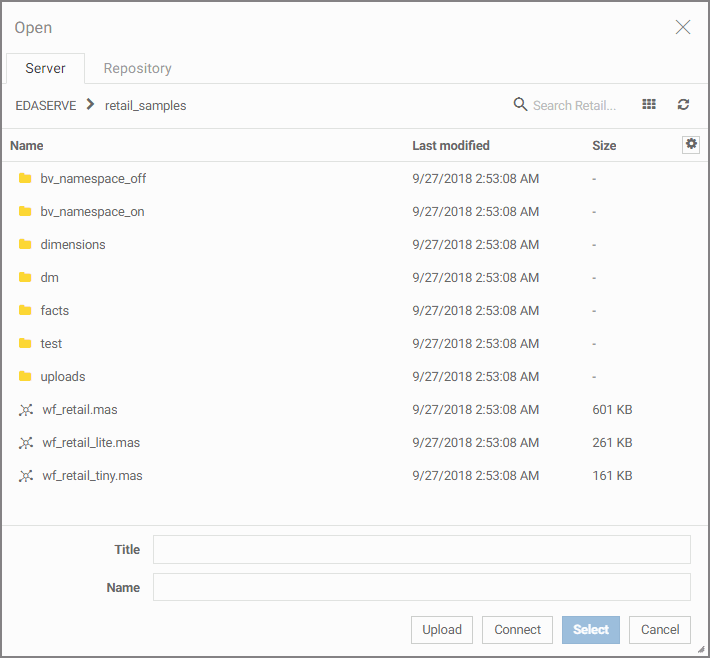
The Open dialog box opens, as shown in the following image.
- Make one of the following selections:
- To create a workbook from a master file, select a master file that would serve as a data source for the embedded charts in
your Workbook, and then click Select.
Note: Alternatively, you can click Upload or Connect to upload or connect a new data file. To learn more about working with data, see the Working With WebFOCUS content.
- To create a workbook from a reporting object or master file shortcut, select a reporting object or a master file shortcut
on the Repository tab of the Open dialog box, shown in the following image, and then click Select.
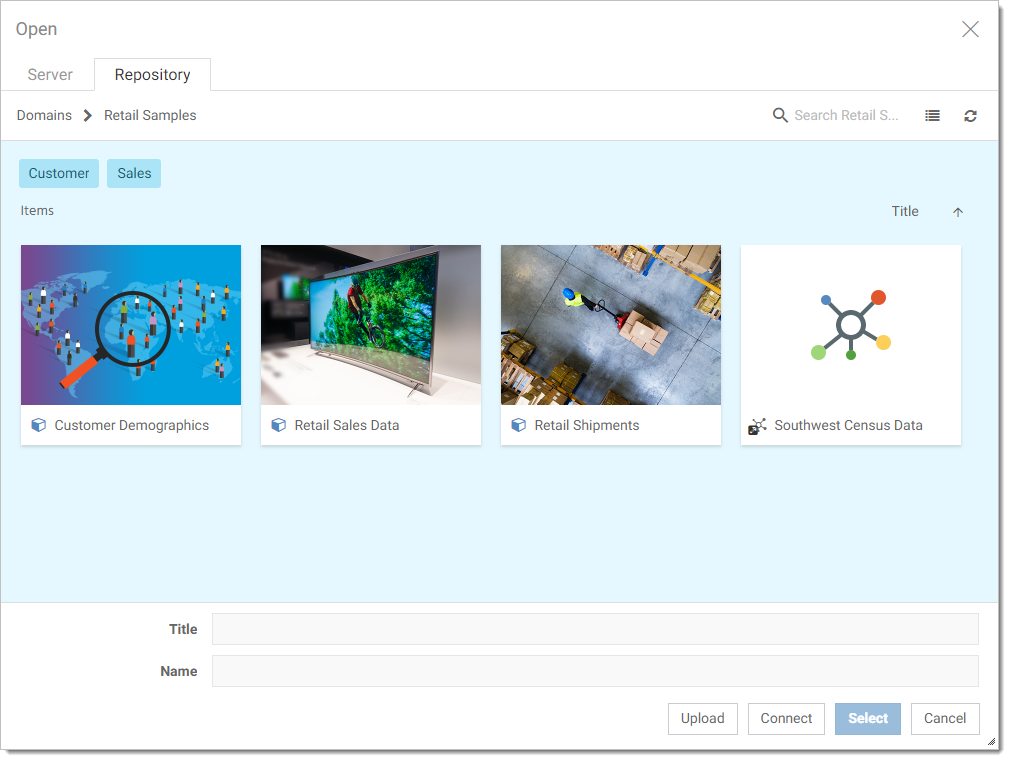
You can add custom thumbnails and tags to help the user identify reporting objects and metadata shortcuts more easily.
Note: Another way to create a workbook from a reporting object is to right-click a reporting object in the Resources tree, point to New, point to Designer, and then click Workbook.
Note: The view of the Open dialog box may vary depending on your privileges. You can see the Server tab if you have the Designer Content from Metadata privilege. You can see the Repository tab if you have the Designer Content from Reporting Object privilege.
WebFOCUS Designer opens in chart mode.
- To create a workbook from a master file, select a master file that would serve as a data source for the embedded charts in
your Workbook, and then click Select.
- Create an embedded chart as described in the Creating Charts topic.
You can reference your data source by clicking the Data tab, as shown in the following image. You can also use the Data tab to join two or more data tables, as described in Joining Data Sources topic.
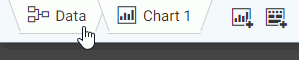
Note: The data tab is only available when you create a workbook from metadata. It does not display when you create a workbook from a reporting object.
- Click New embedded chart to add more embedded charts to your workbook, as shown in the following image.
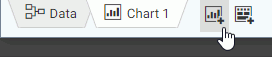
You can limit your workbook design to charts only. In this case, at run time, it will display your collection of charts in the carousel view. You can also add a single page to your workbook and use your embedded charts to populate a page layout.
- To add a page, click New embedded page, as shown in the following image.
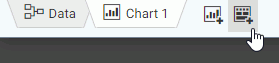
The New Page dialog box opens.
- Click a template of your choice.
WebFOCUS Designer in page mode loads. Notice that the embedded charts are available in the Resource Selector in the Embedded Content area, as shown in the following image.
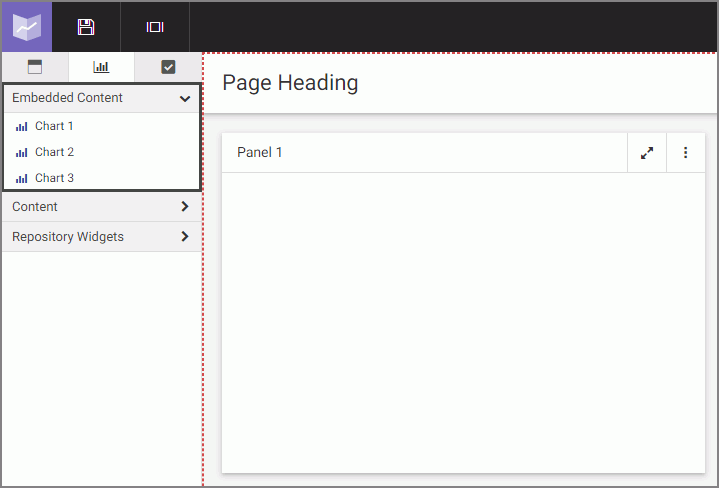
- Drag the embedded charts to the canvas to populate the page.
To learn more about working with pages, see Creating Pages topic.
- To add external content, in the Resource Selector, in the Content area, navigate to an item of your choice and drag it to the canvas.
- Save your workbook and exit WebFOCUS Designer.
Your workbook now displays in the Resources tree, you can run, edit, and share it with other users.