Procedure: How to Change a Target Connection
When uploading an Excel or delimited file, you can select an adapter folder and specify the connection where your data is loaded.
- Upload an Excel or delimited file using Get Data.
The Preview page opens, as shown in the following image.
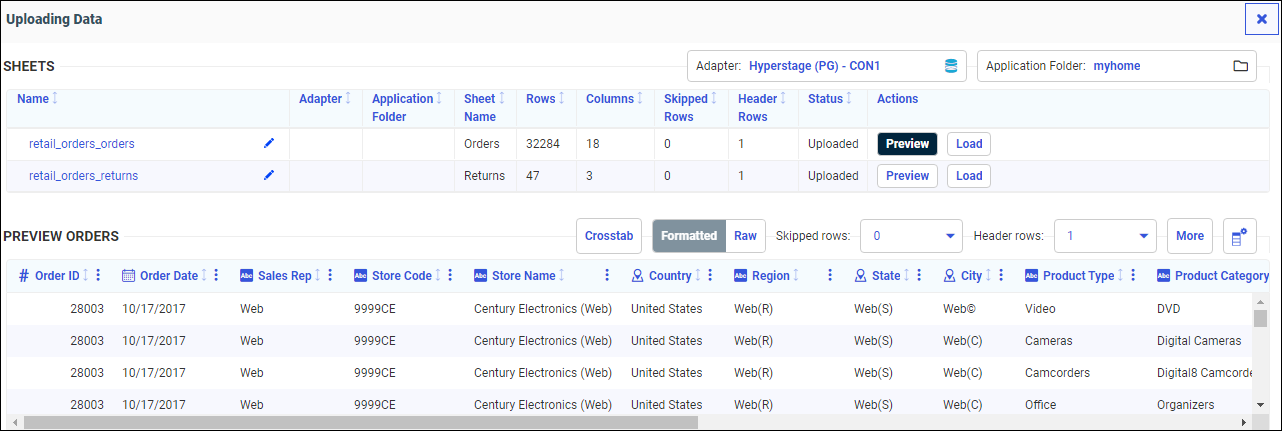
The Adapter column remains blank until your data is loaded. Once you load a file, the Adapter column displays the adapter and connection where your data was loaded.
- Click the Adapter name.
The Database Location dialog box opens, and displays the adapters configured on your server, as shown in the following image.
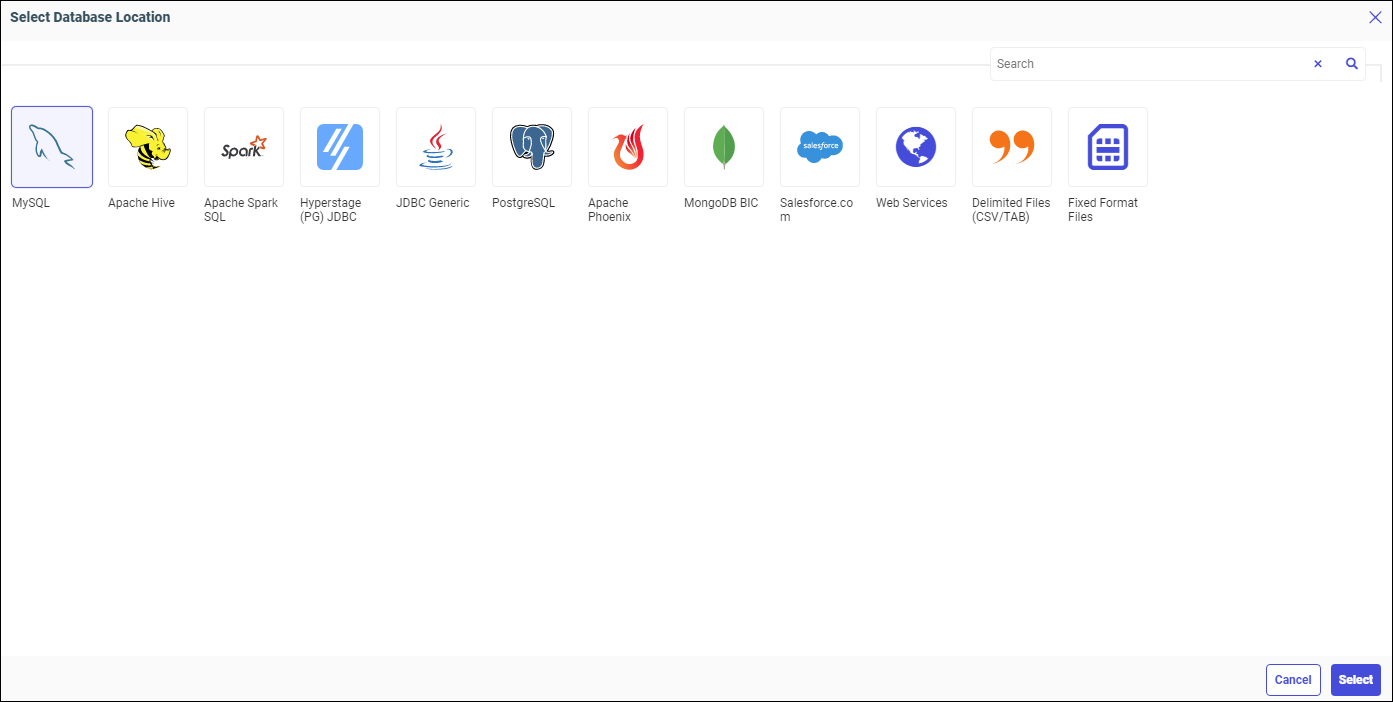
- Click an available adapter, and then click Select.
The Configure Connections dialog box opens, and displays the connections configured for the adapter you selected, as shown in the following image.
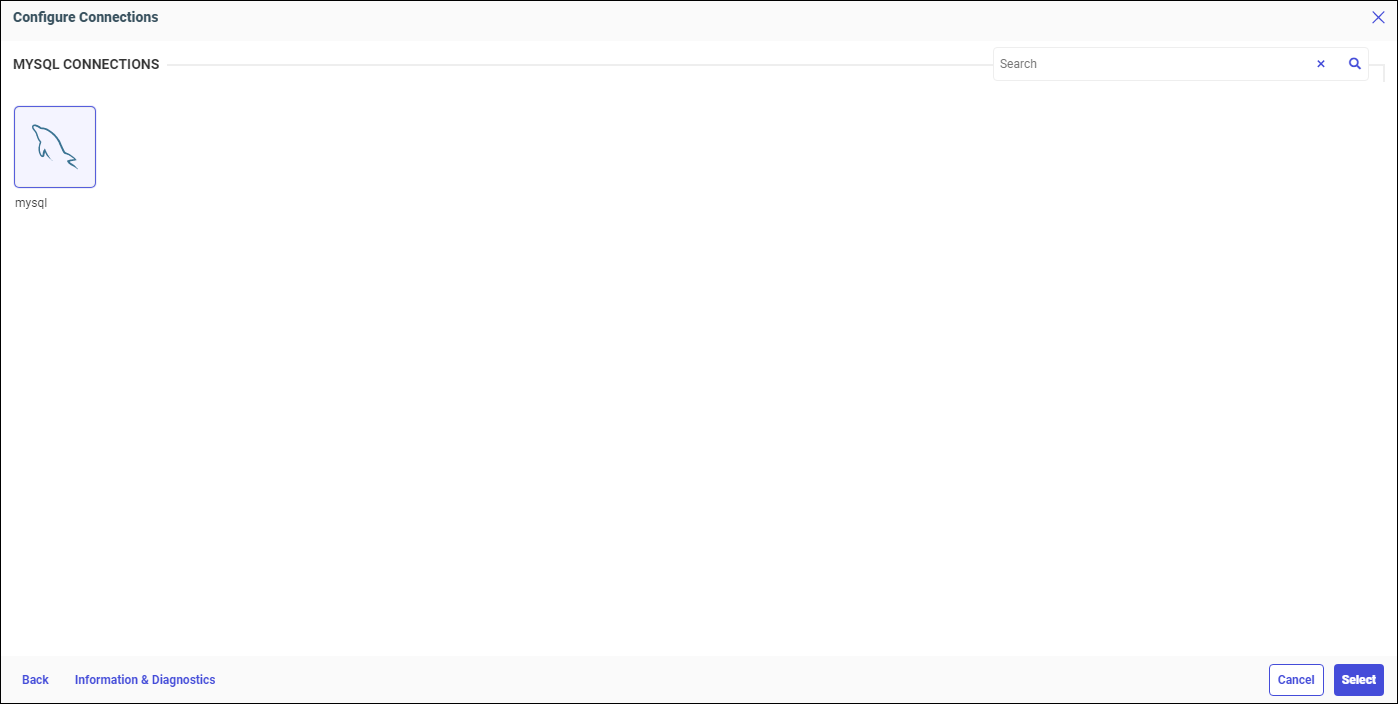
- Click an available connection and then click Select.
The Preview page displays.
- Click Load.
Your selected connection displays in the Adapter column, as shown in the following image.
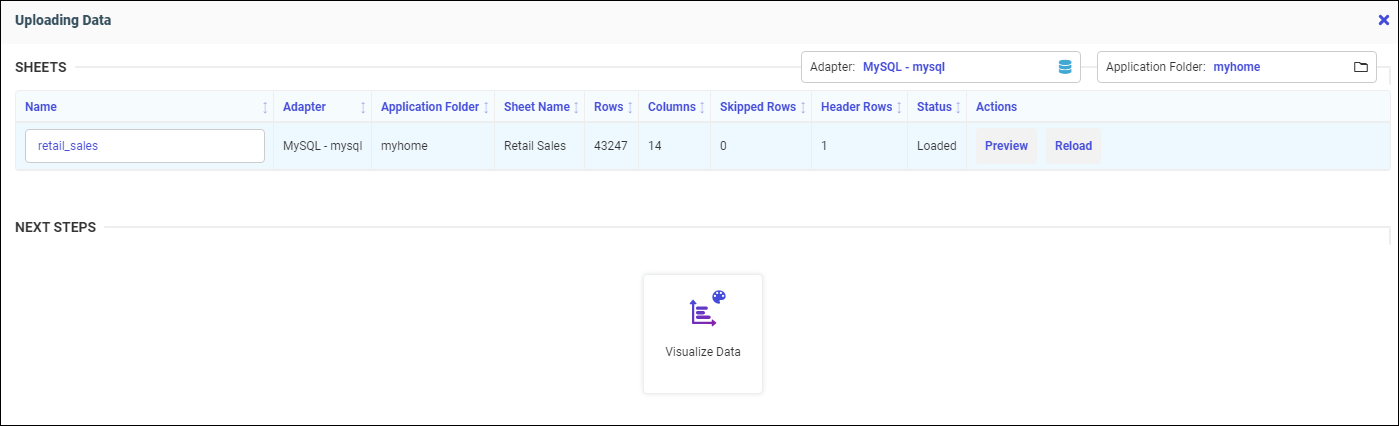
Your data is saved by default to this connection for subsequent file loads.