Setting Up and Executing JDBC Activities with Eclipse Using DTP
Using JDBC palette activities, you can setup JDBC connections and run JDBC activities to run queries and display the results. This sample shows how to run SQL calls and edit data with Eclipse DTP at Design time.
Install the Sakila Sample Database.
- Download and install the Sakila sample database from http://dev.mysql.com/doc/index-other.html.
- Installation information is available at http://dev.mysql.com/doc/sakila/en/sakila-installation.html.
- Ensure to install Drivers for Design time and Run time.
For more information about installing drivers, see the "JDBC Connection" section of TIBCO ActiveMatrix BusinessWorks™ Bindings and Palettes Reference guide.
- Procedure
- In the samples directory, select and double-click tibco.bw.sample.palette.jdbc.EclipseDTPIntegration. For more information, see Accessing Samples.
- In the Project Explorer view, expand the tibco.bw.sample.palette.jdbc.EclipseDTPIntegration project.
- Verify your JDBC connection.
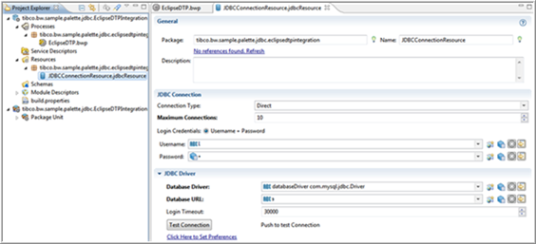
- Fully expand the Processes directory and double-click EclipseDTP.bwp.
- In the Process Editor, click JDBCQuery and then click tab.
- Click
SQL. This launches the SQL Query Builder. In
SQL Query Builder, update or edit the statement, run it, and view the result.
- Modify the statement by removing
"where title=?" and click
Run the query to run the statement at Design time by using DTP.
 In the SQL Results tab, the history for all operations displays at the left and Status, Result, and Parameters display at the right.
 - Click the
Data Source Explorer tab to view the connected database,
BWProfiletibco.bw.palette.jdbc.eclipsedtpintegration.JDBCConnectionResource. Right-click the table and select
to edit the data.
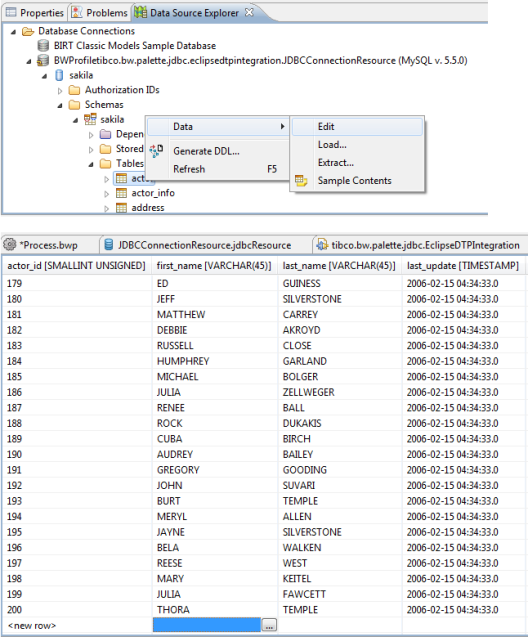
- Open the scrapbook to edit and run the SQL statements by clicking the icon available in the Data Source Explorer view.
- The entry for any SQL for default tables is available in the Sakila schema. Right-click and select
Execute All. See the results in the
SQL Results view.
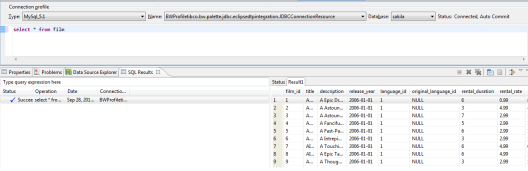
- Double-click JDBCQuery. Click Statement in the Properties tab. Modify the statement by adding "where title=?" at the end in statement.
- Modify the statement by removing
"where title=?" and click
Run the query to run the statement at Design time by using DTP.
- Click to save the project.
- Click .
- At the left hand tree of Debug Configuration wizard, expand BusinessWorks Application and select BWApplication.
- Click the Applications tab and then click the Deselect All button if you have multiple applications. Select the checkbox next to tibco.bw.sample.palette.jdbc.EclipseDTPIntegration.application.
- Click
Debug.
This runs the sample in Debug mode.
- Click the
Terminate
 icon to stop the process.
The console log contains messages similar to: INFO c.t.b.p.g.L.t.b.s.p.j.E.Log - FILM_ID-10001: Inventory of film id [17] in store id = [1] is 2.
Understanding the Configuration
The EclipseDTP.bwp process uses the JDBC Connection in the Resources folder to establish a connection to the database and runs SELECT and STORED PROCEDURE queries.
It queries the table for a specific record using the JDBC Query activity and then returns the available copies of a specified film in stock using the JDBC Call Procedure activity.
Finally it displays a number of records with MessageID in console.
Both activities use prepared parameters as Input. This shows the ability to run the same statement with multiple values by caching the statement at runtime.