Publishing by Reference Object
When source data is stored in a view or a different database object, you can publish the data by using the publish by reference object feature. Publishing by reference object is an extension of the publish by reference feature. For a description of publishing by reference, see TIBCO ActiveMatrix Adapter for Database Concepts.
In both cases, only key values from the source table are stored in the publishing table. However, publishing by reference object is used when a row changes in the source table and the associated trigger fires, the adapter fetches data from the referred object, rather than the source table. The name of the referred object is stored in the ADB_REF_OBJECT column in the publishing table. For a description of this column, see Publishing Table. It is good practice to configure publish by reference object when a view provides the most efficient access to source data, for example when many levels of nesting exist between a parent table and a child table.
To Configure a Publisher Adapter to Publish Data by Reference Object:
Procedure
| 1. | Drag the ActiveDatabase Adapter Configuration icon from the Palettes panel to the Design panel; then specify related parameters in the Configuration tab, Design-time Connection tab, and Run-time Connection tab. |
| 2. | Click the Adapter Services folder, drag the Publication Service icon from the Palettes panel to the Design panel. |
| 3. | To add a source table for the publisher adapter, follow these steps in the Table tab: |
Click the Add Table icon, the Question dialog is displayed; then click OK. The Add Table dialog is displayed.
Select a source table from the list and click OK.
If parent-child relationships are used, follow the steps under Adding Child Tables to add child tables.
You must explicitly designate a key column or substitute key column for the reference object because a reference object has no external designation of the key column.
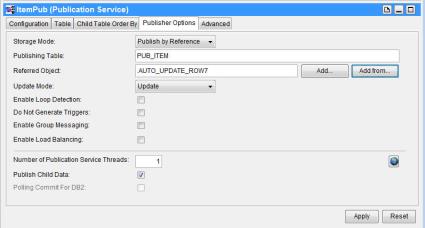
| 4. | Click the Publisher Options tab and specify the following options: |
Select Publish by Reference from the Storage Mode list.
Type the table name to use for storage in the Publishing Table field. A common practice is to use the source table name prefixed by P_.
Type the name of the view or other database object to select source data from in the Referred Object field. To select from a list of tables in the current user schema, click Add. To select an object from a different schema, select Add From.
Select the method for updating tables from the Update Mode list. Select the Update item to update a row in the destination table only if the row exists. Select the Upsert item to update a row in the destination table if the row exists and, if no such row exists, perform an insert.
| 5. | Click Apply. |
Figure 153: Configuring the Publisher Options to a Publisher Adapter
Designating the Key Column
To designate a column of the reference object as the key, follow these steps:
Procedure
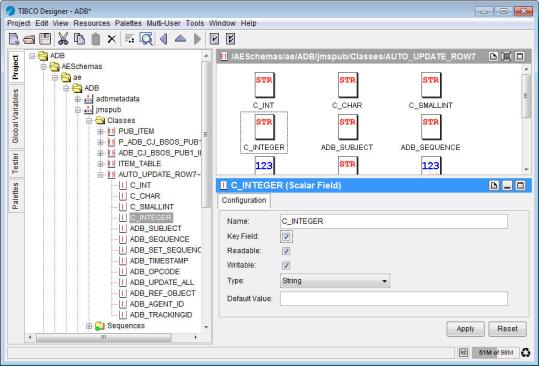
| 1. | In the Project panel, expand AESchemas > ae > ADB > adapter_instance > Classes > referred_object > key_column. |
| 2. | In the Configuration tab, select the Key Field check box, and then click Apply. |
Figure 154: Designating the Key Column