Uploading Application DAA and Configuration Files
To generate the application configuration YAML file by using Application Configurator, you must upload the application DAA in the Application Configurator.
Procedure
-
In a browser, open the following URL:
http://hostname:port/appconfig.Use the same host port that you specify when you run the Application Configurator container. The default container port for Application Configurator is 8087. For example,
http://<IP Address>:8087/appconfig. -
Click Start.
-
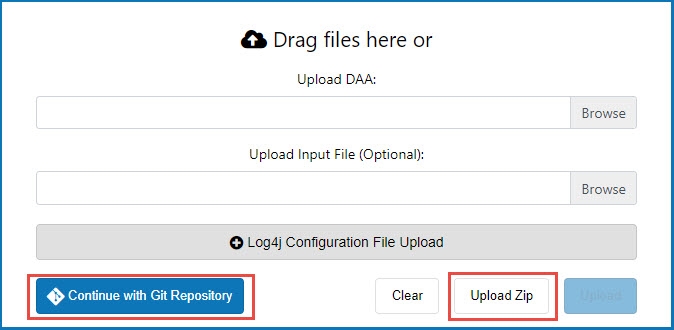
Upload the application DAA and other configuration files in one of the following ways:
- To upload files from your local machine, browse files individually or you can drag all files at a time.
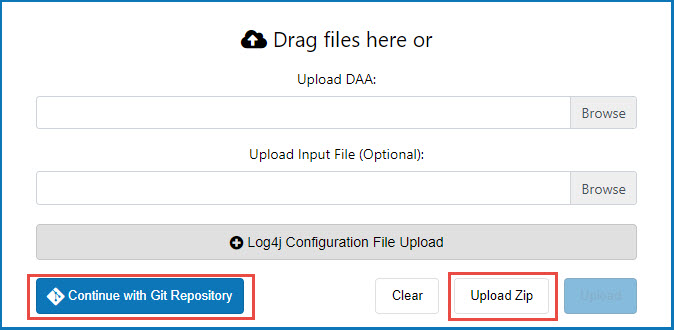
To upload the .zip file containing application configuration files, click Upload Zip. The .zip file must have the following structure: one DAA (optionally the Custom Feature DAA for JDBC Drivers), one YAML configuration file, (optional) Log4j file, (optional) JVM configuration file, and optionally the "certs" folder which contains the keystore files. You can upload the .zip file downloaded from Application Configurator, or the .zip file extracted from Application Extractor.
- If the .zip file has multiple folders having DAA and configuration files (for example, a .zip file extracted from Application Extractor), then one random folder is selected and uploaded to Application Configurator.
- If the .zip file has more than one DAA or any other extra files, you can view extra files in the staging directory (
/opt/tibco/config.home/appConfig/shared/staging) inside the Application Configurator container. When you download the configuration from Application Configurator, extra files are not downloaded but extra DAA files are downloaded. After the Application Configurator session times out, all files in the staging directory are cleaned.
To upload files from the Git repository, click Continue with Git Repository. For more information, see Integrating with Git.
-
(Optional) If you already have a YAML file and want to configure the same file, you can upload the YAML file by using the Upload Input File option. In this case, the application configuration in the YAML file is used instead of application DAA.
Note: Application configuration file with the.ymlextension is not supported in Application Configurator and when creating an application Docker image. You must use application configuration file with the.yamlextension. -
(Optional) Upload the Log4j configuration file for an application. If the Log4j configuration file is not uploaded, the default Log4j configuration is used.
-
Click Upload. Alternatively, to reset the selection, click Clear.
You are redirected to the Application Configuration Basic Information page where you can start configuring an application. To configure other DAA, click the Start Over button in the upper-right corner and navigate to the Upload DAA page.