Searching Transactions
The search features in AuditSafe are powerful and easy to use. You can filter your searches by constricting them to columns, to values with columns (categories) or search using date/time ranges. These are only a few of the options available.
Throughout this topic are suggestions and recommendations on how to target your searches and limit the number of results.
When you search transactions, the search finds matching records even if a category (or column) is not displayed. Hide or show categories by selecting them from the Settings dialog. For more information, see Settings in the Transactions Tab.
Pagination Limits for Searches
Pagination for search results is limited to 500 pages. If your search returns more results than the limit, you will receive a message requesting that you refine the search criteria.
Some suggestions to improve your search results are to add criteria such as tighter Date limitations, or limiting transaction searches to specific columns. See Using Search below for guidelines.
Clearing a Search
Clear a search by clicking X (delete) on a search box or by selecting the Clear All Searches option on the right.

For complex searches using multiple terms across multiple columns, clicking on X clears only that section of the search. Other search parameters remain active and the search is revised using the remaining options.
Using Search
When searching, you can use one of the following options or combine them to narrow the results:
- Sorting Transactions
- Search using the Transactions Field
- Search using Column Search
Sorting Transactions
Sort any column is the simplest option that uses the down/up arrow to sort the results in ascending or descending order. This option is most helpful after you create a complex search, since it allows you to sort on a smaller set of results.
Using Search Transactions
The Search Transactions field, which appears at the top of the transaction list allows you to search using one of the following options.
Keyword: Select this option to enter any word or part of a word.
Columns: Columns are listed alphabetically. Select a column from the list.
User-defined terms: These are terms created by you and are listed under a divider. They appear in alphabetical order.
These search-types can be combined to create a complex search. After you have entered all of the search criteria. Click Find to view the results.
- Click the Select dropdown to choose a category.
- Click in the Search Transactions field, select a search option (seen above), and enter a word.
- As you begin to enter a word, the system displays the available options.
- Select an option and press ENTER to add it to your query. Continue adding options to narrow your returns.
- After you have created your query, click Find to list the results.
- Click the Delete icon to remove a search term.
Search Transactions contains the following options:
| Option | Description |
|---|---|
| = | Equals: Finds an exact match for a term. Entering the first few letters will list matching options. Select one and press ENTER. If an exact match is not available, no items are listed. |
| != | Not Equal to: Use this option to exclude terms from your search. |
| ~ | Like: Enter a few letters to list items containing a matching string. |
Creating Searches from Search Transactions
- Searching for values within the same category is an OR search.
For example: Search Audit Event for Delivery or DO Creation to find all transactions that contain those values. - Searching for values between 2 or more categories is an AND search. You can combine the two search-types to narrow your results.
For example: Search Status for Pending OR Completed, AND search Audit Event for Delivery.
The system automatically segments your query into OR and AND searches as seen in the following example:

Using Column Search
You can combine the Search Transactions searches with column-based search, or use it as a separate and quick way to search transactions using the values available in that column.
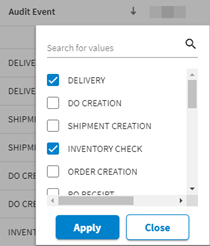
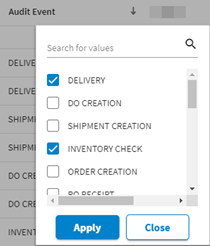
- To search a column, click on the column name to open the column search dialog.
- The dialog lists available values within that column.
-
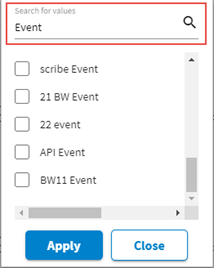
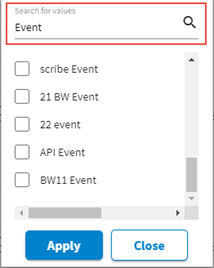
Scroll to view the list or search for values using the search box. The search narrows the available choices as you enter a term. Note that the search is NOT case-sensitive.
-
Check the box next to a term to select it.
-
Click Apply to confirm your choices.
-
The search is modified to include only the values you selected for the column.

-
Open the column search at any time to remove existing, or select additional terms from any column. The search bar displays the changes and the search results are immediately modified.