Transactions Tab
From the Transactions tab you can:
- Sort transactions by columns.
- View Transaction Details and Payload information.
- Change the column view from the Settings dialog.
- Search for transactions using filters.
The Transactions page displays 20 records. The newest transactions are listed first. Page through the display to see older records. You can sort the transactions by category, or search for records of a specific type. The number of search records returned is limited to 10,000 audit events or a maximum of 500 pages. See also Pagination Limit for Searches.
Sort Transactions
Sort transactions by clicking the arrows on a column (category) heading.
To re-order the columns: click the category name to select it, and drag it to a different location on the page.
The default sort is by date and time, so the newest transactions appear at the top of the list.
Transaction Details
Click on a transaction in the list to see more details.
View the transactions using either a Diagram view or a List view Switch between the two views by clicking the icon on the top right. The diagram view also displays related transactions.
Payloads
A payload is a file attached to an event, that may contain more information about the transaction or the event. Any event within a transaction can contain a payload.
Only text files such as .txt, .xml, or .json files can be attached as payloads. No other file-types are accepted.
A payload can be viewed by clicking on it.
To View the Payload
- Click the transaction to view the details, then click the event containing the payload.
- Click the payload icon payload icon to view the file.
- Click the download icon payload icon to download the attachment.
Settings Tab
The Settings icon allows you to select which columns to display.
- Click the gear icon to view the list and check the boxes for the columns you want to view.
- Click Apply to save your choices.
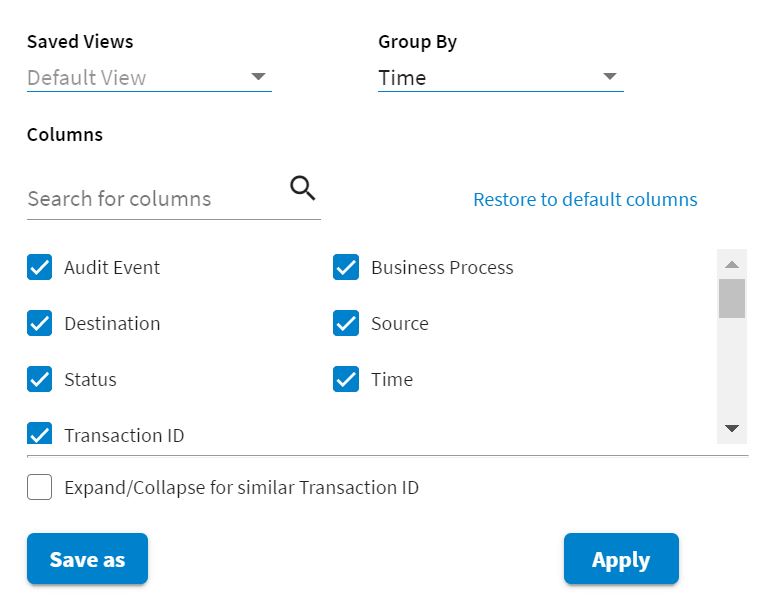
Customize your view using the following options:
| Option | Description |
|---|---|
| Saved Views | Use this option to select your preferred transaction view. To save your preferences in the saved views list. select Save as and enter the name of the view. |
| Group By | Use this option to group results by category. To do this, select a category from the drop-down. |
| Columns |
Check the box next to the category to display the columns you want to view. You can also search for a category by entering a partial word to display all categories containing that string as seen in the following example.
|
| Expand/Collapse for similar Transaction ID | Select this check box to group all the events with same transaction ID. |
Search for Transactions
The search feature in AuditSafe is powerful and easy to use. It allows you to search and sort using multiple criteria. When searching, you can use the Search Transactions field, Sort Columns, or use the Column search option.
For more information about these searches and how to combine them to narrow the results see Searching Transactions.