
Giving Permissions for the Registered Native Application
Prerequisites
Procedure
-
To delegate permissions, in the
Settings pane, under API ACCESS select
Required Permissions.
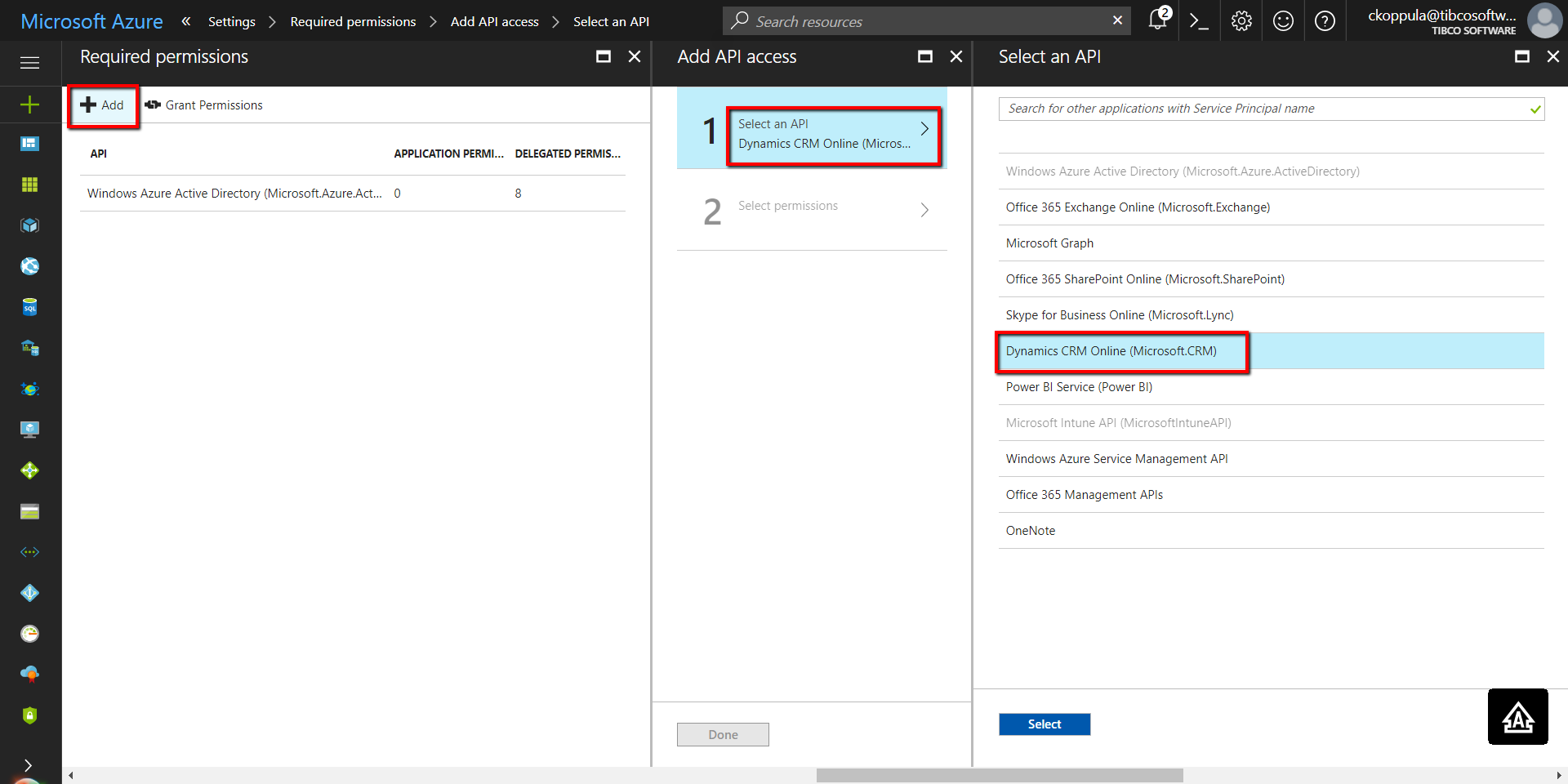
- In the Add API access pane, click Select an API.
- In the Select an API pane, select Dynamics CRM Online (Microsoft CRM).
-
Click
Select. When this step is completed, a green tick mark appears beside Select an API .
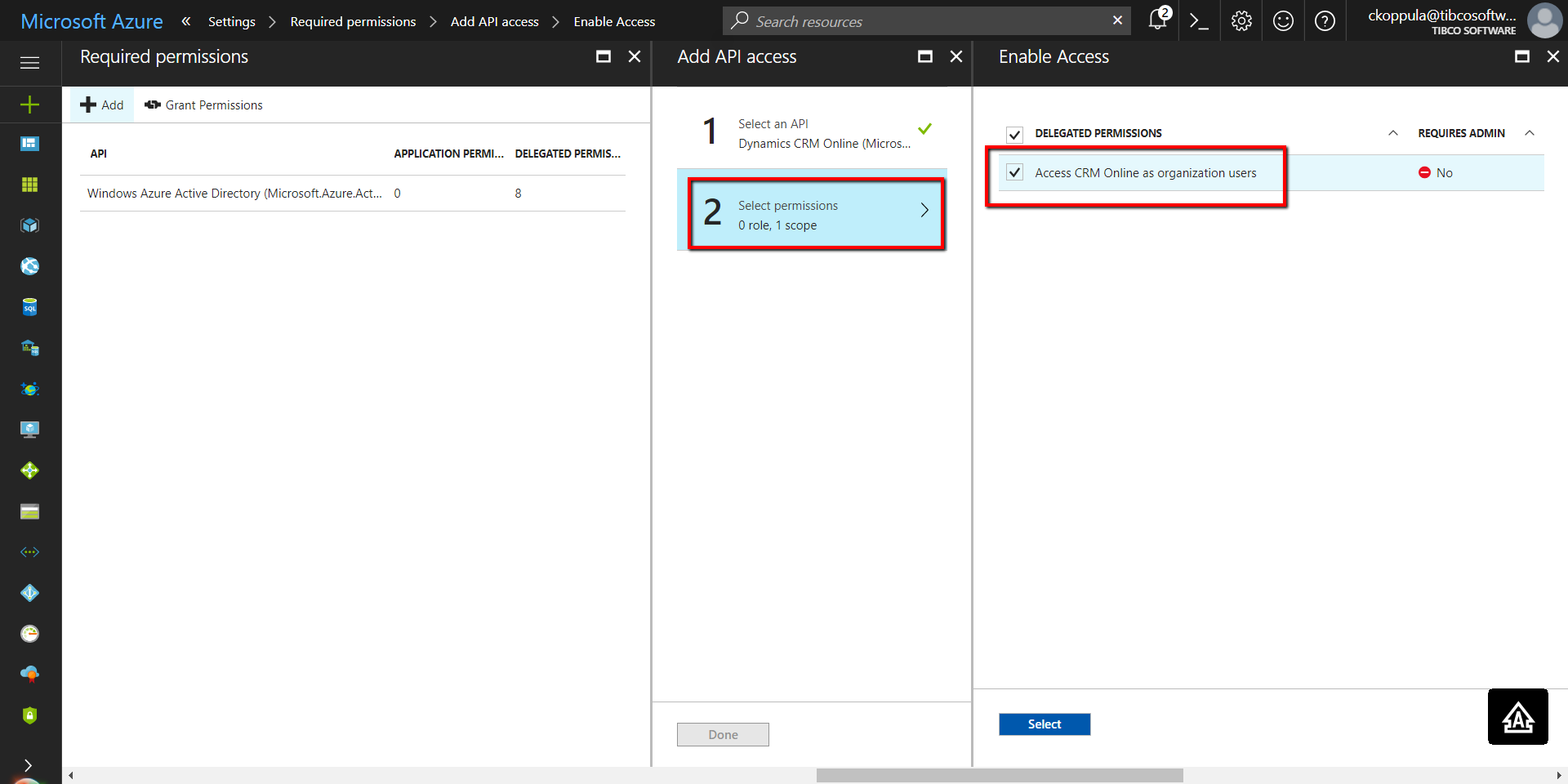
- In the Add API access pane, for Select permissions, in the Enable Access pane, select Delegated Permissions and Access CRM Online as organization users check boxes.
- Click Select. When this step is completed, a green tick mark appears beside Select permissions. Click Done.
-
To grant the delegated permissions, in the
Required Permissions pane, click
Grant Permissions.
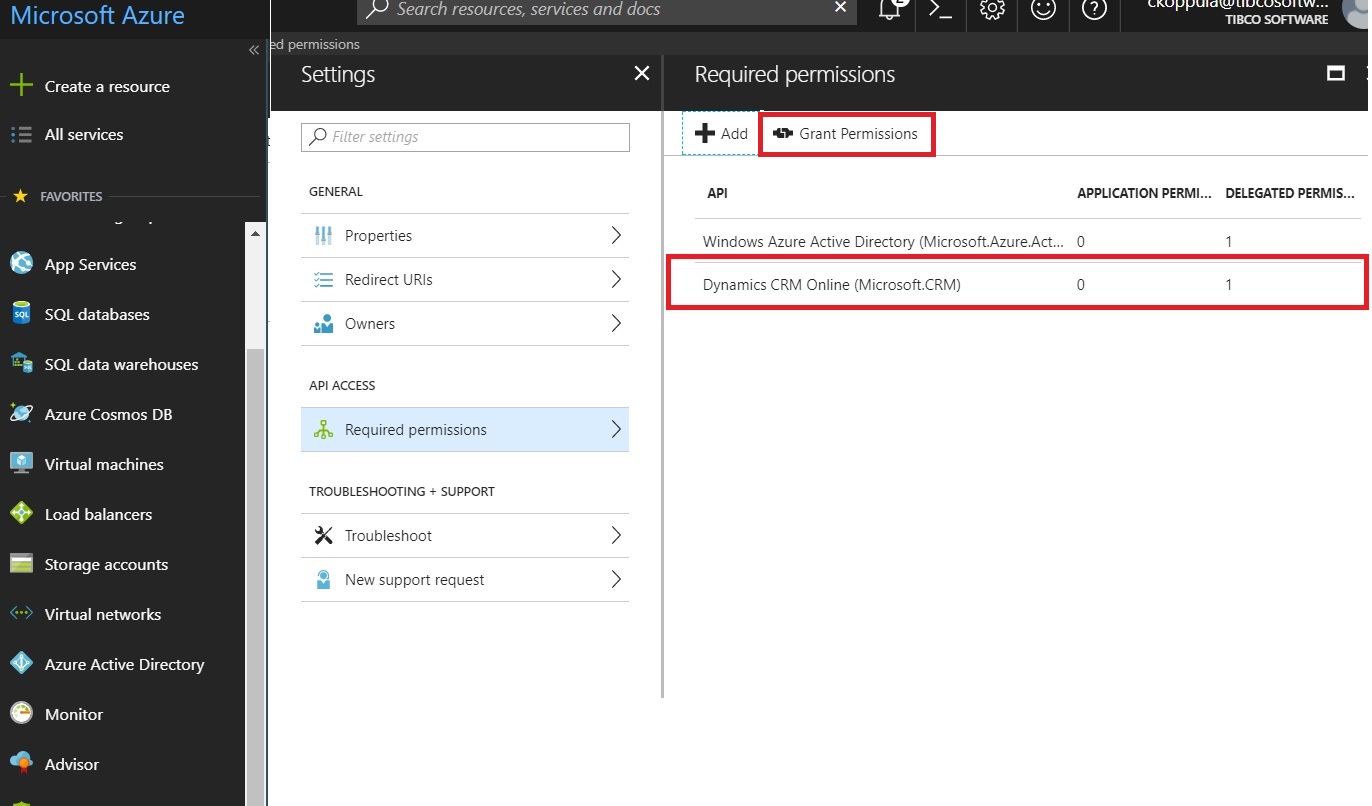
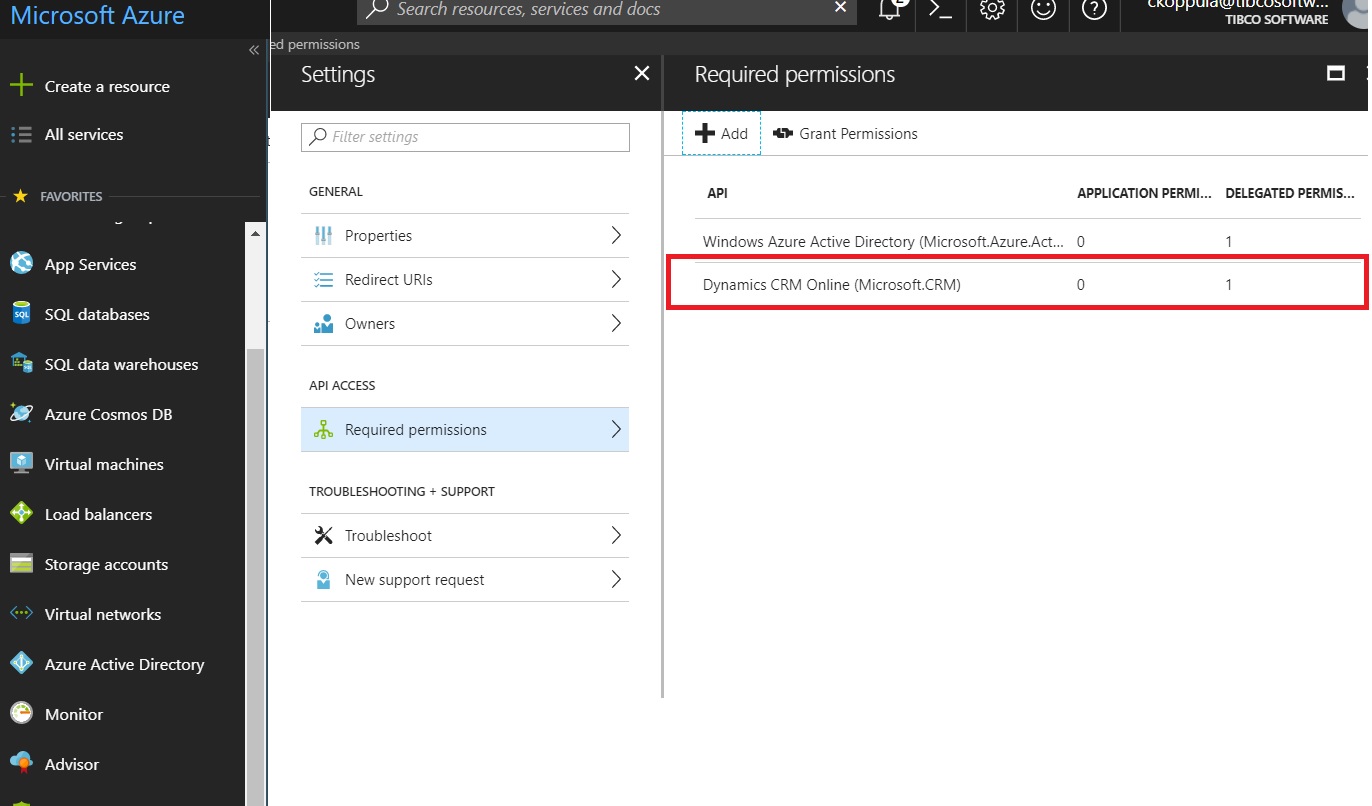
Click Yes.A message that you have successfully granted permission for the registered application is displayed.
Copyright © Cloud Software Group, Inc. All rights reserved.