
Registering a New Native Application in Azure Active Directory
The plug-in only supports native applications to be connected to the Dynamics CRM online application. For more information on ADAL, see the page "Connect to Microsoft Dynamics 365 web services using OAuth" on the Microsoft website.
Procedure
-
In the Microsoft Azure menu, select
Azure Active Directory.

-
In the
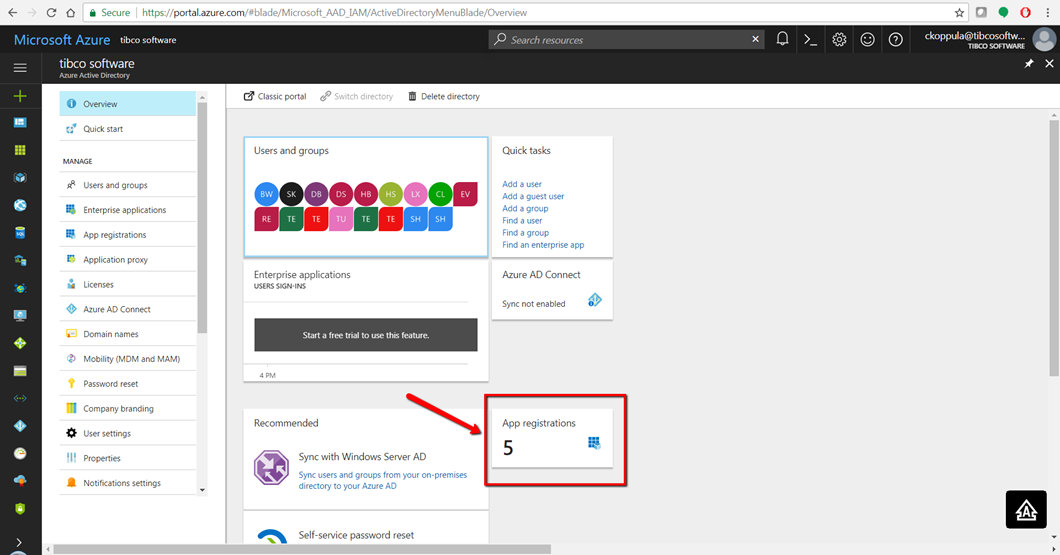
Azure Active Directory window, click
App registrations.
-
In the
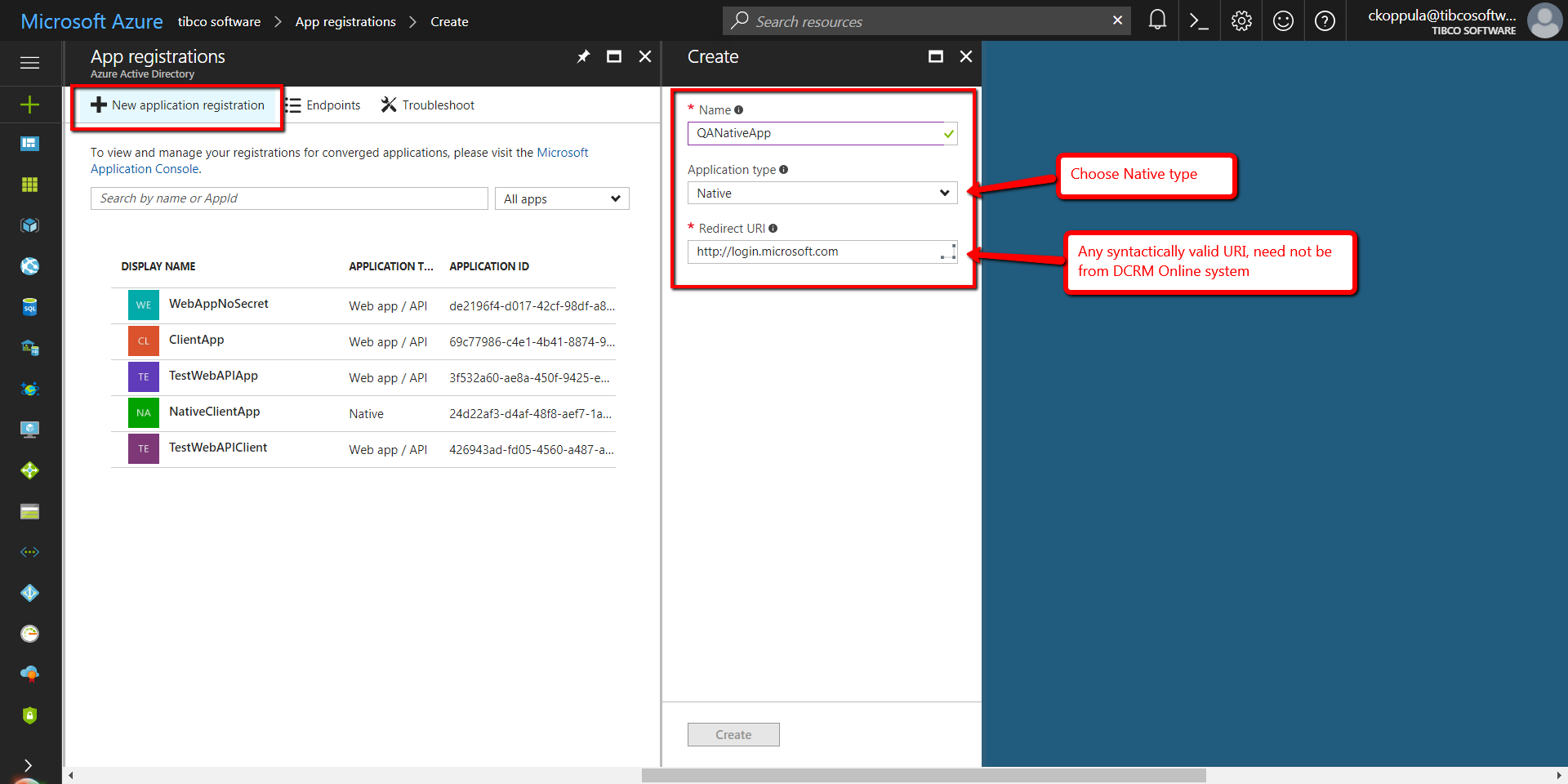
App registrations pane, click
New application registration.
What to do next
You must give permissions for the registered application. To give user permissions, see Giving Permissions for the Registered Native Application.
Copyright © Cloud Software Group, Inc. All rights reserved.