Adding an Image to a Report
With a StyleSheet you can add and position an image in a report. An image, such as a logo, gives corporate identity to a report, or provides visual appeal. You can add more than one image by creating multiple declarations.
You can also add an image as a background to a report. A background image is tiled or repeated, covering the entire area on which the report appears. An image attached to an entire report, or an image in a heading or footing, can appear with a background image.
Images must exist in a file format your browser supports, such as GIF (Graphic Interchange Format) or JPEG (Joint Photographic Experts Group).
Image support with FOCUS standard reporting formats
- GIF and JPG images are supported in DHTML, HTML, PDF, PS, PPTX, XLSX, and PPT standard report formats. JPEG image types are only supported with the HTML standard report format. For other report formats, you can change the extension of the image name from .jpeg to .jpg, and the image will be displayed in the report output.
- PNG image types are supported with DHTML, HTML, and PPTX standard report formats. The SVG image type is supported only with HTML reports. Images are not supported in the EXL2K standard report format.
Image support in Compound Report syntax
- GIF and JPG images are supported in DHTML, PDF, PPTX, and PPT Compound document syntax. JPEG images are not supported with any reporting format, but the images will work in these compound formats if the extension is changed from .jpeg to .jpg.
- PNG image types are supported with DHTML, PPT, and PPTX Compound documents. SVG image types are not supported with any FOCUS reporting format in Compound documents, while FOCUS generated SVG charts are supported only with PDF Compound documents. Images are not supported in EXL2K Compound documents.
-
Note: Images in report components in Compound documents are supported as described under Image support with WebFOCUS standard reporting formats. This section, Image support in Compound report syntax, refers to images inserted in the PAGELAYOUT sections of the Compound syntax.
For PDF, HTML, and DHTML output against data sources that support the Binary Large Object (BLOB) data type (Microsoft SQL Server, DB2, Oracle, Informix, and PostgreSQL, using its BYTEA data type), an image can be stored in a BLOB field in the data source.
In an HTML report, the Web browser locates and displays the image, so it must be in a location that the browser can find. If the file is not on the search path, supply the full path name.
In a PDF or PS report, FOCUS reads the image and places it in the PDF or PS output file. Thus, the GIF or JPEG file must reside in a sequential file or be a member of a data set allocated to any DDNAME (such as GIF or JPG) on z/OS. You can then use the DDNAME or the file name as the image name in the StyleSheet declaration. The LRECL for the image data set is 1024. For example:
LRECL=1024,BLKSIZE=30720,RECFM=FB,DSORG=PO
Image Attributes
|
Attribute |
Description |
|---|---|
IMAGE |
Adds an image. |
IMAGEALIGN |
Positions an image. This applies only to HTML reports. |
POSITION |
Positions an image. |
IMAGEBREAK |
Controls the generation of a line break after an image. This applies only to HTML reports without internal cascading style sheets. |
SIZE |
Sizes an image. |
ALT |
Supplies a description of an image for compliance with Section accessibility (Workforce Investment Act of 1998). ALT only applies to HTML reports. |
BACKIMAGE |
Adds a background image. |
Add an Image to an HTML Report
This syntax applies to an HTML report. For details on adding an image to a PDF, PS, or an HTML report with internal CSS, see Adding an Image to a Report.
TYPE={REPORT|heading}, IMAGE={url|(column)} [,IMAGEALIGN=position]
     [,IMAGEBREAK={ON|OFF}] [,ALT='description'], $
Embeds an image in the body of a report. This value is the default. Note: The IMAGE=(column) option is not supported with TYPE=REPORT.
Embeds an image in a heading or footing. Valid values are TABHEADING, TABFOOTING, HEADING, FOOTING SUBHEAD, and SUBFOOT.
Is the URL for the image file. The image must exist in a separate file in a format that your browser supports, such as GIF or JPEG. The file can be on your local Web server, or on any server or directory accessible from your network. For details, see Adding an Image to a Report.
Is an alphanumeric field in a request (for example, a display field or a BY field) whose value is a URL that points to an image file. Specify a value using the COLUMN attribute described in Identifying Report Components. Enclose column in parentheses.
This option enables you to add different images to a heading or footing, depending on the value of the field.
Is the position of the image. Valid values are:
TOP where
the top-right corner of the image aligns with heading or footing
text. If the image is attached to the entire report, it appears
on top of the report.
MIDDLE where the image
appears in the middle of the heading or footing text. If the image
is attached to the entire report, it appears in the middle of the report.
BOTTOM where the bottom
right corner of the image aligns with heading or footing text. If
the image is attached to the entire report, it appears at the bottom
of the report.
LEFT where the image appears
to the left of heading or footing text. If the image is attached
to the entire report, it appears to the left of the report.
RIGHT where
the image appears to the right of heading or footing text. If the
image is attached to the entire report, it appears to the right
of the report.
Controls the generation of a line break after the image. Valid values are:
ON which generates a line break
after the image so that an element following it (such as report
heading text) appears on the next line.
OFF which suppresses
a line break after the image so that an element following it is
on the same line. This value is the default.
Is a textual description of an image for compliance with Section 508 accessibility. Enclose the description in single quotation marks.
Specifying a URL
The following guidelines are the same for IMAGE=url and IMAGE=(column) syntax. In the latter case, they apply to a URL stored in a data source field.
Specify a URL by:
- Supplying
an absolute or relative address that points to an image file, for
example:
TYPE=TABHEADING,IMAGE=http://www.ibi.com/images/logo_wf3.gif,$
TYPE=TABHEADING, IMAGE=/ibi_html/ggdemo/gotham.gif,$
- Using the
SET BASEURL parameter to establish a URL that is logically prefixed
to all relative URLs in the request. With this feature, you can
add an image by specifying just its file name in the IMAGE attribute.
For example:
SET BASEURL=D:\ibi\apps\SESSION\
.
.
.
TYPE=REPORT, IMAGE=gotham.gif,$
The following conditions apply:
- A base URL must end with a slash (/) or backslash (\).
- An absolute URL (which begins with http://) overrides a base URL.
- A URL is case-sensitive when referring to a UNIX server.
- If the name of the image file does not contain an extension, GIF is used.
Adding an Image to an HTML Report Heading
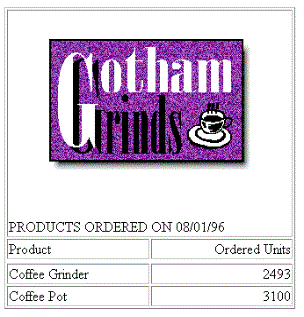
This request adds the Gotham Grinds logo to a report heading. The logo is in a separate image file identified by a relative URL in the IMAGE attribute.
TABLE FILE GGORDER
ON TABLE SUBHEAD
"PRODUCTS ORDERED ON 08/01/96"
SUM QUANTITY AS 'Ordered Units' BY PRODUCT
WHERE PRODUCT EQ 'Coffee Grinder' OR 'Coffee Pot'
WHERE ORDER_DATE EQ '08/01/96'
ON TABLE SET PAGE-NUM OFF
ON TABLE HOLD FORMAT HTML
ON TABLE SET STYLE *
TYPE=TABHEADING, IMAGE=C:\IMAGES\GOTHAM.GIF, IMAGEBREAK=ON, $
ENDSTYLE
END
IMAGEBREAK, set to ON, generates a line break between the logo and the heading text:
Using a File Name in a Data Source Field in an HTML Report
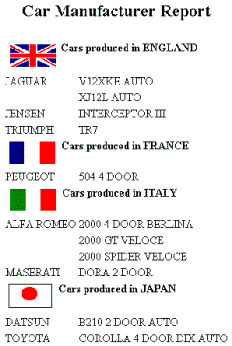
The following illustrates how to embed an image in a SUBHEAD, and use a different image for each value of the BY field on which the SUBHEAD occurs.
SET BASEURL=c:\images\
DEFINE FILE CAR
FLAG/A12=
DECODE COUNTRY ( 'ENGLAND' 'uk' 'ITALY' 'italy'
   'FRANCE' 'france' 'JAPAN' 'japan' );
END
TABLE FILE CAR
PRINT FLAG NOPRINT AND MODEL AS '' BY COUNTRY NOPRINT AS '' BY CAR AS ''
WHERE COUNTRY EQ 'ENGLAND' OR 'FRANCE' OR 'ITALY' OR 'JAPAN'
ON COUNTRY SUBHEAD
"                     <+0>Cars produced in <ST.COUNTRY"
HEADING CENTER
"Car Manufacturer Report"
" "
ON TABLE SET PAGE-NUM OFF
ON TABLE HOLD FORMAT HTML
ON TABLE SET STYLE *
TYPE=SUBHEAD, IMAGE=(FLAG), IMAGEALIGN=TOP, $
TYPE=REPORT, GRID=OFF, $
TYPE=HEADING, SIZE=12, STYLE=BOLD, $
TYPE=SUBHEAD, STYLE=BOLD, $
ENDSTYLE
END
The output is:
Supplying an Image Description Using the ALT Attribute
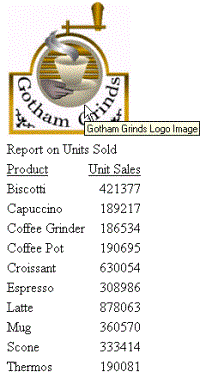
The following illustrates how to use the ALT attribute. The ALT attribute supplies a description of an image that screen readers can interpret to comply with Section 508 accessibility (Workforce Investment Act of 1998).
SET BASEURL=C:\images\
TABLE FILE GGSALES
SUM UNITS BY PRODUCT
ON TABLE SUBHEAD
"Report on Units Sold"
ON TABLE SET PAGE-NUM OFF
ON TABLE HOLD FORMAT HTML
ON TABLE SET STYLE *
TYPE=TABHEADING, IMAGE=gglogo, IMAGEBREAK=ON, POSITION=(.25 .25),
   SIZE=(.5 .5), ALT='Gotham Grinds Logo Image', $
GRID=OFF, $
ENDSTYLE
END
The output is:
Add a Background Image
This syntax applies to an HTML report.
[TYPE=REPORT,] BACKIMAGE=url, $
Applies the image to the entire report. Not required, as it is the default.
Is the URL of a GIF or JPEG file. Specify a file on your local Web server, or on a server accessible from your network.
The URL can be an absolute or relative address. See Adding an Image to a Report.
When specifying a GIF file, you can omit the file extension.
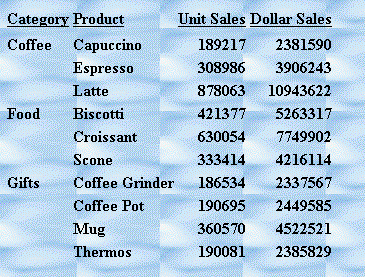
Adding a Background Image
This request adds a background image to a report. The image file CALM_BKG.GIF resides in the relative address shown.
TABLE FILE GGSALES
SUM UNITS DOLLARS
BY CATEGORY BY PRODUCT
ON TABLE SET PAGE-NUM OFF
ON TABLE HOLD FORMAT HTML
ON TABLE SET STYLE *
TYPE=REPORT, STYLE=BOLD, GRID=OFF, $
TYPE=REPORT, BACKIMAGE=C:\IMAGES\CALM_BKG.GIF, $
ENDSTYLE
END
The background is tiled across the report area:
Add an Image to a PDF, PS, or HTML Report With Internal Cascading Style Sheet
TYPE={REPORT|heading}, IMAGE={url|file|(column)}
[,POSITION=([+|-]x [+|-]y )] [,SIZE=(w h)] , $
where:
Embeds an image in the body of a report. The image appears in the background of the report. This value is the default.
Embeds an image in a heading or footing. Valid values are TABHEADING, TABFOOTING, FOOTING, HEADING, SUBHEAD, and SUBFOOT.
Provide sufficient blank space in the heading or footing so that the image does not overlap the heading or footing text. Also, you may want to place heading or footing text to the right of the image using spot markers or the POSITION attribute in the StyleSheet.
HTML report with internal cascading style sheet:
Is the absolute or relative address for the image file. The image must exist in a separate file in a format that your browser supports, such as GIF or JPEG. The file can be on your local Web server, or on any server accessible from your network. For details, see Adding an Image to a Report.
PDF or PS report:
Is the name of the image file. On z/OS, the name can be the DDNAME to which the image sequential file or data set member is allocated or the file name. The file has DCB attributes RECFM=FB,LRECL=1024. To transfer an image to the Mainframe, use FTP in BINARY mode.
When specifying a GIF file, you can omit the file extension.
Is an alphanumeric field in the data source that contains the name of an image file. Use the COLUMN attribute described in Identifying Report Components. Enclose column in parentheses.
The field containing the file name must be a display field or BY field referenced in the request.
Note that the value of the field is interpreted exactly as if it were typed as the URL of the image in the StyleSheet. If you omit the suffix, '.GIF' is supplied by default. SET BASEURL can be useful for supplying the base URL of the images; if you do this, the value of the field doesn't have to include the complete URL.
This syntax is useful, for example, if you want to embed an image in a SUBHEAD, and you want a different image for each value of the BY field on which the SUBHEAD occurs.
Is the starting position of the image.
Measures the horizontal or vertical distance from the upper left corner of the report component in which the image is embedded.
Is the horizontal starting position of the image from the upper left corner of the physical report page, expressed in the unit of measurement specified by the UNITS parameter.
Enclose the x and y values in parentheses; do not include a comma between them.
Is the vertical starting position of the image from the upper left corner of the physical report page, expressed in the unit of measurement specified by the UNITS parameter.
Is the size of the image. By default, an image is added at its original size.
Is the width of the image, expressed in the unit of measurement specified by the UNITS parameter.
Enclose the w and h values in parentheses; do not include a comma between them.
Is the height of the image, expressed in the unit of measurement specified by the UNITS parameter.
Adding a GIF Image to an HTML Report With Internal Cascading Style Sheet
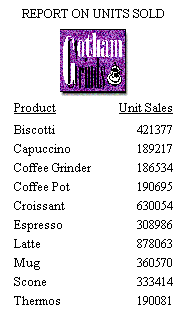
The TYPE attribute adds the image to the report heading. POSITION places the image .35 inch horizontally and .25 inch vertically from the upper left corner of the report page. The image is one inch wide and one inch high as specified by SIZE.
SET HTMLCSS = ON
TABLE FILE GGSALES
SUM UNITS BY PRODUCT
ON TABLE SUBHEAD
"REPORT ON UNITS SOLD"
" "
" "
" "
" "
" "
" "
ON TABLE SET PAGE-NUM OFF
ON TABLE HOLD FORMAT HTML
ON TABLE SET STYLE *
TYPE=REPORT, GRID=OFF, $
TYPE=TABHEADING, IMAGE=C:\IMAGES\GOTHAM.GIF,
POSITION=(.35 .25), SIZE=(1 1), $
ENDSTYLE
END
The company logo is positioned and sized in the report heading:
Adding a GIF Image to a PDF Report
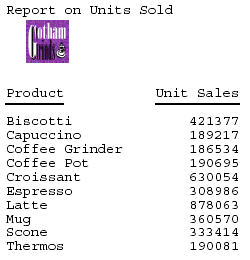
The image file for this example is GOTHAM.GIF. The POSITION attribute places the image one-quarter inch horizontally and one-quarter vertically from the upper left corner of the report page. The image is one-half inch wide and one-half inch high as specified by SIZE.
DYNAM ALLOC DD GIF DA USER1.GOTHAM.GIF SHR REU
TABLE FILE GGSALES
SUM UNITS BY PRODUCT
ON TABLE SUBHEAD
"Report on Units Sold"
" "
" "
" "
" "
" "
ON TABLE SET PAGE-NUM OFF
ON TABLE HOLD FORMAT PDF
ON TABLE SET STYLE *
TYPE=TABHEADING, IMAGE=GOTHAM.GIF, POSITION=(.25 .25), SIZE=(.5 .5), $
ENDSTYLE
END
The output is: