Application Monitor
The Application Monitor is available to assist with troubleshooting the client application. This monitor provides debug information on error conditions and exceptions encountered.
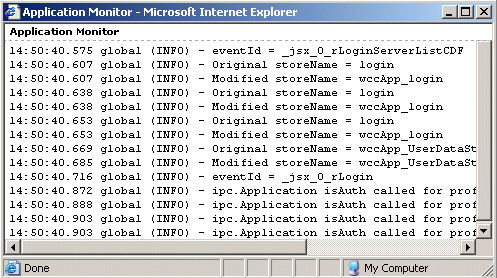
The Application Monitor is displayed in a separate browser window, which shows details of actions performed in the application. An example is shown below:
The Application Monitor can be configured using the following configuration file:
ClientInstallDir\logger.xml
where ClientInstallDir is the path to the directory in which the iProcess Workspace (Browser) is installed.
Default settings are specified by the following handler element in the logger.xml file, as shown below:

A reference to this handler is added under the global logger element:

By default, both the Application Monitor and its hotkeys are enabled.
| • | To disable the Application Monitor, comment out the entire <handler/> element, as well as the <handler-ref/> element under the global logger element. (Note that if you comment out the Application Monitor, you must comment out both the <handler/> element, as well as the <handler-ref/> element. If the <handler/> element is commented out, but the <handler-ref/> element is not commented out, it results in a fatal error — the application will not load.) |
| • | To disable the Application Monitor hotkeys, change the activateOnHotKey property’s value attribute to “false”. |
When the Application Monitor’s hotkeys are enabled, you can turn the monitor on and off using the <Ctrl>+<Alt>+<m> key sequence.
Also note that there are two logging categories used by the GI Forms add-in:
| — | form_adapter |
| — | com.tibco.forms |
To see log messages for these categories, add the following elements to the logger.xml file:
<logger name="form_adapter" level="INFO"/><logger name="com.tibco.forms" level="INFO"/>
The level of the log messages can be set by changing the value of the level attribute in the <logger name=”global” record. The valid levels are:
| — | FATAL |
| — | ERROR |
| — | WARN |
| — | INFO |
| — | DEBUG |
| — | TRACE |
You can also specify that Application Log data be echoed to the Application Monitor. This is accomplished using the echoToJsxLog attribute in the logging record in the application’s config.xml file. For more information, see Application Log.