Application Log
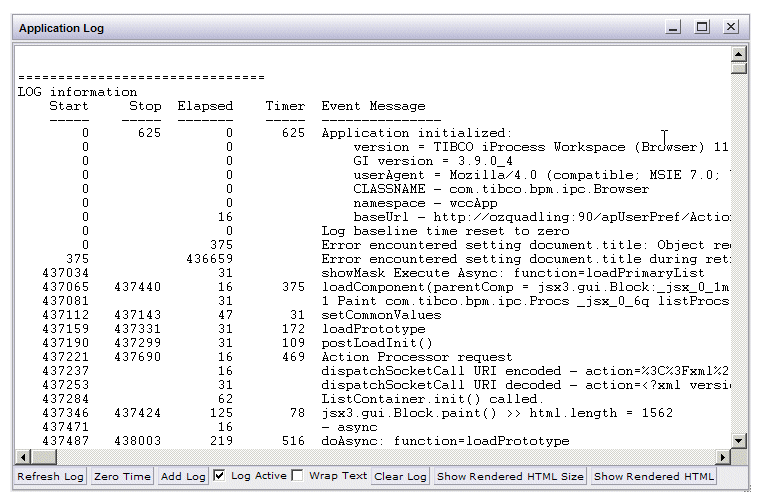
The Application Log is available to assist with troubleshooting the client application. This log provides detailed debug information generated by the iProcess Workspace (Browser), as well as information about communications between the client and Action Processor.
To display the Application Log, press the F12 function key while the iProcess Workspace (Browser) is running. A window similar to the following is displayed:
Note that this log is available only if the logged-in user has “ApplicationLog” enabled in their user access profile. For more information, see ApplicationLog.
Notice the Log Active check box on the bottom of the Application Log dialog. This box must be checked for the log to receive log data from the application.
Having the Application Log active can have an adverse effect on performance, therefore you can set the default state of the Log Active check box using the appLogActive attribute in the logging record in the application’s config.xml file.
The logging record also contains an attribute that allows you to echo the Application Log data to the Application Monitor — for information about the Application Monitor, see Application Monitor.
To configure the Application Log:
| 1. | Open the appropriate config.xml file, depending on whether you are configuring the iProcess Client or a custom application. For information about the file’s location, see Configuration Files. |
| 2. | Locate the logging record in the config.xml file:
|

| 3. | Modify the appLogActive attribute as follows: |
| — | “true” causes the Log Active check box in the Application Log to be checked by default. |
| — | “false” causes the Log Active check box in the Application Log to be unchecked by default. |
| 4. | Modify the echoToJsxLog attribute as follows: |
| — | “true” causes the contents of the Application Log to be echoed to the Application Monitor. |
| — | “false” causes the contents of the Application Log to not be echoed to the Application Monitor. |
You can also use the buttons on the bottom of the Application Log dialog to do things such as clear and refresh the log, show rendered HTML, etc.
The Application Log can be closed by clicking in the X in the upper right corner of the Application Log dialog.