Creating a User
On the Add User page, you can create a new user for a company.
- Procedure
- Log in to TIBCO MDM.
- Click .
- On the
User Accounts page, click
Create.
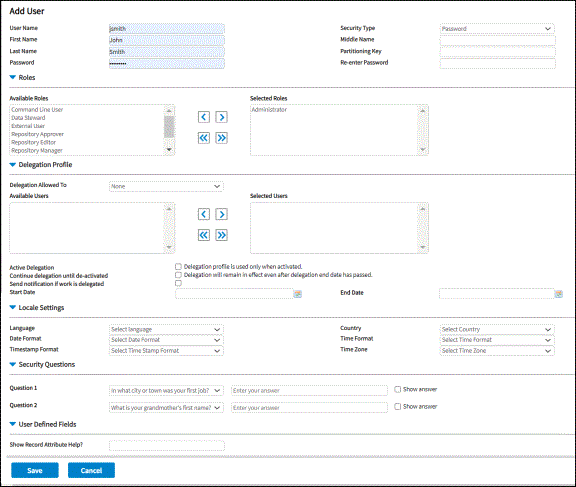
- On the Add User page, enter different types of details in the following sections for the user being created:
- To assign a single role, select one from the Available Roles list and click ">" to move it to the Selected Roles list.
- To assign multiple roles, press Ctrl and click roles from the Available Roles list and click '>' to move the selected multiple roles to the Selected Roles list.
- To assign all roles, click ">>". All roles are moved to the Selected Roles list.
- Specify the delegation profile of the user. You can forward work items assigned to you to another user. The users are available for selection depending on their roles and privileges. To activate the delegation profile, you need to specify how the delegation is activated and deactivated and whether to send notification when work is delegated.
-
Using the delegation and reassignment feature, you can control delegation and reassignment of work items from one user to another.
Delegation and reassignment is based on a list of specified user roles and their related access privileges. A delegation profile is used to limit the roles and users to whom work can be reassigned.
For each organizational role, the TIBCO MDM administrator specifies which roles can be delegated by another role. When a user attempts to reassign a work item, the action is limited to a select list of user roles. Only users with the appropriate roles and access privileges are shown as possible candidates for the reassignment.
- Language and Country: Select the language and country.
- Date Format: Select a date format from the drop-down list. The supported formats are:
MM/DD/YYYYDD-MON-YYYYMM/DD/YYDDMMYYYYYYYY-MM-DDYYYY/MM/DDDD-MM-YYYYDD/MM/YYYYDD-MM-YY
All date fields on the pages are displayed in the selected format for this user.
- Time Format: Select a time format from the list. The supported formats are:
hh:mm:ss (24 hours)
hh:mm:ss AM/PM (12 hours)
All time fields on the pages are displayed in the selected format for this user.
Note: If you do not select the date or time format, the default format is selected from the Configurator. By default, the MM/DD/YYYY and hh:mm:ss formats are specified for the Default Display Date Format and Default Display Time Format properties respectively. However, if you have specified the date or time format using UI, the selected date and time format take precedence over the application level configuration. - Timestamp Format: Select a timestamp format from the drop-down list. The supported formats are:
YYYY-MM-DD hh:mm:ss.S– Time is displayed in 24 hours format with milliseconds. S indicates milliseconds.YYYY-MM-DD hh:mm:ss.S AM/PM– Time is displayed in 12 hours format with milliseconds.YYYY-MM-DD hh:mm:ss.S z– Time is displayed in 24 hours format with milliseconds and time zone. Z indicates time zone. By default, the system time zone is displayed.YYYY-MM-DD hh:mm:ss.S AM/PM z– Time is displayed in 12 hours format with milliseconds and time zone.
Note: If you do not select the timestamp format, the default format is selected from the Configurator. By default, theYYYY-MM-DD hh:mm:ss.Sformat is specified for the Default Display Timestamp Format property. However, if you select the timestamp format using UI, the selected timestamp format takes precedence over the value that is specified for the Default Display Timestamp Format property. - Time Zone: Select the time zone specific to your region from the drop-down list. If you do not select any time zone, the system time zone is applicable.
- Select a security question from the Question 1 list. If you do not want to use a predefined question, select
Othersfrom the list. - If
Othersselected, enter your own question. - Enter a secret answer to the question.
- Select the Show answer check box if you want to display your answer in the text box.
- Repeat the step
atodfor the Question 2 field. However, you must select a different question from the Question 2 list. - Click Save to save user creation details.
| Section | Description |
|---|---|
| Add User |
Define basic details, such as the Username, First Name, Middle Name, Last Name, Password, and Partitioning Key. Note: The Username can accept the following special characters as a part of the name:
* (asterisk) . (period) - (minus) @ (at) / (Forward Slash) \ (Backward Slash) These special characters are accepted when you enter the username while adding permissions, roles, users. These can be used when referring to the username in a dataset of a File Watcher and also while referring to the username in a workflow. Select the required Security Type from the list: LDAP: LDAP-based authentication where password is not stored within the application. If you choose the LDAP security type:
The user must already exist in the LDAP directory server. Certain properties need to be configured in the If LDAP is selected as the security type, the Password fields do not get displayed as LDAP server does not require a password for authentication. Note: If LDAP authentication is selected while configuring the server, the following 3 options are available:
None,
Simple, and
Strong. If the administrator selects
None, the password is not authenticated but the user must type something in the
Password field. If
Simple or
Strong is selected, the password typed in the login page is authenticated using the LDAP server.
|
| Roles |
Each user in TIBCO MDM is assigned roles that control the user’s access and privileges. You can assign any user one or more predefined roles.
To know the available predefined roles, see Roles. For information about the access rights defined for each role, see User Role Matrix . |
| Delegation Profile |
|
| Locale Settings |
Specify the locale setting details in the following fields: |
| Security Questions |
By default, two security questions are displayed. However, if your system administrator has configured more number of questions to be displayed on the Add Users page, then repeat the step Caution: For the successful user creation, selecting security questions and answering them is mandatory.
The security questions are asked when resetting the password. Restriction: The security questions are not applicable for the single sign-on and LDAP login.
|
| User Defined Fields |
Show Record Attribute Help?: Enter Y or N to activate the mouse over display of Help in the record add, modify, and copy pages. The default (if no data input is provided here) is to display the Help. |