Comparing Records within a Repository
- Procedure
- Click Browse and Search.
- From the Repository Name drop-down list, select the name of the repository from which you want to compare records.
- Click View All . A list of records is displayed.
- Select any two records you want to compare. You can select a maximum of three records.
- Click
Compare.
The Compare Records page is displayed.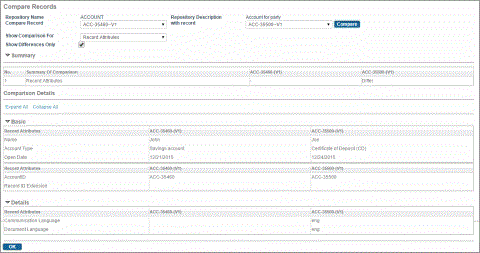
Depending on the number of records selected for comparison, the number of drop-down lists displayed on the Compare Records page changes. For example, if you select three records, the Compare Records page shows three drop-down lists. When a selection in any drop-down list is changed, it is ensured that the same record cannot be selected in the remaining two drop-down lists.
- Select the source record in the Compare Record drop-down list.
- Select the second record in the with record drop-down list.
If you have selected two records for comparison, the second record is automatically populated in the with record drop-down list.
If you have selected three records for comparison, after selecting the first record in the Compare Record drop-down list and the second record in the with record drop-down list, the third record is automatically populated in the record drop-down list.
- Select one of the following options from the Show Comparison For drop-down list to specify the type of differences that must be displayed:
AllRecord Attributes: By default, this option is selected. That is, differences between the values of their record attributes are displayed.Relationships: Only forward relationship differences are compared.Relationships AttributesRelationship Target Records
For Relationship or Relationship Target Records options, the differences are viewed with respect to the first of the two records being compared. That is, if a relationship does not exist with the first record, but it exists with the second record, it is not listed in the differences.
Classifications: For information about comparing Classification records, see Comparing Classification of Records. - By default, the
Show Differences only
check box is selected and only the differences are visible. If the
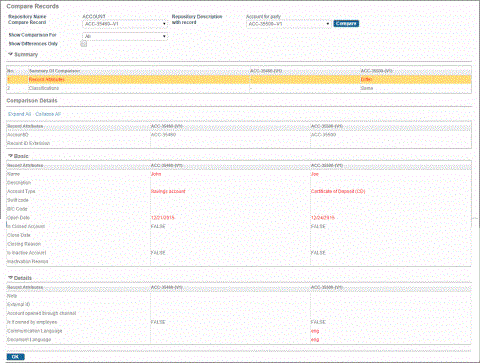
Show Differences Only check box is not selected, all the values for various attributes are displayed irrespective of whether they are different or not. Differences are highlighted in red.
Note: If you want this check box to be cleared for the first time you login, change the value of the Show Differences only check box using the Configurator, and then log in to the application.A summary of comparisons is displayed in a tabular form in the Summary section of the page. Click the record attribute row or relationship attribute row in the table of the Summary section to view the details of the comparison in the Comparison Details section of the page.
For information about comparing Effective Date records, see Comparing Effective Date Records.