Quick Export Options
You can use Quick Export to quickly export all or selected records, all or visible attributes, and relationships. For visible attributes, on the Attribute Details dialog box attributes that are marked as Display In Record List are exported.
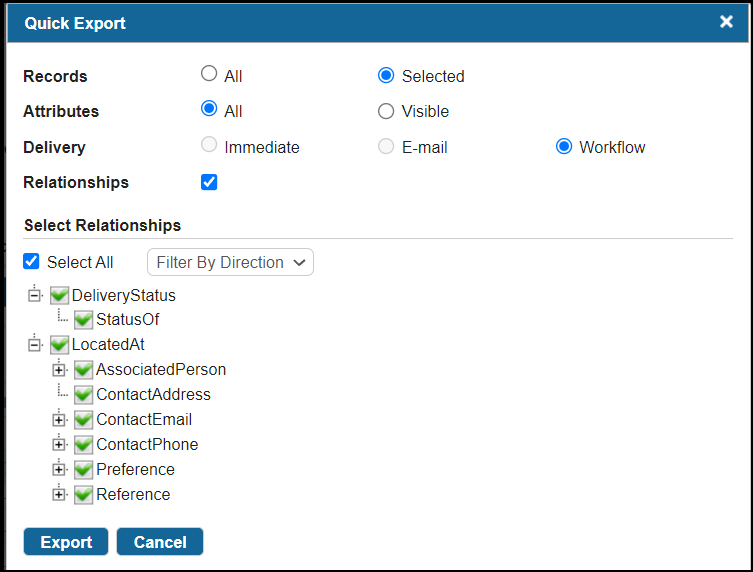
The Quick Export process supports the following delivery options:
- Immediate: Exports a small number of records. Use the Immediate option for the synchronous export. If you select the Immediate option, the Exporting records progress bar is displayed. The CSV file containing exported records and filtered attributes is downloaded and saved.
- E-mail: Exports large numbers of records. Use the E-mail option for the asynchronous export. If you select the E-mail option, a confirmation message is displayed. You cannot cancel the asynchronous export. After the export is complete, an email is sent to the email ID specified in the User Accounts profile. To receive an email, you must enable Email related settings using the Configurator. For more information about enabling Email settings, seeTIBCO MDM System Administration.
- Workflow: Select to export relationship data. This option is enabled only if you have selected the Relationships option. The
wfin26catsynchdbdumpv5.xmlworkflow file is used for exporting records. - Relationships: After you select this option, all available relationships are displayed as a hierarchy chart. By default, all levels of relationships are displayed in the tree. However, you can limit it to a specific level through the Configurator by using the
com.tibco.cim.quickexport.repository.relationshipLevel.<enterpriseName>.<repoName>configuration property. For details, see the "Quick Export Properties" section in TIBCO MDMSystem Administration- Select Relationships: This section contains the following options:
- Select All: Select the check box to select all relationships in a tree.
- Filter By Direction: Select one of the following options from the list: All, Forward Only, or Reverse Only.
- Select Relationships: This section contains the following options:
- Relationships and their related records are exported. The Export Records event is initiated. From the page, you can download the exported file (which includes selected relationships and related records). For more information, see Exporting Records by Using Quick Export.