Metrics Tab
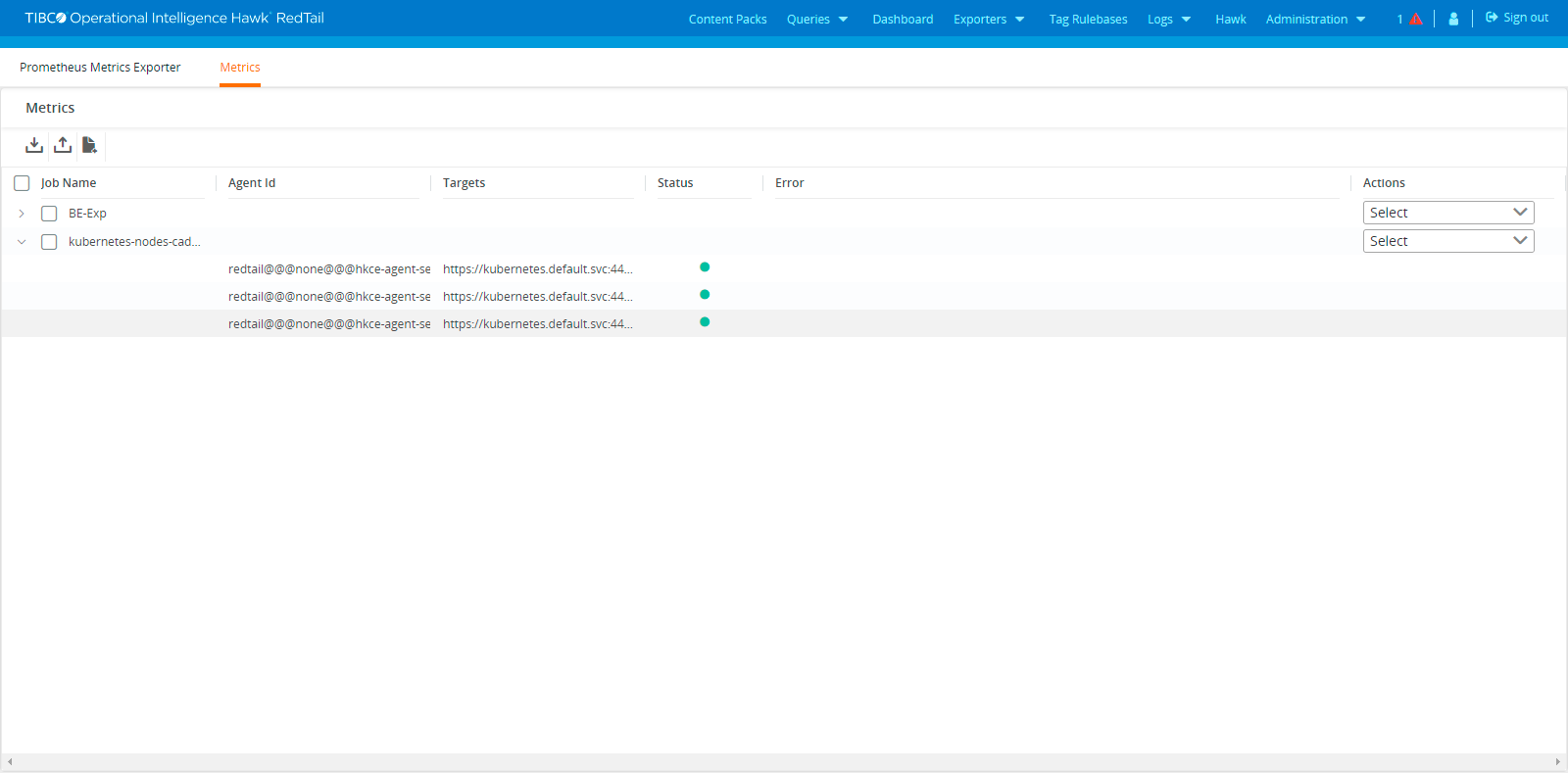
The Metrics tab displays the information about the time series metrics that have been configured.
The Metric Tab in Prometheus Metrics Exporter
The following information is displayed as columns on the tab:
|
•
|
Job Name - Name of the Prometheus Metrics Exporter job. |
|
•
|
Agent ID - Name of the agent to which the job is associated. |
|
•
|
Targets - Target from where the metrics are scraped. |
|
•
|
Status - Status of the metric scraping activity. |
|
•
|
Error - Error encountered while scraping metrics. |
|
•
|
Action - You can perform actions on the Prometheus Metrics Exporter job such as Edit, Export, Duplicate, or Delete. |
You can also perform following operations on the Metrics tab:
|
•
|
Create - To edit a Prometheus Metrics Exporter job, click the Add ( ) icon and specify the parameters for creating a Prometheus Metrics Exporter. For more information, see Creating a Prometheus Metric Job. ) icon and specify the parameters for creating a Prometheus Metrics Exporter. For more information, see Creating a Prometheus Metric Job. |
|
•
|
Edit - To edit a Prometheus Metrics Exporter job, select the Edit option from the Action column and then click the Update Metric in the Edit window after modifying the parameters. For more information, see Editing or Duplicating a Prometheus Metric Job. |
|
•
|
Duplicate - To duplicate a Prometheus Metrics Exporter job, select the Duplicate option from the Action column and then click the Create Metric in the Duplicate window after modifying the parameters. For more information, see Editing or Duplicating a Prometheus Metric Job. |
|
•
|
Delete - To delete a Prometheus Metrics Exporter job, select the Delete option from the Action column and then click Yes in the Confirmation window. |
Apart from this, you can also perform following operations on the columns displayed on Metrics tab:
Hover your cursor on the column name and click on the ( ) icon to perform the following actions:
|
•
|
Pin Column - Select this option to pin the column on the left, right or to remove the pin from an already pinned column. |
|
•
|
Autosize This Column - Select this option to reset the width of the column from which this option was selected. |
|
•
|
Autosize All Columns - Select this option to reset the width of all columns. |
|
•
|
Reset Columns - Select this option to reset the columns which are displayed to default columns. |
|
•
|
Expand All - Select this option to show detailed information about all the available Prometheus Exporters. |
|
•
|
Collapse All - Select this option to hide detailed information about all the available Prometheus Exporters. |
Click on the ( ) icon to select the columns to be displayed from the list of available columns.
 ). For more information, see Exporting or Importing Prometheus Metric Job.
 ). For more information, see Exporting or Importing Prometheus Metric Job.