Deploy an Application
When you create an application, you can use the Deploy on Save option to deploy the application when saving. The application then uses the global variables and other options set in the enterprise archive file. If you do not use the Deploy on Save option, you must explicitly deploy the application after changing deployment configuration options.
To Deploy an Application:
- Procedure
-
Click Applications.
-
Click Applications > Configuration, where Application is the application created when you loaded the enterprise archive file. See Upload and Configure an Application.
-
Before deploying, you can change the deployment options. See Deployment Choices for details.
-
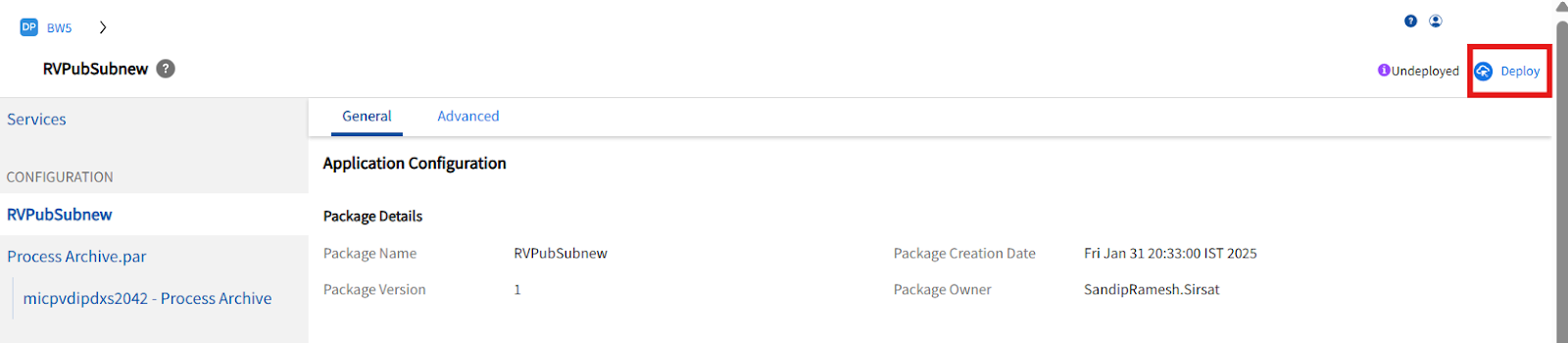
Click Deploy. The dialog similar to the following displays and informs you that all running processes with configuration changes in this application are stopped when you click OK to deploy. If the processes deploy successfully, they are restarted automatically if the corresponding check box was selected. This diaglog allows you to add description and displays information about the application and each service.
-
Click OK to deploy the application, or click Cancel to choose an advanced configuration, different archive file, or make other changes.
Deployment Choices
You can make changes to a deployed application, and then deploy the changed application. The currently deployed application can continue to run while you make changes. When you deploy the updated application, the current application is automatically undeployed.
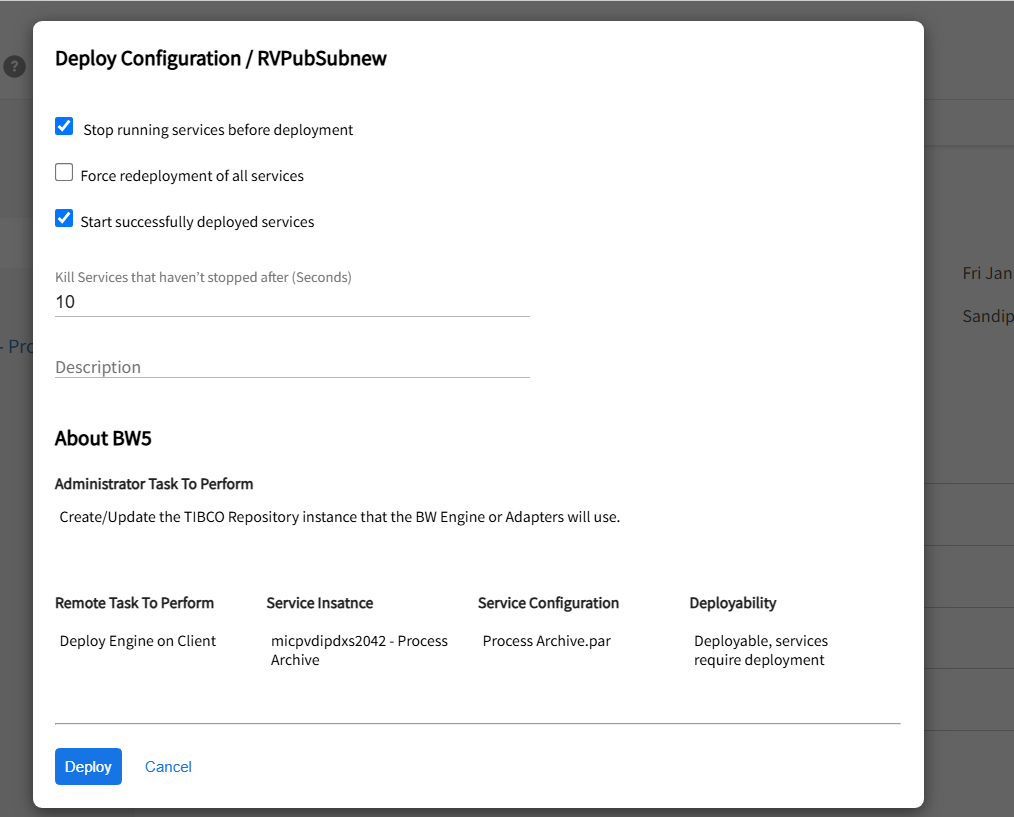
From here you can perform the following:
Select Stop running services before deployment to stop all running services before deploying the service. All services that should be redeployed are stopped. If, however, a service instance is in sync and Force redeployment of all services is not enabled, the running instance is not stopped. This option is disabled if any target machine has a TIBCO Hawk agent version lower than 5.3.
Kill services that haven’t stopped after (seconds): Specify the amount of time to wait before killing services that have not shut down. Indicate how many seconds can elapse after a stop request before a service is killed, using the Stop command, in Kill services that haven't stopped after (seconds).
Start successfully deployed services: If selected, TIBCO Control Plane starts successfully deployed services. If the service is already running, it is stopped and then restarted. If cleared, services must be started explicitly.
Select Force redeployment of all services to redeploy all services even if a service is in a synchronized state. This is useful if you have manually changed deployment files, or if you need to define NT Services to multiple hosts in a Microsoft Cluster.
Existing service instances in running state are first stopped then restarted after .tra and .cmd files on target machines are updated.
Existing service instances not in running state are restarted when they are deployed.
Newly added service instances are restarted.
Removed service instances are stopped before they are removed.
Deploy Configuration Dialog
See Deployment Choices for more information about these options.
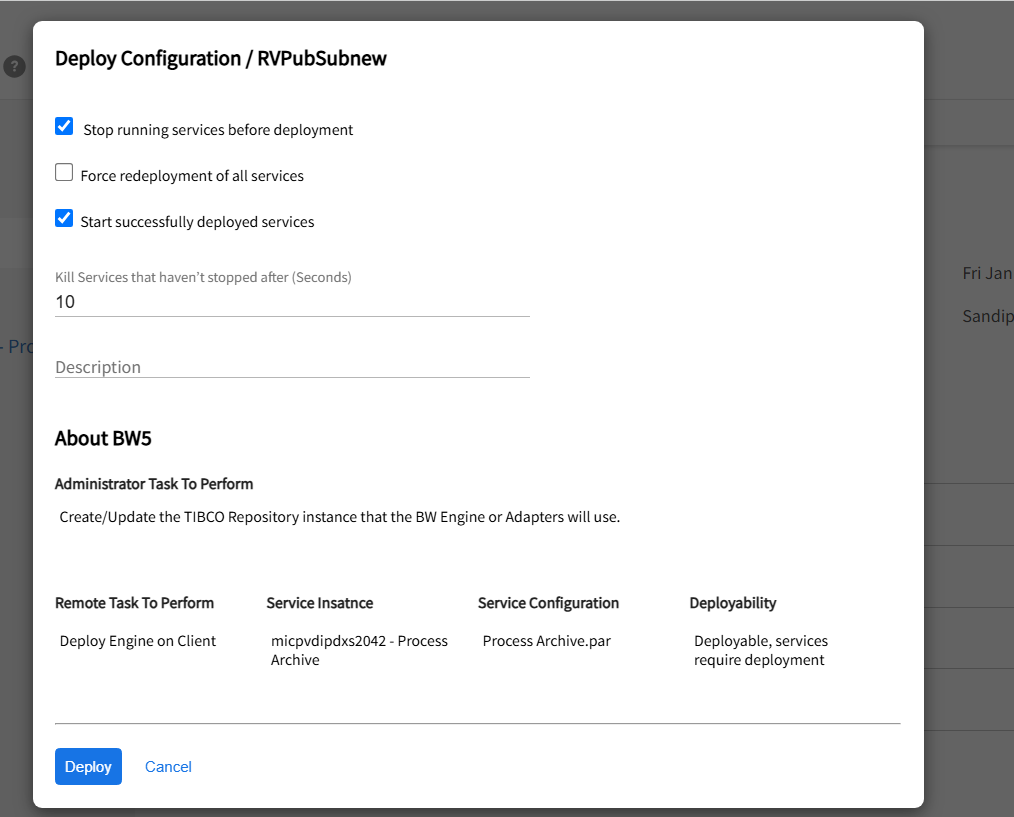
Description: Provide a description for this deployment. This is useful for reviewing details and essential if you expect to revert later.
Following details contain the application deployment information details:
-
Administrator Tasks To Perform: Lists the tasks that TIBCO Control Plane performs for this server if you choose to deploy by selecting the OK button.
-
Remote Tasks To Perform: Lists the tasks to perform on the selected machine(s) (which could actually be the local machine) in the following fields:
-
Software: Required software for this application (for example, an adapter or TIBCO BusinessWorks).
-
Deployability: Shows whether the application is deployable and whether it’s been deployed before.
Each component and service in the application is listed along with one of the following descriptors in the Deployability column:
-
Deployable, (Remove): On Component. The last uploaded enterprise archive file does not contain this component. The component and all service instances will be removed from the application on deploy.
-
On Service Instance: The service instance has been deleted. This will take effect on deployment.
-
Deployable, (New): The component or service instance has never been deployed successfully. If all service instances are removed and new ones added, the component will be in this state.
-
Deployable (Archive Update): The last uploaded enterprise archive file has changes related to this component. Changes will take effect on deployment.
-
Deployable (Configuration Update): The last uploaded enterprise archive file had deployment descriptors updated (typically global variables) that affect this component.
-
Deployable (Configuration Changes): Changes have been made to the service instance configuration and will take effect on deployment.
-
Deployable (Last Deploy Failed): The last deployment failed. History should have details. Likely problems are the TIBCO Hawk agent needs to be started on the target machine, or TIBCO Rendezvous communication or configuration parameters are not correct.
-
Synchronized: The configuration is correct. There have been no changes since last successful deployment.
-
Needs configuration: You must select a component or service instance and then each tab. Workflow in particular requires this for some automatic configuration to be done. Must be remedied or the component must be disabled before deployment can succeed.
-
Need to deploy in a Service Container: There are no service instances specified for the component. You must either disable it or assign at least one machine to component to enable deployment.
-
Need to bind to a Service: Not currently used.
-
Deployable, services require deployment: The undeploy command was run. All services are configured correctly and are ready for deployment.
-
Deployable, containers require deployment: The component had a service instance modified, added or removed. The change will take effect on deployment.
-
Services require configuration: A component has a service instance that needs to be configured. Deployment cannot be done until this is remedied or the component is disabled
-
Containers require configuration: Not currently used.
-
Disabled: The component is marked disabled and will not be deployed. If deployment is attempted, the component will be undeployed when deployment is done.
-
Disabled, will remove existing configuration: The component for the deployed service instance was marked Disabled. When deployment is done, the service instance will be undeployed.