Reloading data for each user when using scheduled updates
If an analysis has been configured to use automated data updates on the server, so called scheduled updates, data is regularly being preloaded with fresh data at a certain time (for example, on a daily basis) to make the loading time faster for the end users. However, an analysis can contain data from several different data sources and only some of them might contain shared data that should be reloaded at specified, scheduled times, whereas others should be reloaded on a per-user level (for example, when using personalized data connections). If only some of the data sources in your analysis should be affected by the scheduled update, you can specify that some data sources should always be reloaded each time a user opens the analysis.
About this task
Before you begin
- An analysis using linked and imported data has been, or will be, configured with a schedule update using the Scheduling & Routing page in the Spotfire Server web administration pages (or using an external process).
- You have an analyst or business author role with access to the data canvas (the Manage data tables license feature).
Procedure
-
On the
authoring bar, click
Data canvas
 .
.
-
At the bottom of the popover, under
Scheduled updates, select
Reload for each user.
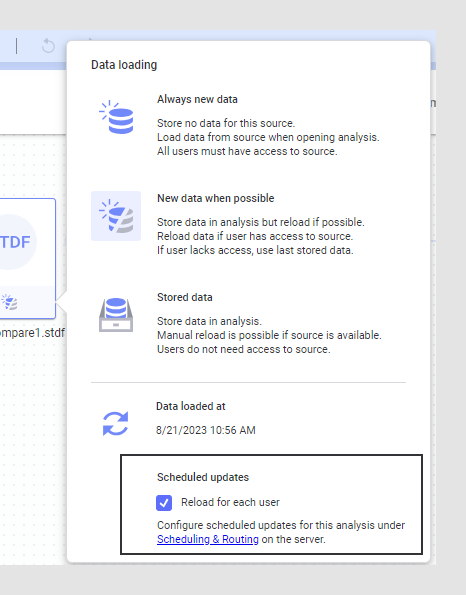
The data source is excluded from the scheduled update and the data will always be reloaded when the analysis is opened by a new user.Note: This setting will have no effect unless a scheduled update has been configured for the analysis on the server.