Overview of filter elements in Information Designer
Filters are conditions that limit the amount of data returned by
an information link. For example, a filter could set the conditions
X > 10 AND Y < 100.
You can filter data in information links in one of three ways.
| Filtering in Information Designer | Description |
|---|---|
|
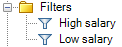
Filter elements are shown in the Elements tree of Information Designer. They can be added to any information link, just like column elements. See Creating an information link to find out how to include a filter element. |
|
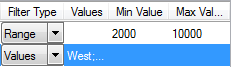
Hard filters are set up as you define the information link, and are saved with the link. This means that they cannot be reused in other links. Also, hard filters can only specify a range or a list of values, and so are less versatile than filter elements. See Adding hard filters for more details. |
|
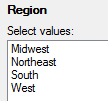
Prompts are also set up when you create an information link. However, the actual conditions are entered by the person running the information link only when the link is opened (executed). For each column that has been set up like this, a dialog will appear allowing the user to enter threshold values or select individual values. See Adding prompts for more details. |
Filters correspond to the
WHERE clauses in SQL, and are used to specify that only
certain rows of a table shall be retrieved from the data source, based on the
criteria described in the filtering condition.
Filter elements can be applied as required by the person creating
information links. In the Elements tree, they are represented by this icon:
