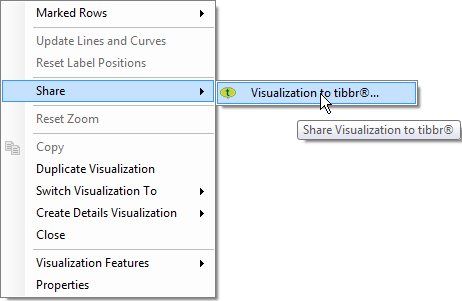
The Share menu allows you to quickly share your analyses with other people you are collaborating with. If you are using tibbr in your organization, you can post messages with images of the analysis you are working with to the tibbr® flow. Your company may also have added other collaboration tools, besides tibbr®, to the Share menu.
Right click on a visualization, on a bookmark, or on a page title to access the Share menu. Depending on what you have clicked upon you will see different options on the menu.
Option |
Description |
Share |
|
Page to tibbr® |
[When right-clicking on a page title.] Opens the Share to tibbr® dialog so that the selected page can be shared to tibbr. |
Bookmark to tibbr® |
[When right-clicking on a bookmark.] Opens the Share to tibbr® dialog so that the selected bookmark can be shared to tibbr. |
Visualization to tibbr® |
[When right-clicking on a visualization.] Opens the Share to tibbr® dialog so that the selected visualization can be shared to tibbr. |
Tip: To follow tibbr® flows from within TIBCO Spotfire, you can configure the Collaboration Panel to view different tibbr® subjects.
See also:
What is the Collaboration Panel?
How to Use the Collaboration Panel
Details on Configure Collaboration Panel