Adding a Query

After you have configured your data source using Spotfire Metrics Modeler, you can add a query, which in turn, enables you to create a KPI Set.

Prerequisites

To create a query, you must have specified a data source.

Perform this task in the Queries tab.

Procedure

  1. Click Add Query.
  2. In the New Query dialog, provide the following information.
    Option Description
    Title The title as you want it to appear in the Queries page. It can contain special characters.
    Data Source Select from the drop-down list, the data source containing your data. Your selection determines whether you need to supply a spreadsheet and worksheet name (for an Excel spreadsheet or a Google spreadsheet), supply a query text for a database query, or select a view from the dropdown menu and enter parameters for a Spotfire Server query.
    Description The description should provide information about the query. The description can contain special characters.
    Query Text If the data source for the query is a database, use this text area to construct your query.
    Parameters If the data source for the query is Spotfire Server, a list of parameters generates after a view is selected from the drop-down list. All required parameters (with a Yes value in the Req? column) must have assigned values.
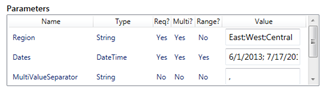
    • If a parameter contains a Yes value in the Multi column, then that parameter can accept multiple values. Enter values separated with the default delimiter, ;. For example, if your parameter is Region and you want to assign East, West, and Central to it, then you should enter East;West;Central.
    • You can assign a delimiter to the mvs (Multi-Value Separator) parameter. This parameter accepts any string. For example, if your parameter is Character and you want to assign the following values, ;, (, and $, you can assign a , to the mvs parameter and assign ;,(,$ to the Character parameter.
    • Only parameters that contain a Yes in the Multi column can contain your chosen delimiter.
    • If a parameter contains a Yes value in theRange column, then that parameter only accepts two values separated by your designated delimiter. The first value represents the beginning of a range, and the second represents the end of that range. If the values are numeric, the first value must be less than the second value, for example, 2000;4000.
    • The following is an example of a Date/Time range, 6/1/2013;5/31/2014.
    Spreadsheet and Worksheet If your data source is an Excel or Google spreadsheet, from the drop-down list, select the spreadsheet and worksheet containing your data.
  3. Click Preview to test that the query is working.
  4. Click Save.
    The newly-added query is displayed in the list of queries.