
Mapper
An activity has access to the output data from the flow trigger in addition to any activity that has been previously executed in the flow provided that the trigger or activity has an output. You can map the fields from the output of the trigger or a preceding activity to the input data field of a subsequent activity in the same flow. In the case of a blank flow where a trigger has not yet been defined for the flow, the activities have access to the input fields specified in the Flow Inputs and Outputs tab. This lets you pass data between activities in a flow.
To access the mapper, click an activity in the flow to open its configuration area. You map data in the Input or Output tab for activities or triggers that require you to configure such data. When you first open the Input or Output tab, the schema that you had entered in the Input Settings or Output Settings tab of the activity or trigger is presented in a tree format. To map data for a field, click the field in the input or output schema tree which opens the mapper for that field in the right pane. The mapper displays the output data from the preceding activities and trigger that you can use to map to the selected field. Both the mapping and the mapped fields must be of compatible type. In the case of a blank flow, activity fields can also be mapped to the input fields for the flow defined in the Flow Inputs & Outputs dialog.
The following image shows the different areas of the mapper:
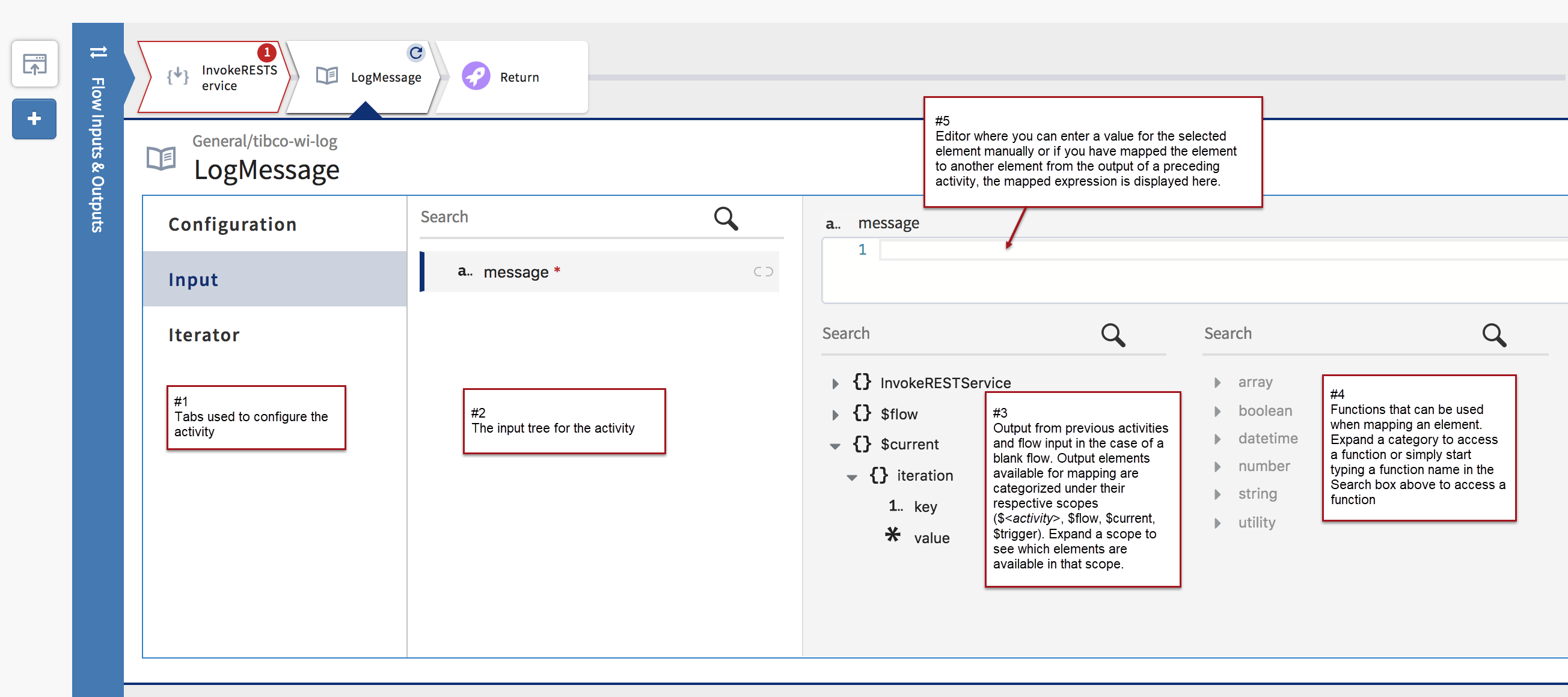
- The left most pane displays the tabs that you use to configure the activity. Clicking a tab opens the configuration area related to that tab.
- The pane next to the tabs pane displays the input tree for the elements in the current activity that can be mapped to the output of a preceding activity, trigger, or flow input.
- The third pane displays the flow input, or the output from preceding activities or the trigger. The output is organized in a tree format where each node represents a scope. One or more of the following scopes are displayed depending on the location of your activity within the flow:
- $trigger - This scope is limited to the trigger. The elements that you configure in the Input Settings, Output Settings or Reply Settings tab of the trigger are available for mapping only in the Input, Output, or Reply tabs respectively of the trigger
- $flow - In blank flows, the scope for $flow is limited to the elements that you enter as input fields to the flow. In the case of flows created with a trigger, if the trigger has any output, $flow will contain the output from the trigger.
- $activity[activity-name] - The output from each preceding activity will be displayed under its respective node.
-
$current
- The scope for this is limited to the Iterator in any activity. $current is displayed in the mapper only when you have enabled the iterator for that activity. Two elements are displayed under $current.iteration:
- key - This element represents the iteration index, hence it is always of type number. For example, if the iterator expression is set to an array, the key element will represent the array index of the current iteration.
- value - the value can be of any type depending on what is being iterated. For example, if you are iterating through an array of strings, the value will be of type string.
- $property - The application properties that are used in preceding activities are displayed under this scope. These properties are available when mapping an input field.
- Pane #4 displays the functions that are available for you to use when mapping an element. You can use these functions in conjunction with an output element. For example, string.concat(str1, str2) where you can replace str1 and str2 with either manually entered strings or string elements from an output tree displayed in the output pane of the Mapper(see #3 above).
- The editor pane allows you to either type in a value for the input element manually or if you have mapped an input element to the output of a previous activity, trigger, or flow input, the mapped expression is displayed in the editor. If the expression you entered or mapped is unsupported, you will see a validation error pop up when you hover your mouse over the expression.
- Literal values - Literal values can be strings or numeric values. These values can either be manually typed in or mapped to a value from the output of the trigger or a preceding activity in the same flow. To specify a string, enclose the string in double quotes. To specify a number, type the number into the text box for the field. Constants and literal values can also be used as input to functions and expressions.
- Direct mapping of a field in the Input tab to a field of the same type that appears in the output of the trigger or any previous activities in the flow
- Mapping using functions - The mapper provides commonly used functions that you can use in conjunction with the data to be mapped. The functions are categorized into groups. Click a function to use its output in your input data. When you use a function, placeholders are displayed for the function parameters. You click a placeholder parameter within the function, then click an element from the schema tree which replaces the placeholder. Functions are placed into the following categories:
- Expressions - You can enter an expression whose evaluated value will be mapped to the input field
- A single element from the input to another single element in the output array.
- An array of primitive data type to another array of primitive data type.
When mapping an array of primitive data type, you only need to map the array root. The array elements get automatically mapped.
- An array of non-primitive data types (object data type or array data type) to another array of the same non-primitive data type.
When mapping an array of non-primitive data type, you must first map the root array, then in addition map each element within the non-primitive data type individually too.
- For elements that are objects, mapping is supported at both the element (property) level and the root level. When mapping at the root level, you can manually enter a schema in the mapper. The element names and types of this schema must match the element name and type of the object you are mapping. You can either map at the element level or at the root level of the object but if you choose to map at the root level, you cannot override the mapping for a single element within the object.
- When configuring an object, you don't necessarily need to have a literal value for an element within the object. You can use an expression as the element value where the expression gets evaluated in the context during runtime.
See the Using the Mapper topic for detailed info on how to use the mapper.