Creating a View from a Cube
Studio provides a way to create views from multidimensional cubes. The Studio OLAP View editor lets you graphically design and display cube slices. Studio introspects and displays the available dimensions, measures, hierarchies, and members of a selected cube to allow graphical selection of the parameters that create basic SQL queries. Basic queries are converted into MDX to retrieve cube data into a table cursor for viewing and use.
After you have the OLAP cube data in a simplified table view, the data can be processed further by procedure, by triggers, or by inclusion of the OLAP View into other views to process or cache data that might be difficult to handle or slow to retrieve using direct queries to the SAP BW source.
The Info tab of an OLAP View reveals the full and formal resource name, type, owner, and lock information.
This topic includes:
Creating an OLAP View
The Studio OLAP View editor lets you graphically design and display cube slices. This editor effectively flattens a cube into a two-dimensional object that can be used by relational database tools.
To create an OLAP view
1. Make sure you have the SAP BW Data Adapter installed following the instructions in the TDV Installation and Upgrade Guide.
2. Create and introspect the SAP BW data source.
3. In the Studio resource tree, select a location, right-click, and choose New OLAP View.
4. Open an SAP BW data source and select the cube on which to base the view.
5. Name your new cube view and click OK to proceed.
Note: Uninitialized or unconfigured SAP BW cube resources return detailed error messages that might report various BAPI misconfiguration states. Studio introspection of misconfigured SAP BW cubes passes these data source configuration errors to the Studio user for review. The error messages should be forwarded to the SAP BW resource owner. Further configuration of the SAP BW cube might be necessary if that resource is to be used.
The OLAP View editor is opened and displayed in Studio. The TDV-defined resource name of the cube that you selected appears next to the Associated OLAP Cube label.
The Select tab displays available dimensions and measures of the associated OLAP view.
6. Select the Available Dimensions that you want in your flattened view and use the arrows to move them into the Selected Dimensions field.
Use restraint in the selection of dimensions. Every dimension in the SELECT is cross-joined, making it possible to return millions of cells and cause excessive memory usage in shared libraries. For example, SELECT * is not recommended on SAP BW resources.
7. Select the Available Measures that you want in your flattened view and use the arrows to move them into the Selected Measures field.
Both dimensions and rows appear as table columns, with dimensions displayed, followed by measures.
8. Execute the query created by your selections by clicking the Execute button. The first 50 rows of results appear.
9. (Optional) Change the order in which the selected dimensions and measures are requested from the data source using the up- and down-arrows.
The results of query execution shown in the Result tab persist even after other changes are made to selections.
10. Execute the query again to see the most recent changes.
11. Save the view to make changes permanent.
Creating Filter Conditions on an OLAP View
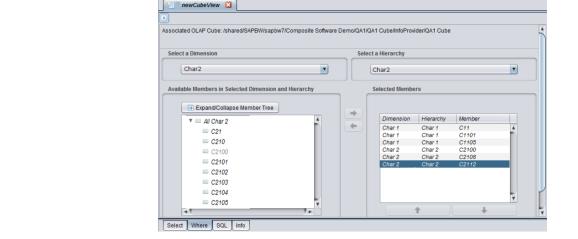
Filter conditions for an OLAP view created from an SAP BW cube can be set using the Where tab that is part of the OLAP View editor. You can use filters to restrict the result set to cross-linked dimensional rows that match the selected dimension hierarchy members.
Member selection creates a WHERE filter condition, and all returned rows must have members equal to the selections. All additional selected members add a filter by means of an AND in the WHERE clause. All rows returned by multiple selected member filters must satisfy all filter conditions.
To set filter conditions on an OLAP view
1. Open a view that you have created from an SAP BW cube.
2. Select the Where tab.
The Where tab displays the available dimensions in the associated OLAP view.
3. Select a dimension and/or a hierarchy from the list.
In SAP BW cube views, selecting a dimension displays its hierarchy levels.
4. Use the Expand/Collapse Member Tree button to query the cube for available members.
For very large cubes, the round-trip to the data source can take more than a minute.
5. Select a member by clicking it and moving it to the Selected Members field.
Member selection creates a WHERE filter condition, and all returned rows must have members equal to the selections. All additional selected members add a filter by means of an AND in the WHERE clause. All rows returned by multiple selected member filters must satisfy all filter conditions.
6. Save the OLAP View.
If the resource indicates it is impacted, some unconfigured state or error has occurred, in which case you should check your View.
Selecting dimensions, measures, hierarchies, and members immediately generates the SQL associated with such selections.
Using the OLAP View Editor SQL Tab
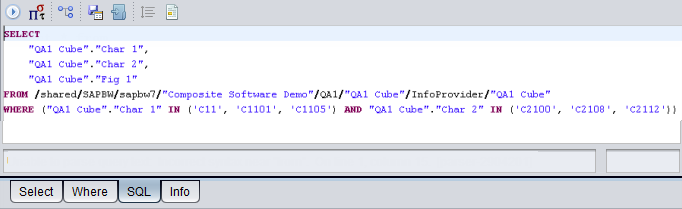
The SQL tab of the OLAP View editor displays the SQL that will be run against the SAP BW data source to retrieve data. You can use the tab to review how selections on the other editor tabs have been interpreted and you can use the tab to edit the SQL query directly.
To use the SQL tab
1. Open a view that you have created from an SAP BW cube.
2. Select the SQL tab.
3. Inspect the SQL generated by your selections at any time by opening the SQL tab.
4. Edit the SQL displayed in the SQL tab.
Note: Directly editing the SQL disables the Select and Where tabs of the OLAP View editor.