Adding Email Messages to a Process Flow
Before you create email messages for a process flow, you must complete or verify your email notification setup in the WebFOCUS Reporting Server browser interface. For details about accessing the E-Mail Notification tab and configuring SMTP services, see Configuring ibi WebFOCUS Reporting Server Operations.
Once SMTP services are properly configured, you can construct your messages within the process flow. You can include email messages at any point in the flow.
Add an Email Object to the Process Flow
- Procedure
- On the Flow tab, in the Insert group, drag the E-Mail icon from the ribbon into the process flow workspace.
- Double-click
the E-mail object to open the Properties
pane, as shown in the following image.
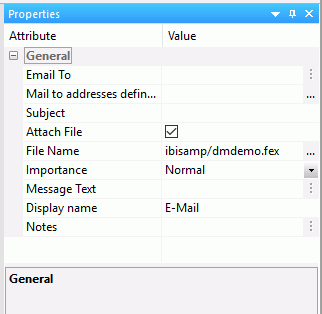
- In the Email To box, type the email addresses of one or more recipients. Separate multiple addresses with semi-colons (;).
- In the
Subject box, type a subject.
Note: Optionally, select a file to attach. Files of any type can be attached to the email object.
- Optionally, select the Attach File checkbox to add an attachment. Once selected, a File Name box becomes available. Here, you can either type in the file name, or use the ellipses button to browse for the file. Any file type or extension is supported.
- In the Message Text box, type your message.
- Close the pane.
- Click the Save button to update the process flow.
Note: You
can also add email properties from the WebFOCUS Reporting Server browser interface.