Scheduling a Process Flow
ibi Data Migrator provides several ways to run data and process flows. In addition to running flows immediately, you can use the ibi Data Migrator internal scheduler to run requests off-hours, on a recurring basis, or on specified days of the week or month.
Alternatively, you can schedule or run a flow from an application other than ibi Data Migrator. For details, see Event-Based Scheduling.
You can also disable a scheduler without removing the Schedule from the flow.
You can schedule a process flow to run in the following ways:
- Run Once. Runs your flow once.
- Recurring. Repeats your flow at an interval that you define.
- Multi-Day. Runs your flow on certain days of the month.
- Run when server starts. Runs your flow every time the Server starts.
When the scheduler checks, it runs all flows scheduled to run in the time since the scheduler last checked.
To access ibi Data Migrator Scheduler parameters:
- Expand the Workspace folder.
- Expand the Special Services and Listeners folder, right-click SCHEDULER, and click Properties.
For scheduled flows to run, the scheduler must be running. On the Scheduler Configuration dialog, the sched_autostart dropdown menu must be set to yes.
Schedule a Process Flow to Run Once
- Procedure
- Right-click
the Start object in the Process Flow tab
and click Properties.
The Properties pane opens.
- Select Active from the Schedule Status dropdown menu.
- Select Run Once from the Schedule Type dropdown menu.
- Select a start date in the Start Date field by typing the date in the month/day/year areas, or by clicking the down-arrow to open a calendar in which you can choose a date. The default is the current day.
- Select a start time in the Start Time field by typing values directly into the hour/minute/seconds/AM or PM areas, or by highlighting an area and using the Up and Down Arrow keys to select new values. The default is the current time.
- Close the pane.
- Click the Save button to update the process flow.
Schedule a Process Flow to Run On a Recurring Interval
- Procedure
- Right-click
the Start object in the Process Flow tab,
and click Properties.
The Properties pane opens.
- Select Active from the Schedule Status dropdown menu.
- Select Recurring from the Schedule Type dropdown menu.
- Select an interval type (such as daily or monthly) from the Interval Type dropdown menu.
- Specify an interval number in the Interval Value field to indicate the frequency of execution. For example, if you select Weekly as your Interval Type, and 2 as your Interval Value, the flow will be ran every two weeks.
- Select a start date in the Start Date field by typing the date in the month/day/year areas, or by clicking the down-arrow to open a calendar from which you can choose a date. The default is the current day.
- Select a start time in the Start Time field by typing values directly into the hour/minute/seconds/AM or PM areas, or by highlighting an area and using the Up and Down Arrow keys to select new values. The default is the current time.
- Optionally, select an end date and time by selecting the Specify End Date checkbox. Specify the end date by typing the date in the month/day/year areas, or by clicking the down-arrow to open a calendar from which you can choose a date. Specify the time by typing values directly into the hour/minute/seconds/AM or PM areas, or by highlighting an area and using the Up and Down Arrow keys to select new values.
- Optionally, specify special date and time ranges. You can configure the scheduler to run on specific days of the week or month, on the last day of the month, or specify the beginning and ending times of the daily time span.
- Close the pane.
- Click the Save button to update the process flow.
Schedule a Process Flow to Run at Multi-Day Intervals
- Procedure
- Right-click
the Start object in the Process Flow tab
and click Properties.
The Properties pane opens.
- Select Active from the Schedule Status dropdown menu.
- Select Multi-Day from the Schedule Type dropdown menu.
- Select a start date in the Start Date field by typing the date in the month/day/year areas, or by clicking the down-arrow to open a calendar from which you can choose a date. The default is the current day.
- Select a start time in the Start Time field by typing values directly into the hour/minute/seconds/AM or PM areas, or by highlighting an area and using the up and down arrows to select new values. The default is the current time.
- Optionally, select an end date and time by selecting the Specify End Date checkbox. Specify the end date by typing the date in the month/day/year areas, or by clicking the down-arrow to open a calendar from which you can choose a date. Specify the time by typing values directly into the hour/minute/seconds/AM or PM areas, or by highlighting an area and using the up and down arrows to select new values.
- Configure the scheduler to run on specific days of the week or month, on the last day of the month, or specify the beginning and ending times of the daily time span.
- Close the pane.
- Click the Save button to update the process flow.
Schedule a Process Flow to Run On Holidays
You can schedule a process flow to run or not run on holidays. The Holiday option is available when Recurring or Multi-Day are selected in the Schedule Type dropdown menu. For more information, see Specifying a Holiday File.
- Procedure
- Right-click the Start object
in the Process Flow tab and click Properties.
The Properties pane opens.
- Select Active from the Schedule Status dropdown menu.
- Select Recurring or Multi-Day from the Schedule Type dropdown menu.
- Select an option from the Run on Holidays dropdown menu.
The following options are available:
Skip
Excludes a run on desired holidays.
OnlyOnly run on desired holidays.
RunOnly available if the schedule type is set to Multi-Day. Runs on all holidays.
- Click the Save button to update the process flow.
To verify that the holiday schedule is set, in the navigation pane, expand the Workspacefolder. Then expand the Special Services and Listeners folder. Right-click SCHEDULER and click Scheduled Events. The Scheduler/Scheduler Events report should list scheduled flows by the holiday set date.
Schedule a Process Flow to Run When the Server Starts
You can schedule a process flow to run whenever the server is started. This option is useful that need to run all of the time, for example, when using Change Data Capture or File Listener capabilities.
- Procedure
- Right-click
the Start object in the Process Flow tab
and click Properties.
The Properties pane opens.
- Select Active from the Schedule Status dropdown menu.
- Select Run when server starts from the Schedule Type dropdown menu.
- Click the Save button to update the process flow.
Disable a Schedule Object
You can disable a the schedule of a flow from the Properties pane for a schedule.
- Procedure
- Right-click
the Start object in the Process Flow tab
and click Properties.
The Properties pane opens.
- Select Inactive from the Schedule Status dropdown menu.
- Close the pane.
Schedule Attribute Pane
To access the Schedule attribute pane shown in the following image, right-click the Start object and click Properties.

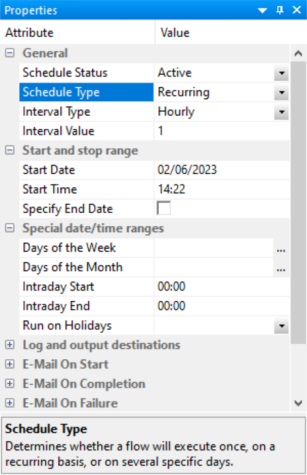
The Schedule attribute pane contains the following fields and options:
Determines if there is a schedule and if so, whether the schedule is active or inactive.
Determines whether a process flow will execute once, on a recurring basis, on several specific days (Multi-Day), or when the server starts.
Specifies the interval in which a process flow will be ran. For example, if you select Month as your Interval Type, and select 2 as your Interval Value, the flow will run every two months. This option is only available if the schedule type is set to Recurring.
Specifies the frequency at which a process flow will be ran. For example, if you select Week as your Interval Type, and select 2 as your Interval Value, the flow will run every two weeks. This option is only available if the schedule type is set to Recurring.
Specifies the start date for the execution of the process flow.
Specifies the start time for the execution of the process flow.
Allows you to specify an end time for the execution of the process flow. When selected, it forces the job to end the execution by the time specified in Stop Time. This option is available if the Schedule Type is set to Run Once or Multi-Day. This option is also available if the Schedule Type is set to Recurring and Interval Type is set to Daily, Weekly, Monthly, or Yearly.
Allows you to specify an end date and time for the execution of the process flow. This option is only available if the schedule type is set to Recurring or Multi-Day.
Specifies the end date for the execution of the process flow. This option is available if Specify End Date is selected.
Specifies the end time for the execution of the process flow. This option is available if Specify End Date is selected.
Specifies the day of the week on which the process flow will be ran. This option is only available if the schedule type is set to Recurring or Multi-Day.
Specifies the day of the month on which the process flow will be ran. This option is only available if the schedule type is set to Recurring or Multi-Day.
Specifies the beginning of the daily time span of the process flow. This option is only available if the schedule type is set to Recurring.
Specifies the end of the daily time span of the process flow. This option is only available if the schedule type is set to Recurring.
Specifies the option to run the process flow on desired holidays.
The following options are available:
- Skip. Excludes run on desired holidays.
- Only. Only run on desired holidays.
This option is only available if the schedule type is set to Recurring or Multi-Day.
This option controls where the log information from the Maintenance Job should be sent when the Job finishes.
The following options are available:
- ETLLOG. The log is sent to the ibi Data Migrator log.
- EDAPRINT. The log is sent to the Server log.
- E-Mail. The log is sent as an attachment to an email
message if specified in Job Properties.
Multiple options can be selected. The default values for this option are ETLLOG and E-Mail.
Note: If the job is run from the ibi Data Migrator desktop interface or WebFOCUS Reporting Server browser interface, information will go to the console log regardless of this setting. - Send HTML output as inline message. When selected, if any stored procedures called by the flow generate an output, the message is included as message text, instead of as an attachment. Note: This option for a flow schedule works in conjunction with the Merge formatted output into log option that is available for a Scheduler Special Service. The following considerations should be taken into account:
- When the Send HTML output as inline message and Merge formatted output into log options are selected, the submitted flow emails the attached ETLLOG file and the HTML output is embedded into the body of the email.
- When the Send HTML output as inline message and Merge formatted output into log options are not selected, the submitted flow emails the attached ETLLOG file and the HTML output is embedded into the attached ETLLOG file
Specifying a Holiday File
You can specify a list of dates that are designated as holidays in your company. These dates can be scheduled to be excluded, only included, or included to run with regular days in the process flow. To define a list of holidays, you must create a holiday file using a standard text editor and select the holiday file by issuing the SET command with the HDAY parameter.
- In a text editor, create a list
of dates designated as holidays using the following rules for creating
a holiday file:
- Dates must be in YYMD format.
- Dates must be in ascending order.
- Each date must be on its own line.
- You may include an optional description of the holiday, separated from the date by a space.
For example: 20160315 Ides of March
- Save the file into the dm\etc directory:
In Windows and UNIX, the file must be HDAYxxxx.err.
In z/OS, the file must be a member of ERRORS named HDAYxxxx, where xxxx is a string of text four characters long.
- From the navigation pane,
expand the Workspacefolder. Expand the Configuration
Files folder and right-click Server Profile - edasprof.prf. Click Edit and
type:
SET HDAY = xxxxwhere:
xxxxIs the part of the name of the holiday file after HDAY. This string must be four characters long. For example, if your file name is hdaymyh1.err, then the setting will be SET HDAY = myh1.
Note: Alternatively, instead of the server profile, the setting can be saved in the user profile for the scheduler as set in the sched_scan_id option. - Save the new Server Profile.
- Test that holiday is correctly set up by creating a sample hdayfile
synonym.
FILENAME=HDAYFILE, SUFFIX=FIX , DATASET=C:\ibi\
srv82srv90srv91srv92\dm\etc\hdaymyh1.err, $ SEGMENT=HDAYFILE, SEGTYPE=S0, $ FIELDNAME=HDAY_DATE, ALIAS=hddate, USAGE=YYMD, $ FIELDNAME=HDAY_DESC, ALIAS=hddesc, USAGE=A66, ACTUAL=A68, $Note: DATASET should be set to your appropriate directory path. - Run Sample Data for hdayfile synonym. An example of the sample
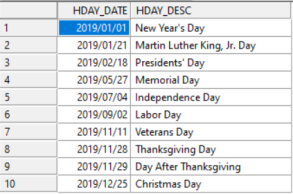
data is shown in the following image.