Synonym Editor Layout
The Synonym Editor occupies the ibi Data Migrator desktop interface workspace and displays the Field View, Segment View, List View, Modeling View, Text View, and Access File Text View tabs.
Synonym Editor - Field View Tab
The Field View tab shows a hierarchy of segments and columns on the left, with the attributes and values of the selected item on the right.
The image below is an example of an SQL data source with a key column selected.
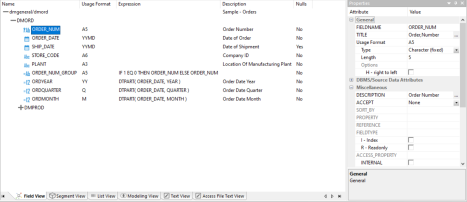
The following objects may appear on the Field View tab.
|
Object |
Function |
Description |
|---|---|---|
|
|
Synonym |
General icon used to indicate synonyms, visible on top of the Field View tab. It provides information about the file name used and the application it resides in. |
|
|
Segment |
Indicates a segment in a synonym. The root or parent segment appears first in the tree. |
|
|
Unique Segment (FOCUS/FDS and XFOCUS only) |
Indicates a unique segment in a FOCUS/FDS or XFOCUS synonym. |
|
Virtual Segment (Cross-Referenced) |
Indicates a virtual or cross-referenced segment. Note: This
type of segment is applicable for FOCUS data sources.
|
|
|
|
Key Column |
Indicates a key column. Note: The icon will vary based on the format of the column.
|
|
|
Column |
Indicates a general column. Note: The icon will vary based on the format of the column.
|
|
|
Virtual Column (DEFINE) |
Indicates a virtual or defined column. Note: The icon will vary based on the format of the column.
|
|
|
Index Column |
For FOCUS files, indicates the field index for quick retrieval of values for this field. |
|
|
Filter |
Indicates a filter in the synonym. |
|
|
Compute |
Indicates a computed field. |
|
|
Internal field |
Indicates a column that does not appear in sample data or in the list of available columns. |
|
|
Needs Value field |
Indicates a column that requires a value to access the data. |


Synonym Editor - Segment View Tab
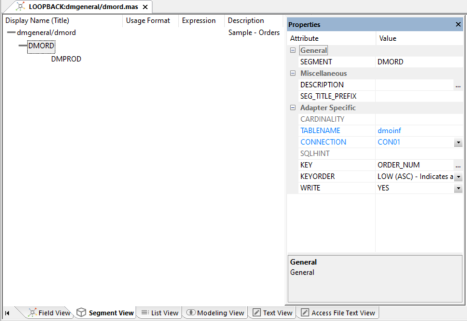
The Segment View tab shows a hierarchy of segments on the left, with the attributes and values of the selected item on the right, as seen in the following image.
Synonym Editor - List View Tab
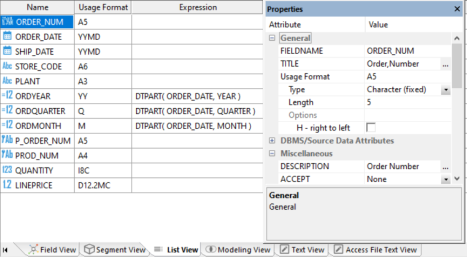
The List View tab shows a list of objects on the left, with the attributes and values of the selected item on the right, as shown in the following image.
Synonym Editor - Segment Shortcut Menu
When you right-click a segment in the Synonym Editor, the shortcut menu shown in the following image appears in both the Field View and Segment View tabs. This image shows a SQL data source with the root segment selected.
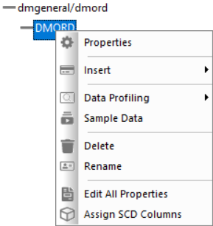
The following options are available:
Opens a pane showing the properties of the selected segment.
Enables you to insert one of the following:
The reference is a pointer to the source synonym using the synonym as a child. If you subsequently make changes to the source synonym, reopening the current synonym will reflect those changes.
The reference is a pointer to the source synonym using the synonym as a root. If you subsequently make changes to the source synonym, reopening the current synonym will reflect those changes.
Enables you to create and add a new synonym to the current synonym using the Create Synonym tool.
Adds a synonym that must be coded manually.
Adds a general column to the segment.
Adds a virtual or defined column to the segment.
Adds a filter to the segment.
Adds a calculated value to the file.
Adds a Sort Objects folder and a sort object. This option is available only if the Support extended options option is selected and is not used with ibi Data Migrator.
Adds a Variables folder and a variable to the segment.
Adds a Styles folder and a style object. This option is available only if the Support extended options option is selected and is not used with ibi Data Migrator. For more information, see Creating a Style Object.
Adds a subquery to the fields list.
Adds an Index folder and an index.
Provides the characteristics of the data for a segment. The following options are available:
Shows statistic values for the selected segment only.
Shows a count of the number of rows in the selected source table. For a multi-segment synonym, it shows the count for each segment.
Shows a count of the number of distinct rows in the selected source table. For a multi-segment synonym, it shows the count for each segment.
This option is available only when viewing a lower segment of a hierarchy (cluster join).
Allows you to select the columns that you would like to analyze as potential keys to the source table.
Shows the most frequent values and their percentages.
Shows identical values and their percentages.
Shows unique values and their percentages.
Displays sample data in the workspace for the selected segment or synonym.
Displays sample data for the selected segment joined to the parent segment. This option is only available when a child segment is selected in a multi-segment synonym.
Deletes the segment.
Allows you to rename the segment.
Allows you to edit adapter specific properties, such as the delimiter value in a delimited file.
Allows you to assign columns to a SCD type by using drag-and-drop.
Opens the Join Editor so that you can specify how the selected segment is joined to the parent segment. This option is only available when a child segment is selected in a multi-segment synonym.
Synonym Editor - Column/Field Shortcut Menu
When you right-click a column in the Synonym Editor, a shortcut menu appears in both the Field View and List View tabs. The following image shows a SQL data source with a column selected.
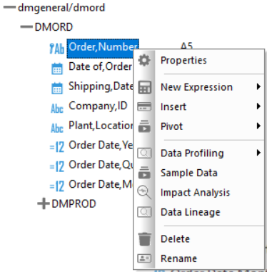
The following options are available:
Opens a pane showing the properties of the selected column.
Displays a shortcut menu with a list of function types that expands to show a list of available functions that can be added to the synonym. Selecting one of the functions opens the Function Assist dialog, which allows you to specify parameters for that function. The functions shown will vary and are dependent on the data type originally selected.
Enables you to insert one of the following:
Adds a general column to the synonym.
Inserts a Date/Time function.
Adds a filter to the segment.
Adds a Group column to the synonym.
Adds a Variables folder, if needed, and a variable.
Provides a choice of preconfigured aggregation functions that open in the Function Assist dialog. The selected functions will be saved in the Constant Defines/Computes folder for the synonym.
Provides a choice of preconfigured analytic functions that open in the Function Assist dialog. The selected functions will be saved in the Constant Defines/Computes folder for the synonym.
Adds a Sort Objects folder and a sort object.
Adds a Styles folder and a style object. For more information, see Creating a Style Object.
Adds a subquery to the fields list.
The following available:
Allows you to turn, or pivot, columns into rows or a single column into multiple columns, for retrieval.
Allows you to transpose, or flatten, a single column into multiple columns for retrieval. This option is only available when a character column or field is selected.
Displays an Impact Analysis report for the particular column in the workspace. An Impact Analysis report identifies the procedures that access a Master File or field within a Master File.
Provides the ability to see how the column was derived.
Provides the characteristics of the data for a column. For more information, see Viewing Data Profiling Characteristics.
Shows statistic values for the selected segment only.
Allows you to select the columns that you would like to analyze as potential keys to the source table.
Shows a values report for the selected column.
Displays a values graph for both alpha and numeric field types.
Displays a pie graph.
Shows a report of distinct values for the selected column.
Displays a graph of distinct values for numeric field types.
Displays a pie graph of distinct values for the selected column.
Displays a distribution chart for the selected column.
Shows identical values and their percentages.
Shows unique values and their percentages.
Shows outlier report for the selected column.
Shows hexadecimal value of the selected field.
Displays sample data in the workspace.
Deletes the column.
Allows you to rename the column.
For a date or date-time field, opens a dialog for selecting the date components that should be defined as virtual fields.
Synonym Editor - Modeling View Tab
The Modeling View tab shows a graphical representation of the synonym, as shown in the following image. Use the Modeling View to define dimensions for OLAP analysis, view join properties, create cluster joins, and add or edit segments.

Synonym Editor - Text View Tab
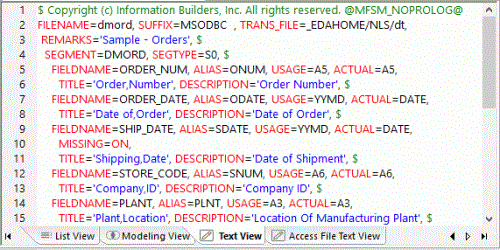
The Text View tab shows the description of the underlying table.
You can print the synonym syntax by selecting Print from the Application menu.
The image below is an example of an MS SQL Server data source in the Text View tab.
Synonym Editor - Access File Text View Tab
The Access File Text View tab shows the description of the Access File for a synonym, which is used to access the database.
The image below is an example of an SQL data source in the Access File Text View tab.

Metadata Tab
The Metadata tab in the ribbon contains groups and commands that provide quick access to commonly performed functions while working in the Synonym Editor. The behavior of the command is determined by the selected object. Therefore, certain tab commands may be inactive.
The Metadata tab contains the following additional groups:
Switches to the Field View in the workspace.
Switches to the Segment View in the workspace.
Switches to the List View in the workspace.
Switches to the Modeling View in the workspace.
Switches to the Text View in the workspace.
Switches to the Access File Text View in the workspace.
Opens the Aerial View window. This view is only available when in the Modeling View tab.
The Insert command allows you to insert one of the following:
- Reference to Existing Synonym as Child
- Reference to Existing Synonym as Root
- Copy of Existing Synonym
- Segment via Metadata Import
- Segment Manually
- Define
- Compute
- DBA
- Field
- Filter
- Group
- Variable
Enables you to view and refresh sample data for the object.
Provides the data characteristics for synonym columns. The following options are available:
- Statistics
- Count
- Row Count
- Key Analysis
Runs the impact analysis report for the selected column.
Displays the Properties panel for the selected object.
This option is only available when the synonym name (root) is selected. For more information, see Creating a Quick Copy.
Adds field/value security DBA.
Enables you to create a Business View and a custom Master File that can use selected fields from the original synonym. In addition, you can customize field names, titles, and descriptions.