Generating a Surrogate Key Using Slowly Changing Dimensions
ibi Data Migrator includes support for automatically generating surrogate keys when used in a dimension table. This support is only available for relational databases and cannot be used with FOCUS or fixed format file targets.
For details about Slowly Changing Dimension support, see Target Properties Pane for Relational Targets.
Refer to the sample data flow DMSURSCD for the complete example.
Generating a Surrogate Key Using Slowly Changing Dimensions in a Data Flow
In the ibi Data Migrator desktop interface:
- On the Home tab, in the Tools group, click Options, and then select Column Management in the Options dialog.
- Expand the Business View Editor folder and select SCD Type to display it on the column grid. Click OK.
- Right-click
an application directory in the navigation pane, select New,
and then click Flow.
The Data Flow tab opens in the right pane, with the SQL object displayed.
- Drag the data source object DMSALE from the ibisamp application directory in the navigation pane into the workspace, to the left of the SQL object.
- Right-click
the SQL object and click Column Selection.
The Column Selection dialog opens.
- Select EMPID, PLANT, and SALESREP in the Available Columns list and click the arrow to add them to the Selected Columns list. Click OK.
- Drag the data target object DMREPS from the ibisamp application directory into the workspace, to the right of the SQL object.
- Right-click
the target object DMREPS and click Properties.
The Properties dialog opens.
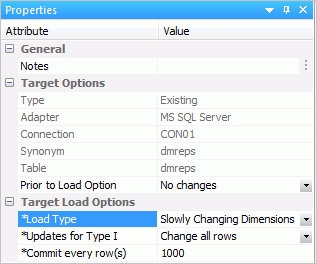
- If the DMSURRG flow has been run previously, clear the target using the Prior to Load Option by selecting Delete all rows from table or Truncate Table.
- To enable Slowly
Changing Dimension support, for Load Options, select Slowly
Changing Dimensions, as shown in the following image.
- Right-click
the target object and click Target Transformations.
The Transformations dialog opens.
- Click the Automap button
to map EMPID and PLANT.
This moves them to the Expressions list.
To map FNAME and LNAME, use substring to extract the necessary characters from the SALESREP source column, of which the first 16 characters are first name and the next 34 characters are last name.
- Double-click FNAME and LNAME in the target columns list. This moves the columns to the Expressions list.
- Double-click
the Transform Expression field for FNAME
and type the following expression:
SUBSTR (50, SALESREP, 1, 16, 16, 'A16')
- Click OK.
- Double-click
the Transform Expression field for LNAME
and type the following expression:
SUBSTR (50, SALESREP, 17, 50, 34, 'A34')
Note: While the creation of a surrogate key does not require the use of the SUBSTR function, it is a useful routine that can be used in a number of different situations.Click OK.
- To map STATE, double-click STATE in the Target Columns list. This moves the column to the Expressions list.
- Double-click
the Transform Expression field for STATE
and type the following:
DECODE PLANT (BOS MA DAL TX LA CA ORL FL SEA WA STL MO)
This converts a three-character city name to its two-character state code.
When you have completed the transformations, the Transformations dialog should appear, as shown in the following image.
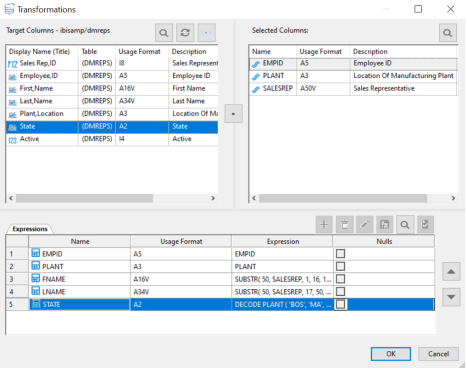
The target table DMREPS has been created with slowly changing dimension attributes assigned for each of its columns. Since REPNO is a key column and the type is blank, it becomes the surrogate key and no transformation is required. The values for ACTIVE are also automatically generated when the data flow is run.
- Test the transformations by clicking the Test transforms button. Click Close.
- Click OK to close the Transformations dialog.
- Save the data flow as DMXSURSCD.
- In the Flow tab, in the Run group, click Run, and then select Run from the dropdown menu.
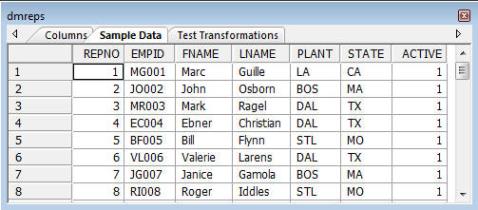
When the data flow run is complete, verify that the target was loaded properly and that the surrogate key was generated by right-clicking the DMREPS object and selecting Expand, and then Sample Data.
Note that the REPNO surrogate key values are assigned sequentially. However since PLANT and STATE are defined as SCD Type II, an employee is assigned a new surrogate key if the plant they are associated with changes. The ACTIVE flag is set to 1 for their current plant. The following image shows the DMREPS with the Sample Data tab selected.
There are two ways to confirm that the job ran correctly:
On the Flow tab, in the Reports group, click View Last Log.
Or
Right-click the flow from the navigation pane, select Logs, and then click Last Log.