Using Lookups to Create Multi-Table Flows Without Joins
ibi Data Migrator now allows you to build a single data flow that performs lookups into multiple tables using the DB_LOOKUP function without requiring explicit joins.
In the following example, DMORD is the primary source containing orders data, while DMCOMP and DMINV are the lookup sources. While DMORD contains store codes and product numbers, DMCOMP contains the store names for those store codes, and DMINV contains the product names for each product code.
Refer to the sample data flow DMLKUPS for the complete example.
For more information on improving lookup performance, see Improving Lookup Performance.
Creating a Data Flow Using Lookups
This example uses the DB_LOOKUP function to create two target transformations.
- In the ibi Data Migrator desktop interface,
right-click an application directory in the navigation pane, point to New,
and then click Flow.
The Data Flow tab opens in the workspace, with the SQL object displayed.
- Drag the data source object DMORD from the ibisamp application directory in the navigation pane into the workspace, to the left of the SQL object.
- Double-click the SQL object to open the Column Selection dialog.
- Select the Company,ID (STORE_CODE) and Product,Number (PROD_NUM) columns and click the double arrows button to add them to the Selected Columns section.
- Select Group By from the Aggregate dropdown menu for both columns.
- Select the QUANTITY and Line,Total (LINEPRICE) columns and click the double arrows button to add them to the Selected Columns.
- Select Sum from the Aggregate dropdown menu for these two columns.
- Click OK to close the Column Selection dialog.
- Right-click the workspace to the right of the SQL object, point to Add Target,
and then click Existing.
The Select Synonym dialog opens.
- Select the ibisamp directory.
Select the dmstores synonym and click the Select button.
- Double-click
the dmstores target object or right-click
it and click Target Transformations.
The Transformations window opens.
- Click the Automap button to map the identically named columns.
- Double-click STORENAME to add it to the
transformation list, then click the calculator button.
The Transformation Calculator opens.
- Click the Functions tab,
expand the Data Source and Decoding folder,
and double-click the DB_LOOKUP function.
The prototype for DB_LOOKUP appears in the Expression window and the Lookup dialog opens.
- Select a synonym
to use for the lookup by clicking the ellipsis button after
the Lookup Synonym field.
The Select Synonym dialog opens.
- Select the DMCOMP synonym and click Select.
-
When you have selected the columns, the Lookup window should appear, as shown in the following image.
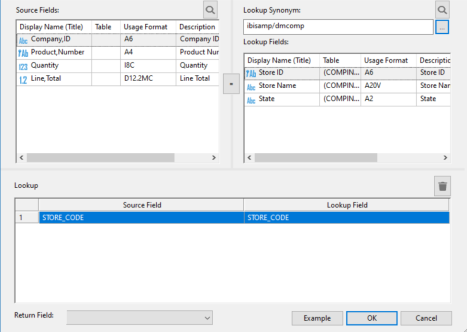
- For Return Field, select Store Name.
- Click OK to close the Lookup window.
- Click OK.
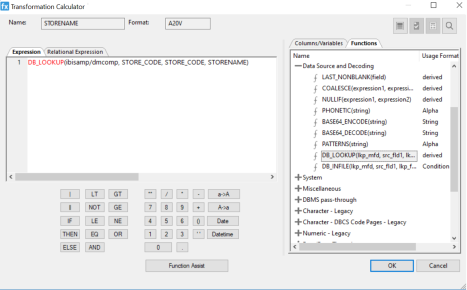
The expression is completed in the Transformation Calculator window.
The Transformation Calculator should now appear, as shown in the following image.
- Click OK.
The STORENAME source transformation is added to the Transformations dialog.
- Repeat the
process to add another lookup, using the parameters listed
and described in the following table.
Parameter
Column Name
Lookup Synonym
DMINV
Source Column
PROD_NUM
Lookup Column
PROD_NUM
Return Value
PRODNAME
- Click OK to close the Source Transformations dialog.
- Save the data flow as DMXLKUPS.
- On the Flow tab, in the Run group, click Run, and then select Run from the dropdown menu.
When the data flow run is complete, verify that the data was loaded properly by right-clicking the DMSTORES object, selecting Expand, and clicking the Sample Data tab.
- The first four rows have a blank store name because the DMORD table contains store codes that do not exist in DMCOMP.
- Your output may vary depending on your database.