Configuring the Adapter for PeopleSoft
In order to configure PeopleSoft, you must create and register the PeopleSoft application (SNAPCAT) in the catalog path, add the underlying SQL adapter, add the first PeopleSoft connection, and, optionally, configure a JSCOM3 listener to ensure password authentication for PeopleSoft 8 and higher.
Creating the SNAPCAT Application
Before you can configure the PeopleSoft adapter, the SNAPCAT application must be created and added to the application path of the server. This can be done through the WebFOCUS Reporting Server browser interface.
Create the SNAPCAT Application
- Procedure
- From the WebFOCUS Reporting Server browser interface menu bar, select Applications.
- Right-click
the Application Directories folder and select New, Application
Directory.
The Create New Application window opens, as shown in the following image.
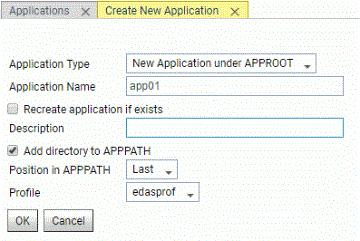
- Change the Application Name to snapcat. Make sure it is all in lowercase.
- Click OK.
Adding the SQL Database Adapter
The Adapter for PeopleSoft is an enhanced version of the underlying data source adapter. The adapter must be added into the server configuration.
When you add an SQL adapter, there is no need to provide configuration parameters since these connection parameters are stored in the server profile, which is accessible at all times to any user or application connecting to the server.
For most applications, the data access is then secured through procedure logic and operating system security. With PeopleSoft, this is not possible as there may be very large numbers of users who do not have operating system login IDs. Instead, these configuration parameters are supplied later when configuring connections to PeopleSoft data sources.
As a recommended practice when adding the new adapter, you may initially supply the configuration parameters, test data source connectivity, and then delete the connection statement in the server profile. While not required, when you attempt to create a connection to the PeopleSoft data source, this process may save significant time.
Configuring an Adapter
- Procedure
- From the WebFOCUS Reporting Server browser interface Applications page, click Get Data.
- In the WebFOCUS Reporting Server browser interface, click the (+) button, and find the adapter on the page or, in the ibi Data Migrator desktop interface, exapnd the Available folder if it is not already expanded.
- In the ibi Data Migrator desktop interface, expand the appropriate group folder and the specific adapter folder. The group folder is described in the connection attributes reference.
- Right-click
the adapter name and/or version and select
Configure.
The Add Adapter to Configuration pane opens.
- Enter values for the parameters required by the adapter, as described in the chapter for the specific adapter you want to configure.
- Click
Configure. The configured adapter is added to the
Configured list in the
WebFOCUS Reporting Server browser interface or in the Adapters
list in the ibi Data Migrator desktop interface resources tree.
In the WebFOCUS Reporting Server browser interface, the adapter remains on the Available Adapters list with an asterisk to indicate that at least one connection has been configured. You can configure additional connections from either the Configured or Available list by right-clicking the adapter and clicking Add Connection.
Configuring PeopleSoft Password Authentication
To leverage integrated authentication against PeopleSoft, a JSCOM3 listener must be configured using the WebFOCUS Reporting Server browser interface. When completed, all user requests will pass calls to the PeopleSoft Component Interface architecture for authentication. If the configuration is either not using PeopleSoft or the connections are to be configured with TRUSTED authentication, then this step is not necessary.
Before configuring JSCOM3, the following conditions must be met:
- Ensure that the Publish and Subscribe services are running on the PeopleSoft Application Server. By turning these on, the jolt listener becomes active. Usually, these services are used for application messaging integration requirements, but the Adapter for PeopleSoft uses the same technology for authentication. No particular component interface must be accessible for the user to authenticate.
- Several API files
delivered with PeopleSoft must be made available to the WebFOCUS Reporting Server
directory. These files are located in the PeopleSoft file server
libraries in the following locations:
[PeopleSoft file server]\web\PSJOA\psjoa.jar
If the WebFOCUS Reporting Server is installed on the same computer as your PeopleSoft Application Server, then you may configure JSCOM3 to point directly to the files. Otherwise, the files must be copied to the computer with the WebFOCUS Reporting Server. In this situation, it is recommended (but not required) that they be placed in your EDACONF\bin directory.
Configure the JSCOM3 Listener
To configure the JSCOM3 listener:
- Procedure
- From the WebFOCUS Reporting Server browser interface menu bar, select Workspace.
- From the navigation pane, expand the Java Services folder.
- Right-click DEFAULT,
and select Properties.
The Java Services Configuration pane opens.
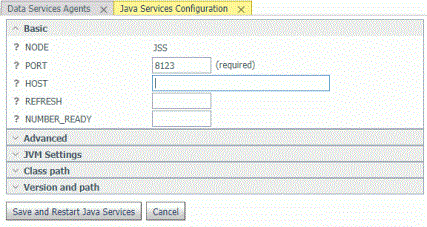
- Expand the Class
path arrow.
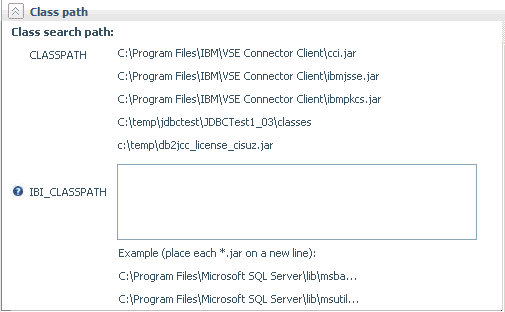
- Type the location of the psjoa.jar file in the IBI_CLASSPATH field, including the file name, for example, C:\Program Files\PeopleSoft\lib\psjoa.jar
Adding the First Connection to PeopleSoft
Although multiple PeopleSoft connections can be created, the first connection requires slightly different management steps. The reason for this is that before any connections to PeopleSoft data sources can occur, a base layer of application metadata is created and configured. This occurs transparently for the Administrator, but is a slightly different connection management process than when adding additional connections.
To create the first connection:
- Select and type a
DBA password.
The DBA password is the value that is used as a metadata access key. To access the WebFOCUS Reporting Server browser interface, the administrator must know this value. Users outside of the WebFOCUS Reporting Server browser interface do not have metadata access without first logging in to PeopleSoft through this integration.
- Add a PeopleSoft Connection.
Add the First PeopleSoft Connection
- Procedure
- Open the WebFOCUS Reporting Server browser interface.
- From WebFOCUS Reporting Server browser interface menu bar, click Adapters.
- Expand the Available folder, if it is not already expanded.
- Expand the ERP group folder.
- Right-click Peoplesoft, and select Configure.
- Click Configure.
- Click Next.
The Administration - Create a DBA Password window opens.
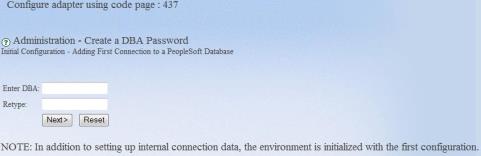
- In the Enter
DBA and Retype fields, specify a DBA of up to eight
characters, then click Next.
The Administration - Create a New PeopleSoft Connection window opens.
- Type the
necessary information, test the connection, and if successful, click Configure.
If not successful, edit the information until the test is successful,
then click Configure. For more information, see
step 5 in Add a PeopleSoft Data Source Instance.
Note: The Configure button becomes available once the connection test to the selected RDBMS is successful.
- Once the configuration finishes, click Next.
Most of the parameters can be changed in the future, but the connection cannot be created without initially supplying correct data source connectivity information. For details on the required information, see Administration - Create a New PeopleSoft Connection Window.
Tip: A worksheet is provided to assist you in gathering the information you will need to type on this screen. For details, see PeopleSoft Connection Worksheet.Processing may take several minutes to complete. Once completed, you may begin managing your new PeopleSoft Connection by adding synonyms and administering security access.
Administration - Create a New PeopleSoft Connection Window
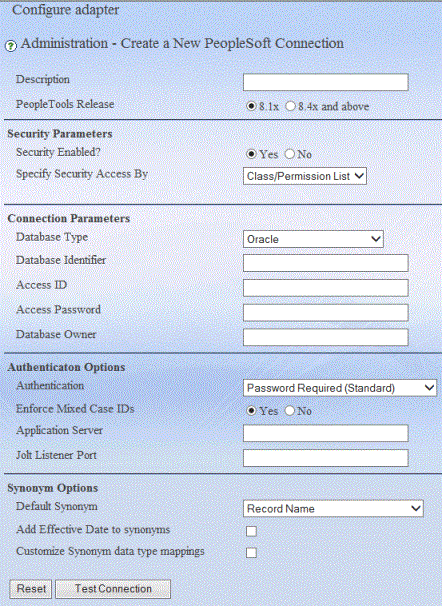
The Administration - Create a New PeopleSoft Connection window contains the following fields/options:
Is a description that identifies the current server configuration.
Is the major PeopleSoft PeopleTools release number to access.
Security Parameters
Determines whether to enforce PeopleSoft data access security. The options are Yes and No. Yes is the default value.
Determines the way in which the PeopleSoft administrator enables users to access the adapter and PeopleSoft data. The options are:
- Class/Permission List. Manages users in operating class (permission list) grouping.
- User/Operation ID. Manages users by individual user IDs.
Connection Parameters
Is the Data source type. The options are: Oracle, MS SQL Server, and Db2 Universal Database.
Is the data source identifier or system data source name.
If the server is co-located with the data residing in Oracle, do not type anything in the Database Identifier field.
Name of the Database Server (for SQL Server only, not Oracle or Db2). If the instance of SQL Server you are configuring for is not running with the default port number, then the following syntax should be used:
nnn.nnn.nnn.nnn\instance_name, port
where
Is the IP address of the machine where SQL Server is running.
Is the name of the SQL Server instance.
Is the listening port of the SQL Server instance.
Is the RDBMS login ID for data source connectivity. Typically, it is the same login ID PeopleSoft uses to access the data source. There are minimum data access requirements that the ID must have. For details, see Setting Up the PeopleSoft Access ID.
Is a password associated with the access ID.
Is the data source owner identifier or the schema owner depending on your data source. The owner ID is used to fully qualify SQL requests passed to the data source. This allows multiple data source instances or schemas to exist in a single data source. Typical defaults are SYSADM on Oracle and dbo on Microsoft SQL Server.
Authentication Options
Determines the authentication used in your application. The options are:
- TRUSTED (Alternate Authentication). Expects a valid pre-authenticated PeopleSoft user ID to be passed to the server to enable data access. This is useful with LDAP, Operating System security, or some other application that authenticates the user.
- Password Required (Standard). Expects a valid user ID and password before allowing data access. This is the default and is recommended for most environments.
Determines whether passwords are case-sensitive. Select Yes to enforce the PeopleSoft 8 use of mixed case user IDs or select No to revert to PeopleSoft 7.x case insensitivity.
If Password Required (Standard) is selected, two additional input fields are displayed:
This is the IP address of the machine on which the JOLT Listener resides for the configured PeopleSoft environment.
Is the port number of the JOLT Listener.
Synonym Options
Is the type of synonym to default to when creating new metadata. The options are: Record Name, Record Name with Prefix, Record Name with Suffix, Table Name, Table Name with Prefix, Table Name with Suffix.
Enter the prefix or suffix you wish to prepend or append to the synonym name.
If this option is selected, additional field entries are added to any synonym created (or refreshed) after the configuration is saved. These new field entries provide the End Date of any row where an effective date field is part of the key. If an effective sequence is also part of the key, then the effective sequence field is also used in the calculation for the End Date field. In addition, filters are added to the synonym for the following:
- Current Record
and, if Effective Sequence field is present, the following filters are also added:
- First Effective Sequence
- Last Effective Sequence
- All Effective Sequences
These filters can be used in requests against the synonym and are available in the WebFOCUS reporting tool set.
To take advantage of this feature when migrating from an earlier release to release 7.7.02, first following the instructions in Migrating from 7.1x and 7.6.x to 7.7, then edit each connection that needs this functionality, select the new option, and save the configuration. All synonyms should now be refreshed to have the new fields/filters added to them.
This option will remove any masking fields from the row level security segment of the generated synonym. These fields are identified by having _MSK at the end of the field name. The masking field along with the masked field will not be present in the synonym if this option is checked. This is for version 9 Campus Solutions Customers who have implemented masking using SACR.
This option specifies how Long Character and CLOB data types in the PeopleSoft table should be reflected in the synonym.
Fixed Length - Any Long Character or CLOB will be converted to the Fixed Length value. In the following image, the synonym will have A500V for these two data types.

Native Length - Long Character fields will reflect the length as specified in the PeopleSoft table definition, CLOB will be converted to the Fixed Length value. In the following image, the synonym will have A500V for the CLOB data types.

Length - This is the length that will be used for both Long Character and CLOB fields if Fixed Length is selected.
CLOB Length - This is the length that will be used for all CLOB fields if Native Length is selected.
If this is a new connection configuration, all synonyms created after the configuration is saved will have these values. If an existing connection is being modified, synonyms will have to be refreshed to use these values.
PeopleSoft Connection Worksheet
Use the following worksheet to record connection configuration information and keep it for future reference.
|
Option Name |
Response |
Description |
|---|---|---|
|
Description |
|
Row. |
|
DBA |
|
8-character identifier for linking metadata to PeopleSoft security rules. Must be consistent across multiple connections. |
|
PeopleTools Release |
|
Major release of PeopleTools (8.1x, or 8.4x and above) |
|
Security Enabled? |
|
Specifies whether PeopleSoft data security (row-level and access group) is enforced. |
|
Specify Security Access By |
|
Specifies security access; by User (OPRID) or permission list (OPRCLASS). |
|
Database Type |
|
Designation for RDBMS. The options are Oracle, MS SQL Server, or Db2 Universal Database. |
|
Database Identifier |
|
Database System Identifier (SID) or Source Name used by the appropriate DBMS client software on the server. |
|
Server |
|
Name of the Database Server (for SQL Server only, not Oracle or Db2). If the instance of SQL Server you are configuring for is not running with the default port number, then the following syntax should be used: nnn.nnn.nnn.nnn\instance_name, port where nnn.nnn.nnn.nnn
Is the IP address of the machine where SQL Server is running. instance_name
Is the name of the SQL Server instance. port
Is the listening port of the SQL Server instance. |
|
Access ID |
|
ID used by PeopleSoft to connect to the RDBMS. |
|
Access Password |
|
Password associated with the access ID. |
|
Database Owner |
|
Data source owner ID for the PeopleSoft data source. |
|
Authentication |
|
Select Password to always verify the user ID/password. Select Trusted to accept only user ID. Trusted authentication is useful when deploying in previously authenticated environments, such as a Portal. |
|
Enforce Mixed Case IDs |
|
Provides backwards compatibility for sites that previously used a case-insensitive version of PeopleSoft. (Yes or No) |
|
Application Server |
|
This is the IP address of the machine on which the JOLT Listener resides for the configured PeopleSoft environment. |
|
JOLT Listener Port |
|
Is the port number of the JOLT Listener. |
|
Default Synonym |
|
The type of synonym to default to when creating new metadata.
Note: If you specify
any of the options with Prefix or Suffix, an additional input box
is displayed for your Prefix or Suffix entry.
|
|
Prefix/Suffix Default |
|
Enter the prefix or suffix you wish to prepend or append to the synonym name. |
|
Add Effective Date to synonyms |
|
If this option is selected, additional field entries are added to any synonym created (or refreshed) after the configuration is saved. These new field entries provide the End Date of any row where an effective date field is part of the key. If an effective sequence is also part of the key, then the effective sequence field is also used in the calculation for the End Date field. In addition, filters are added to the synonym which can be used in requests against the synonym and are available in the WebFOCUS reporting tool set. |
|
Add Remove Data Mask Field |
This option will remove any masking fields from the row level security segment of the generated synonym. These fields are identified by having _MSK at the end of the field name. The masking field along with the masked field will not be present in the synonym if this option is checked. This is for version 9 Campus Solutions Customers who have implemented masking using SACR. |