Configuring the Adapter for SAP
Configuring the Adapter for SAP consists of specifying connection and authentication information.
Configuring an Adapter
- Procedure
- From the WebFOCUS Reporting Server browser interface Applications page, click Get Data.
- In the WebFOCUS Reporting Server browser interface, click the (+) button, and find the adapter on the page or, in the ibi Data Migrator desktop interface, exapnd the Available folder if it is not already expanded.
- In the ibi Data Migrator desktop interface, expand the appropriate group folder and the specific adapter folder. The group folder is described in the connection attributes reference.
- Right-click
the adapter name and/or version and select
Configure.
The Add Adapter to Configuration pane opens.
- Enter values for the parameters required by the adapter, as described in the chapter for the specific adapter you want to configure.
- Click
Configure. The configured adapter is added to the
Configured list in the
WebFOCUS Reporting Server browser interface or in the Adapters
list in the ibi Data Migrator desktop interface resources tree.
In the WebFOCUS Reporting Server browser interface, the adapter remains on the Available Adapters list with an asterisk to indicate that at least one connection has been configured. You can configure additional connections from either the Configured or Available list by right-clicking the adapter and clicking Add Connection.
Connection Attributes for SAP
The SAP adapter is in the ERP group.
Right-click SAP on the Available Adapters page, and click a configuration option, such as SAP S/4HANA/NetWeaver 7.x Unicode, as shown in the following image.

The following list describes the connection attributes for which you can supply values. To complete the attribute declaration, click the Configure button.
User Authentication Parameters
The major work of the adapter is to translate user requests into code that can be understood by SAP. For this purpose, an SAP user ID, with a given set of privileges, is required. In the following list, this user ID is referred to as IBI_USER.
Name of the connection; maximum 12 characters.
Package Parameters
Function group where the Adapter for SAP static function modules can be cataloged. This is the function group created in Preparing the SAP Environment.
Reserved.
Reserved.
Connection Parameters
The Load Balancing checkbox determines which of the following options is exposed.
Name of the application group. An application group defines a list of application servers, on which an RFC application can be running. SAP transaction SMLG can be used to view or modify application groups.
Note that the entries are case-sensitive and blank spaces are significant.
Appears only when Load Balancing is checked.
Host name of the SAP system (message server).
Appears only when Load Balancing is checked.
System ID of the SAP system.
Appears only when Load Balancing is checked.
Host name of the SAP application server.
Host name of the machine where the SAP gateway process is running. In the case where there is only one SAP application server, gwhost and host is the same.
SAP system number. This is a two-digit numeric value. Obtain this value from the SAP Administrator.
For SAP ECC Unicode configurations, you can select a language that is different from the language you use when logging on to the server (as determined by your NLS configuration).
From the CONNECTION LANGUAGE drop-down list on the Add SAP ECC non Unicode to Configuration pane, select the language you wish to use to connect to SAP ECC.
- When the CONNECTION LANGUAGE option is used to specify a language other than the one used for logging in to the server, the Create Synonym Multilanguage option is not available.
- For this option to work, the codepage of the WebFOCUS Reporting Server must match the codepage of the SAP ECC server. For example, if the WebFOCUS Reporting Server is configured FOR codepage 942 (SJIS), the SAP server must be configured for codepage 8000.
- There is no way to check if the requested connection language can be used by either the WebFOCUS Reporting Server code page (either in terms of display or number of bytes) or the SAP ECC server.
Select a profile from the drop-down menu to indicate the level of profile in which to store the CONNECTION_ATTRIBUTES command. The global profile, edasprof.prf, is the default.
If you wish to create a new profile, either a user profile (user.prf) or a group profile if available on your platform (using the appropriate naming convention), choose New Profile from the drop-down menu and enter a name in the Profile Name field (the extension is added automatically).
Store the connection attributes in the server profile (edasprof).
General User Login Parameters
There are two methods by which a user can be authenticated when connecting to a database server:
- Explicit. The user ID and password are explicitly specified for each connection and passed to the database, at connection time, for authentication.
- Password Passthru. The user ID and password received from the client application are passed to the database, at connection time, for authentication.
SAP Client for the user logon, maximum 3 characters.
SAP user ID for the user logon.
SAP password for the user logon, maximum 8 characters.
Select the following checkboxes, as required to:
- Install Function Modules. This option assumes that you
have already completed the steps in Preparing the SAP Environment,
including creating a development class and Functions Group. To install
the function modules for the adapter, select this checkbox. Ordinarily,
function modules are installed only once. Reinstallation is required
only if significant changes are made in the SAP system or if the
Full-Function Server or the WebFOCUS Reporting Server is upgraded.
- Overwrite Existing (with the same fully qualified name). This option is displayed when you select Install Function Modules. Use it to ensure that newly installed function modules replace any older versions with the same name.
- Initialize Metadata. Before you create a SAP synonym, you must provide base metadata in the form of SAP synonym candidates. The Initialize Metadata option creates the base metadata for you. Ordinarily, you only need to initialize metadata once. The only reason to reinitialize metadata is if you reinstall the function modules.
SNC Security Mode
When SNC is checked, you must specify values for the following additional parameters:
SNC_LIB contains the path to the external security product library. The external security product's library, external library, SNC_LIB, or gssapi library contains the functions provided by the external security product certified by SAP.
Set the environment variable SNC_LIB to contain the path to the security product library:
<drive>:\path\to\your\snclib.dll
Is the external name of the SAP system. This is an extended version of the external name called the SNC name. You create the SNC name by providing a prefix with the external user name that designates the name type entered as follows:
<SNC-name_of_SAP_AppServer>
For example:
p/secude:CN=miller,
OU=ADMIN, O=SAP, C=DEp/krb5:miller@WDF.SAP-AG.DEIndicates the level of protection.
Indicates the SNC name of the initiator, as in own_snc_name.
Note about SNC with load-balancing. Load-balancing or "group-logon" dynamically retrieves the target SNC-Name from the message server. When using SNC with load balancing, you must specify the following additional parameters:
SNC_PARTNERNAME=p:unused
SNC_LIB=<drive>:\path\to\your\snclib.dll
Parameters for Mixed Character Code Sets
The following section applies only when the server platform and the SAP instance platform do not use the same character code set (ASCII or EBCDIC).
Configure the Adapter on IBM Systems Using EBCDIC Character Sets
To configure the adapter on IBM systems using the EBCDIC character set, the following code pages must be installed on the SAP server:
- In a z/OS environment, SAP code page 0126, or the correct code page for your language environment.
- For iSeries, SAP code page 0123, or the correct code page for your language environment.
- Procedure
- Create two conversion tables as described in SAP
BW Adapter Supporting Mixed Code Page Environments, and transfer the tables to the $EDACONF/etc
directory.
For example, if the Server environment uses the code page 1100, then two conversion tables, 11000126.CDP and 01261100.CDP, should be created and transferred to the $EDACONF/etc directory.
- The following
environment variables are required at run time, assuming your code
page is 0126:
export SAP_CODEPAGE=0126
export PATH_TO_CODEPAGE=$EDACONF/etc/
Note: Make sure to include the trailing "/" for the value of the PATH_TO_CODEPAGE parameter and export the variables SAP_CODEPAGE and PATH_TO_CODEPAGE.
Configure the Adapter for SAP ECC or SAP S/4HANA
- Procedure
- If the Adapter
for SAP ECC or SAP S/4HANA has not yet been configured, click New Datasource. Select the ERP group, right-click SAP, click a version of SAP, then click Configure.
The Add SAP to Configuration pane opens.
Tip: If the Adapter for SAP ECC or SAP S/4HANA has already been configured and appears in the list of Adapters in the navigation pane, you can customize the configuration by clicking the current system connection and choosing Properties. The Change Connection Parameters page opens, displaying the same parameters you would see on the Add to Configuration pane.
- To establish
the connection for the Adapter for SAP ECC or SAP S/4HANA enter values for the following configuration parameters.
SYSTEM
Enter a descriptive name of up to 12 characters to specify the connection to the SAP BW system.
HOSTEnter the host name of the server on the SAP BW system.
Important: This value, along with those for GWHOST and SYSNR, must match the corresponding values on the SAP GUI under System Entry Properties for SAP BW.GWHOSTEnter the host name of the server where the SAP gateway process is running (in this case, the SAP BW system).
SYSNRSAP system number. This is a two-digit numeric value.
- Click Configure.
You will see the message: Connection successfully added
to configuration, and you will be prompted to configure a connection by clicking Next.
The Add Connect Parameters for SAP page opens, as shown in the following image.

- Enter or select the following connection attributes, and click Configure.
Security
There are two methods by which a user can be authenticated when connecting to a database server:
- Explicit. The user ID and password are explicitly specified for each connection and passed to the database, at connection time, for authentication.
- Password Passthru. The user ID and password received from the client application are passed to the database, at connection time, for authentication.
ClientIs the SAP BW Client for the user logon.
UserIs the SAP BW authorization ID for the user logon.
PasswordIs the SAP BW password for the user logon.
Select profileSelect a profile from the drop-down menu to indicate the level of profile in which to store the CONNECTION_ATTRIBUTES command. The global profile, edasprof.prf, is the default.
You will be prompted to install the function modules, if they are not installed.
- Click Next.
The configured adapter and connection are added to the Configured Adapters list.
You can now click Test to verify the connection. If the connection between the SAP ECC or SAP S/4HANA adapter and the SAP BW environment has been established, sample data will be returned in the right pane. A positive result also verifies that the SAP BW Master Data tables you need will be accessible in the SAP BW environment.
You can now create a synonym for an SAP Table by right-clicking the connection and clicking Show DBMS objects, as shown in the following image.
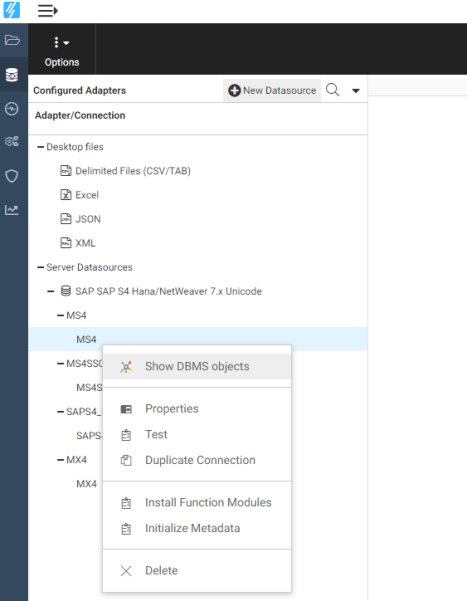
The Available Objects for SAP page opens. You can select the TABLE objects for which to create synonyms.
Continue to use the Adapter for SAP, following the standard procedure for creating a synonym against a TABLE object. (For details, see Creation Parameters for Table Synonyms.)
Controlling Connection Scope
The SET AUTODISCONNECT command controls the persistence of connections when using the adapter for each of the connections you want to establish. This setting enables you to control when the rfc api communications layer will be closed.
Control the Connection Scope
ENGINE SQLSAP SET AUTODISCONNECT ON {FIN|COMMAND|COMMIT}
where:
Indicates the adapter. You can omit this value if you previously issued the SET SQLENGINE command.
Disconnects automatically only after the session has been terminated. FIN is the default value.
Disconnects automatically after each request. Depending on how often the event occurs, the SET AUTODISCONNECT command may result in considerable overhead. Almost all of this overhead is not related to the server. It is related to the operating system and the data source.
Disconnects automatically only after COMMIT or ROLLBACK is issued as a native SQL command.
Controlling the Transmission of COMMIT Requests to SAP ECC
The AUTOCOMMIT command controls when a COMMIT request is sent to SAP ECC.
Control the Transmission of COMMIT Requests to SAP ECC
ENGINE SQLSAP SET AUTOCOMMIT ON {FIN|COMMAND}
where:
Indicates the adapter. You can omit this value if you previously issued the SET SQLENGINE command.
Sends the COMMIT request to SAP only after the session has been terminated.
Sends a COMMIT request to SAP each time the command is issued. COMMAND is the default value.
Installing and Verifying SAP Components
After declaring connection attributes for SAP, to complete the configuration you must install and verify the SAP components.
Install SAP Components
To install SAP components:
- Procedure
- Launch the WebFOCUS Reporting Server browser interface or ibi Data Migrator desktop interface.
- Access the list of configured adapters in the navigation pane.
- Expand the SAP folder, then click the system you created when you set up user authentication parameters. For details, see Connection Attributes for SAP.
- Select Properties from
the menu.
The Change SAP System Connect Parameters pane opens. The Install SAP Components button is located at the bottom of the pane.
- If you are
re-installing, first select
the Overwrite existing Function Group checkbox. A message warns that you are about to overwrite the function
group, along with the associated function modules.
If no error occurred, leave this box unchecked and proceed to step 6.
- Click Install SAP Components.
This process may take a few minutes.
A list of the function modules that have been installed is displayed.
- To confirm the installation, see Verify a Function Group.
Verify Installation of SAP Components
To confirm that all necessary function modules have been successfully installed, as described in Install SAP Components, complete the following steps:
- Procedure
- From SAP run transaction SE80.
- Select Function Group from the first drop-down list.
- Type the name of the Function Group you created when you declared connection attributes. For details, see Package Parameters in Connection Attributes for SAP.
- Click Display next
to the text box.
Folders named Function Modules and Includes should be under the Function Group name.
- Expand the
Function Modules and Includes folders to verify that the following
appears:
ZIBI_REP_CREATE
ZIBI_REP_GET_B_D
ZIBI_REP_ABORT_B
ZIBI_REP_DELETE
ZIBI_REP_RUN
ZIBI_TEST_REVERSE
ZIBI_DYNAMIC_RUN
ZIBI_GET_APPL_TREE
ZIBI_LDB_GET
ZIBI_SE80
ZIBI_REP_RUN_IN_B
ZIBI_REP_GET_B_S
ZIBI_DXOBJ_INFO
ZIBI_DD_FKEYS_GET
Note: Z*** represents the name of the Function Group. If the Development Class and Function Group name is ZIBI, then the Function Module name begins with ZIBI.